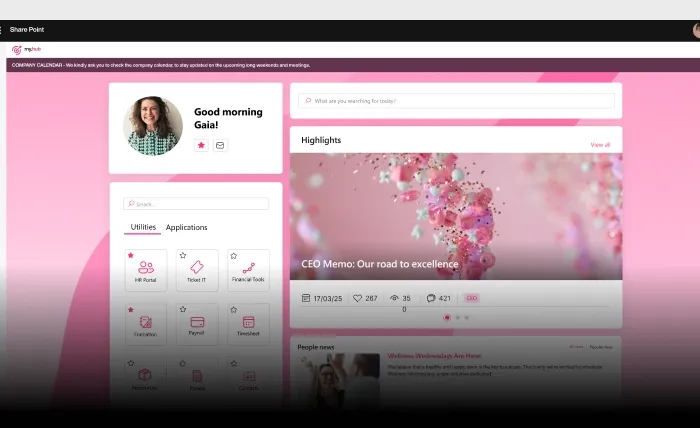
Graphic Buttons
Graphic Buttons for the SharePoint Online intranet: the benefits they offer
Simplify information sharing in the intranet.
Our web part makes internal communication more engaging, with interactive graphics that provide quick access to company initiatives and resources on the SharePoint intranet.
Graphic Buttons for the SharePoint Online intranet: the benefits they offer
Our component is designed to expand SharePoint's customization capabilities with interactive buttons. You'll be able to place them on any intranet page to enhance the corporate brand and provide colleagues with quick access to the most useful resources for their activities. By inserting links to pages, libraries, and any other SharePoint content, you can highlight the intranet's features and thus simplify its adoption.
Customize design
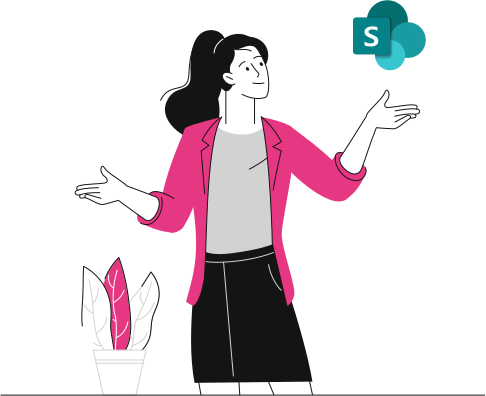
Simplify navigation
- Pages for participating in events and initiatives
- Areas to access corporate services
- SharePoint lists and libraries
- Documents
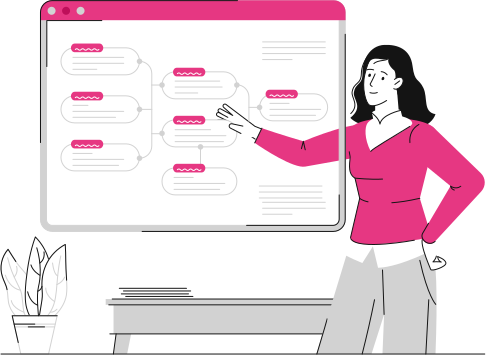
New information, with interactive graphics
- Institutional websites
- Industry blogs
- Applications
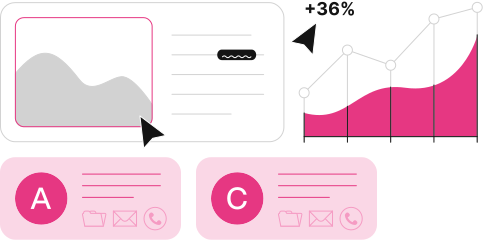
Simple configuration

Configure each button to fit your intranet
Every Graphic Button is driven by a SharePoint list, so editors manage content without touching code. Each entry has mandatory Title, Order, and URL fields, plus optional Subtitle, short description, and a visibility checkbox to publish or hide buttons. You choose a card size of small, medium, or large, set the title position to top or bottom, and pick a title color using standard HTML color names to match your brand.
Control layout, links, and engagement
View settings let you show or hide the web part background, title, and shadow, with High Contrast, Light, or Dark shadow styles. You decide whether links open in the same tab or a new one, pointing to internal or external URLs. Display settings enable scrolling with an adjustable web part height in pixels, while hover effects and entrance animations draw attention. The entrance animation can be disabled when a simpler look is preferred.
Documentation
Explore the technical guide for this feature on our documentation site.
Frequently asked questions
How are Graphic Buttons managed in SharePoint?
Graphic Buttons read their content from a SharePoint list set as the data source. In the General settings you specify the site URL where the list is located and select the Graphic buttons list. Editors then add or update entries directly in that list, controlling each button's title, order, link, and appearance without any custom development.
What can I customize on each button?
Each button supports a Title, Order, and URL as mandatory fields, plus optional Subtitle, short description, and an uploaded image. You can set the card size to small, medium, or large, position the title at the top or bottom, and apply a title color using standard HTML color names. A visibility checkbox lets you publish or hide individual buttons.
Can Graphic Buttons link to external resources?
Yes. Each button's URL can point to internal SharePoint content such as pages, lists, libraries, and documents, or to external resources like institutional websites, industry blogs, and applications. You can also choose whether the link opens in the same tab or a new tab, which by default is set to No.
Do Graphic Buttons include animations and visual effects?
Yes. The web part adds hover effects and an entrance animation to increase engagement, and the entrance animation can be disabled if you prefer a static layout. View settings also let you show or hide the background, title, and shadow, choosing a High Contrast, Light, or Dark shadow style to suit your intranet design.
Related features
The complete SharePoint intranet integrated with Microsoft 365, starting from 3,950 €/year.
- 80+ apps for communication, training, and knowledge sharing
- Compatible with Microsoft 365 and Microsoft Viva
- Operational within 24 hours from purchase, with 5 days of consulting