Key Initiatives
SharePoint Key Initiatives: the benefits they offer
Promote key content in the intranet.
A complete overview of company initiatives, all in one space within the SharePoint intranet.
SharePoint Key Initiatives: the benefits they offer
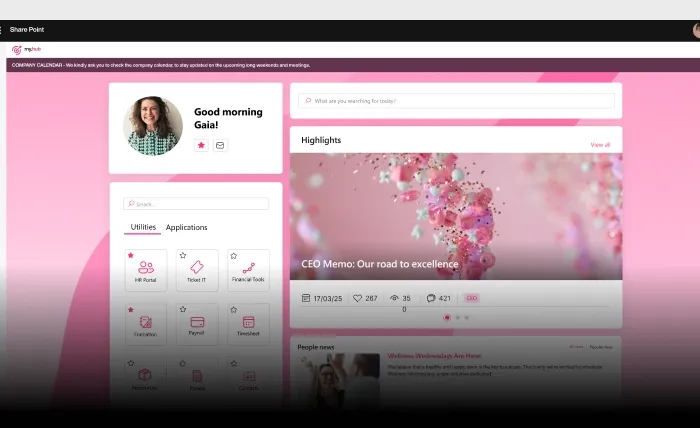
Display a comprehensive overview of company initiatives by bringing them together in a single space within the intranet. Our section helps you promote key initiatives and events with a modern and customizable layout, inviting users to delve into the content and not just stop at the portal's homepage. In addition to initiatives, important projects, or specific events, you can use this component to promote any content you want to highlight to your colleagues on the homepage.
Increase engagement

Customize icons to enhance the corporate brand

Simple configuration

How Key Initiatives pulls content from a SharePoint list
Key Initiatives is powered by a standard SharePoint list, so your team manages content without touching the web part. Each list item maps to a card through five fields: Title, Description, and Image are required, while URL and Order are optional. The URL field links a card to its dedicated detail page, and the Order field controls the sequence in which initiatives appear. Editors simply add or update list items, and the section reflects the changes instantly.
Adding and configuring the web part in SharePoint
Once in page edit mode, insert the component using the circled + button and search for "IAI - Key Initiatives". From the property panel you connect it to a SharePoint site and select the source list, then set an optional "View More" URL pointing to a full initiatives page. You control whether links open in a new or current tab, toggle the "Read" button, and choose card background, shadow style (High Contrast, Light, or Dark), and a custom title. Save as draft to preview, then republish.
Documentation
Explore the technical guide for this feature on our documentation site.
Frequently asked questions
How do I add new initiatives to the Key Initiatives section?
You add initiatives by creating items in the connected SharePoint list rather than editing the web part directly. Each item requires a Title, Description, and Image, with optional URL and Order fields. The section updates automatically once items are saved and the page is republished, so non-technical editors can manage content independently.
Can I customize the shape of the initiative images?
Yes. The Mask Settings let you apply a custom shape to the preview images. By default, images display as a square with rounded edges, but you can upload a custom shape to Site Assets to match your corporate identity. This lets you reinforce branding while keeping the layout consistent across the intranet.
Where can the Key Initiatives web part be placed on the intranet?
The component can be added to any SharePoint page in edit mode. Using the circled + button, search for "IAI - Key Initiatives" and insert it between existing web parts. This flexibility means initiatives can be highlighted on the homepage as well as on internal section pages, capturing attention wherever users navigate.
What layout options are available for Key Initiatives?
The web part offers Normal and Compact styles, along with view settings for the card background (white or transparent) and shadow presentation in High Contrast, Light, or Dark. You can also show or hide the section title and the "Read" button, allowing you to adapt the appearance to each page where the component is used.
Related features
The complete SharePoint intranet integrated with Microsoft 365, starting from 3,950 €/year.
- 80+ apps for communication, training, and knowledge sharing
- Compatible with Microsoft 365 and Microsoft Viva
- Operational within 24 hours from purchase, with 5 days of consulting