Alerts andservice communications
SharePoint Alerts: why your business needs them
Highlighted updates on every intranet page.
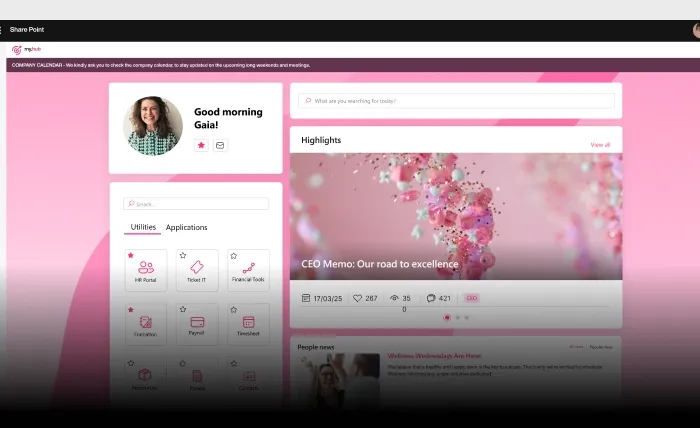
Our feature provides visibility to the most important news by pinning them onevery page of the SharePoint intranet and following users during navigation. It integrates with Teams Push Notifications to ensure maximum reception.
SharePoint Alerts: why your business needs them
Our feature reaches your colleagues with the most important news. It pins communications at the top of every page of the intranet, transforming them into small banners that accompany users during their navigation. Thanks to integration with Teams Push Notifications, alerts arrive in the Microsoft Teams app to facilitate quick access to company-promoted news.
Alerts and service communications:the benefits they offer

Alerts on Intranet Pages
The most important communications are promoted with small banners that accompany users on all SharePoint intranet pages.

Integrated push notifications via Microsoft Teams
Integrated push notifications Our feature integrates with Teams Push Notifications to expand the reach of alerts and provide quick access to news in Teams.

Alerts for user groups
Alerts can be targeted based on user roles, location, or language.
Highlight service communications on the SharePoint intranet
A department has changed its closure schedule. The IT department needs to perform maintenance over the weekend. Notify colleagues wherever they are and ensure they receive the most important news.
Keep the corporate audience informed

Pin news on every intranet page
Our feature can help you give voice to the most important news at a specific time of day or week. Examples could include creating a new area on the intranet or changing the cafeteria's hours. News can be pinned at the top of SharePoint site pages to attract users' attention and ensure maximum reception.
Simple configuration

Target service communications to the right audience
Not every alert is for everyone. When you create a Corporate Message, you can assign it to destination groups built from the Security Groups in your Azure AD (Entra ID), so a maintenance notice or a policy change reaches only the affected departments, sites, or roles. Leave the field blank to broadcast company-wide. For multilingual organisations, activate the language field to publish localised versions of the same alert, each with its own language tag.
Schedule alerts and Teams notifications in advance
Plan communications around your business calendar instead of posting them by hand. A publish date schedules when the banner goes live, while the expiration date sets when it disappears from the intranet automatically. Until you tick the to-publish checkbox, the message stays a draft. A separate notification date controls when the Microsoft Teams push notification is sent, letting you announce on the intranet and ping Teams at different moments, or disable the notification entirely when it isn't needed.
Documentation
Explore the technical guide for this feature on our documentation site.
Frequently asked questions
How do I target a company alert to specific departments or locations?
When creating a Corporate Message, you assign it to destination groups, which are Security Groups defined in your Azure AD (Entra ID). The alert is then shown only to members of those groups, letting you reach a single department, office, or role. If you leave the destination field blank, the message is sent to everyone across the intranet.
Can I schedule a company alert to appear and expire automatically?
Yes. The publish date field schedules when the alert banner becomes visible, and the expiration date sets when it is automatically removed from the intranet. The message is only published once the to-publish checkbox is selected, so you can prepare communications in advance and have them appear and disappear without manual intervention.
How are Microsoft Teams notifications sent for company alerts?
A dedicated notification date field triggers a push notification in the Microsoft Teams app. You can set it separately from the publish date to control exactly when colleagues are pinged, or flag the disable-notification option to publish a banner on the intranet without sending a Teams notification at all.
Can multiple company alerts be active at the same time?
No. You can publish only one alert at a time. When you publish a new Corporate Message, it replaces the previous one, ensuring colleagues always see the single most important service communication pinned across every page of the SharePoint intranet.
Related features
The complete SharePoint intranet integrated with Microsoft 365, starting from 3,950 €/year.
- 80+ apps for communication, training, and knowledge sharing
- Compatible with Microsoft 365 and Microsoft Viva
- Operational within 24 hours from purchase, with 5 days of consulting