
The Microsoft 365 applications are becoming increasingly central in the creation of a modern digital workplace. This is thanks not only to the features each of them offers, but also to the native integration through which individual apps can become a unique, complete, and synergistic ecosystem.
This is the case for Microsoft Planner, SharePoint Online and Teams: three essential productivity tools that, if well integrated, can combine their features dedicated to communication, collaboration, and task management. The result is a unified platform capable of accelerating project management processes.
Let’s start with an overview of Planner, including features and differences with tools such as Trello, and then explore the opportunities offered by integration with the main Microsoft 365 solutions, including Outlook and Copilot.
What you will find in this article
Microsoft Planner: what it is and what it is used for
Planner is the Microsoft 365 application dedicated to project management, meaning the planning and organization of a team’s tasks, providing flexible and customizable work plans.
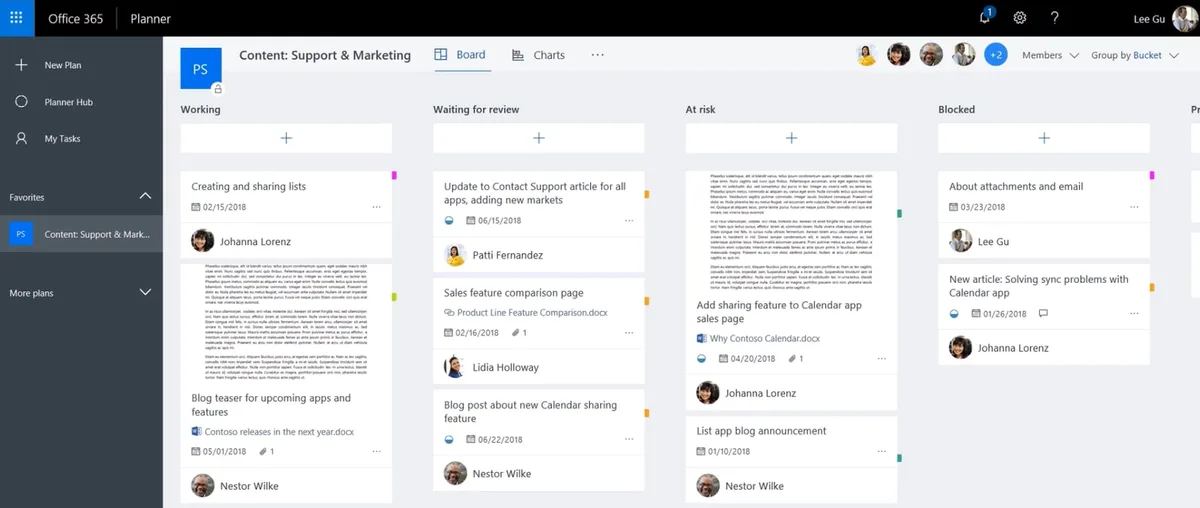
This means that every member involved in an initiative or belonging to a specific department can access an interactive space, made up of boards and “buckets”, where everything needed to monitor and complete shared tasks is collected.
The concept of a “bucket”, in particular, refers to a column-based division used to define the macro-categories or phases of a project. Each bucket then holds a different number of boards, which are actual task cards containing useful information to track:
-
User assigned to the task
-
Due date for the task
-
Progress status and priority level
-
Internal checklists to complete the task
To further differentiate tasks within the same bucket, it is possible to create subcategories: these are custom tags that allow tasks to be classified according to criteria useful for the team, such as “Important” or “Pending review”.
In this way, Planner allows business teams to always keep priorities under control, stay updated on colleagues’ progress, identify any issues or, simply, check the status of ongoing projects.
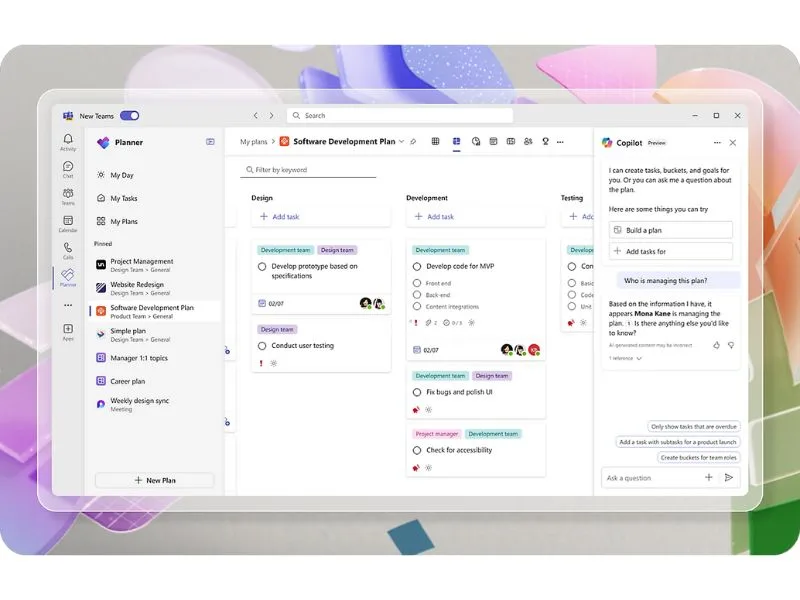
In addition to details such as notes, comments, and attachments (including those from Teams and SharePoint Online), Planner allows you to:
-
Set up recurring tasks, to avoid having to recreate the same boards from scratch every time.
-
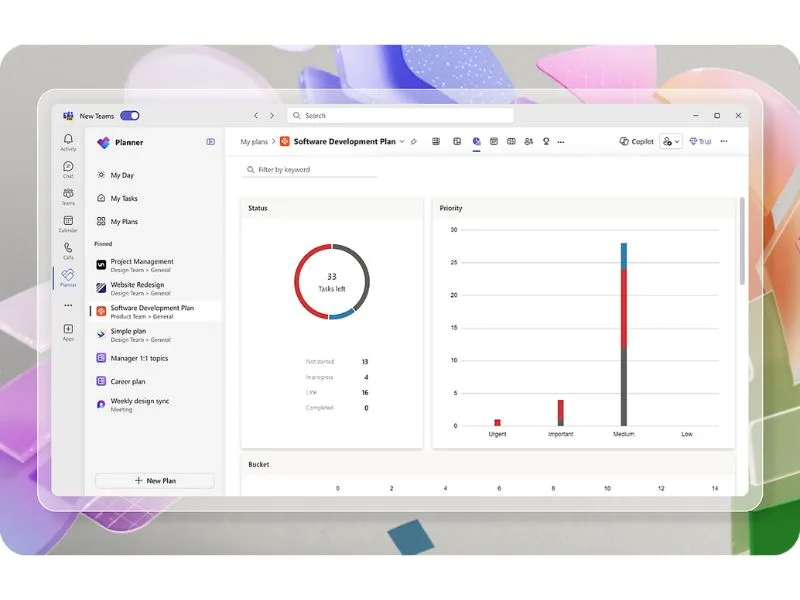
View projects in columns or through charts, which help identify how many tasks are delayed, completed, or yet to start.
-
Monitor work by individual user, to analyze workload and speed up potential task reassignments.
To summarize, Microsoft Planner offers two main views to track the status of tasks within a project:
-
Board view: Planner’s default mode, where tasks are organized in columns (buckets) representing project phases or custom categories defined by the user. Tasks can be easily moved from one bucket to another via drag & drop, making it easy to update project status with a simple mouse movement.
-
Chart view: provides a more detailed visual overview of scheduled tasks. It displays a compact yet comprehensive selection of interactive charts, including:
Bucket: groups tasks by phase, highlighting their progress status.
-
Workload: analyzes the distribution of tasks among team members.
-
Task status: categorizes scheduled tasks based on whether they are completed, delayed, or still in progress.
Anyone who wants to keep track of deadlines and scheduled activities, without risking losing information among a thousand other tasks, can add work plans to their Outlook calendar.
If the plan owner has enabled the sharing option, simply click on the three dots in the top Planner menu and select “Add plan to Outlook calendar” > “Publish” > “Add to Outlook”.
The activities will then appear under the “Other calendars” section in Outlook.
Planner also supports the creation of or participation in multiple work plans. In the side menu, the “Create new plan” section allows users to start a new one from scratch, while the home page gathers all the plans a user is part of. The personal area, on the other hand, brings together all tasks the user is responsible for, offering an overview of what needs to be completed.
In terms of availability, Planner is included in most Microsoft 365 Business and Enterprise licenses. However, some more advanced project management features may require additional plans. One example is the integration of Copilot, which requires the purchase of a dedicated license in addition to the one needed to access Planner.
See intranet.ai in action
A ready-to-use intranet on SharePoint Online, live in days. Book a free demo with our team.
Book a demoHow to integrate Microsoft Planner and Microsoft Teams
When we create a work plan in Microsoft Planner, a Microsoft 365 group is automatically generated. This group acts as a “hinge” to connect multiple applications, as it can be used both within Microsoft Teams as a collaboration space and in SharePoint Online as a team site, where you can store documents and set permissions.
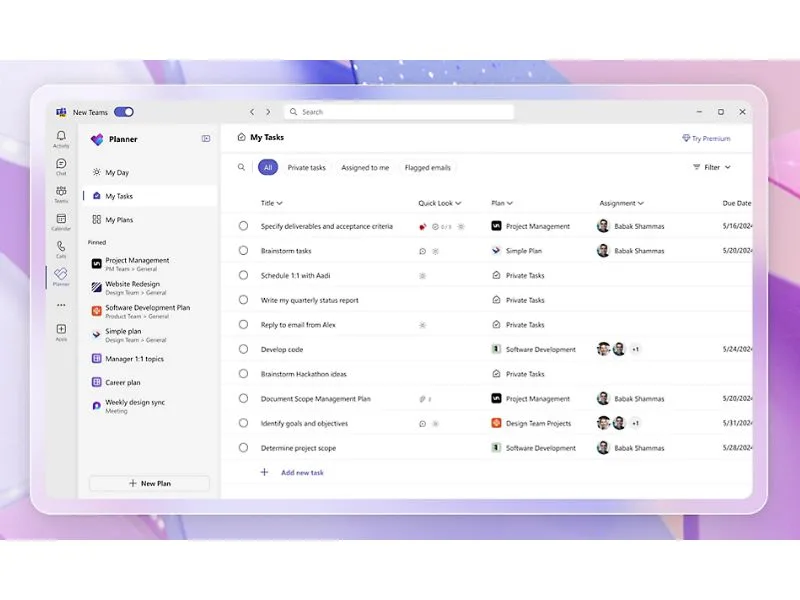
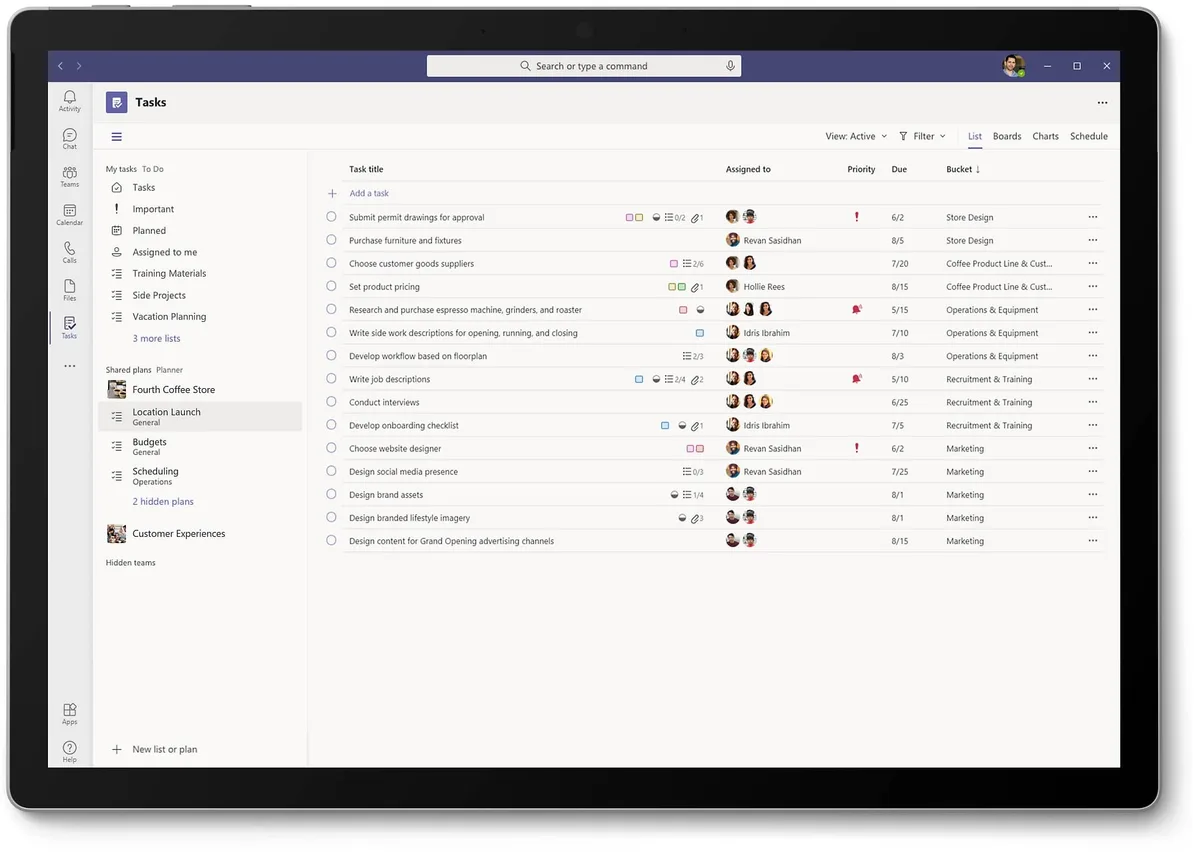
Adding Planner to the Microsoft Teams app is based on the concept of “Teams as a platform”: no longer just a messaging and video conferencing app, but a collaborative hub that brings together all the essential tools for teamwork.
To add Planner as a tab in Teams, you need to:
-
Choose the Teams channel you want to work in.
-
Click the ”+” symbol in the top menu.
-
Select “Tasks by Planner and To Do” (or “Planner” if it appears among the options).
-
Link an existing plan or create a new one.
This way, you get a single interface to chat in real time, attach documents, and manage tasks with your colleagues.
The shared archive in Teams is also aligned with the group SharePoint site, so uploaded and modified files stay synchronized across the three platforms and are always accessible to all members with the proper permissions.
The relationship between Teams and Planner not only improves productivity but also provides a secure environment for sharing information. Documents added to Planner boards are stored in the file library of the corresponding Teams channel and, therefore, in the connected SharePoint site.
Once integrated, Planner sends updates in the “Activity” section of Teams.
In this section, due dates are notified at the beginning of the week they are scheduled, making it easier to stay organized both individually and as a team. Any changes to boards or checklists are reported in real time, allowing everyone involved to stay up to date.
The integration between Planner and Teams also adds another viewing option: the grid view (similar to Excel), already available in Planner Online, is directly accessible from the Teams channel, useful for those who prefer browsing tasks by due date, priority, or assignee.
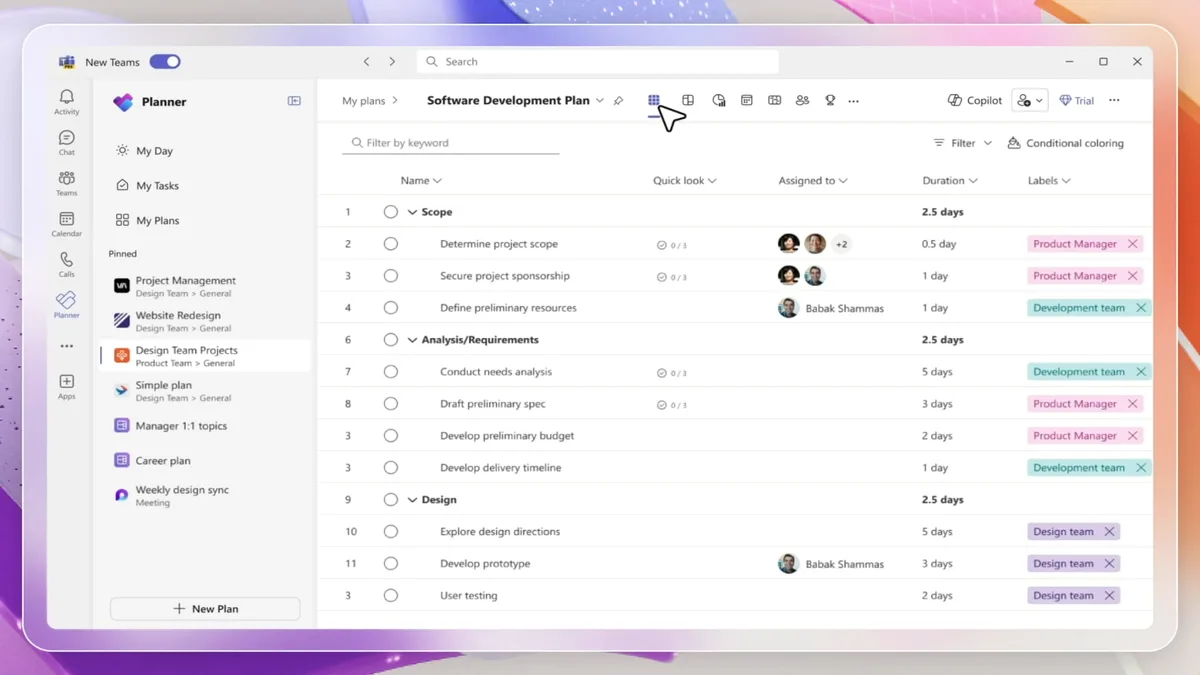
It is also worth noting that each Microsoft 365 group can manage multiple work plans, not just the one initially created. This means that within the same team, different plans can be launched, each dedicated to individual projects, with separate tasks and deadlines but a shared repository.
With the evolution of Teams into a central platform for managing activities that require close collaboration (which obviously includes project work), Microsoft has introduced an additional expansion: the Tasks app, a hybrid between Microsoft Planner and To Do, which displays both Planner-assigned tasks and personal To Do tasks in a single location.
However, let’s clarify that Tasks is not an internal competitor to Planner, but rather a unified interface that makes task management even more immediate, allowing users to switch between team projects and individual tasks without constantly jumping from one platform to another.
How to integrate Microsoft Planner and SharePoint
The integration between Microsoft Planner and SharePoint Online is quite strategic, for two reasons:
-
It optimizes document management;
-
It facilitates communication, which is centralized in the company intranet.
This provides effective support for teamwork by combining task planning (Planner) and advanced content management (SharePoint) in a single ecosystem. But how can this integration be achieved?
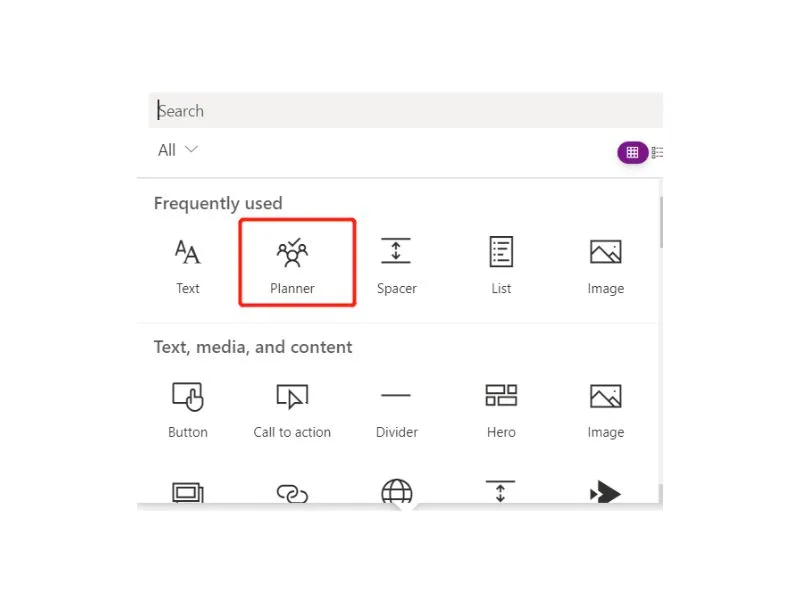
A first key step involves the ability to add Planner to any page of a team site based on SharePoint (communication sites are excluded), thanks to a recently developed dedicated web part.
You just need to:
-
Select “Edit” on a SharePoint page;
-
Click the ”+” button in an empty section;
-
Select the “Planner” web part.
In this way, a full plan of buckets, tasks, and graphical views becomes accessible directly on the page, allowing anyone who accesses the site to monitor the status of tasks in real time.
One of the most appreciated features of this integration is the ability to attach files or documents stored in SharePoint to each Planner board.
This eliminates the need to constantly share the same files across the applications used by the group and to switch from one repository to another: the links point directly to the libraries on the team site.
Each version of the documents is also recorded and made available in the version history of SharePoint, so that any mistake can easily be corrected by reverting to a previous version of any shared document.
This becomes even more important if other native SharePoint features are used, such as lists, which are perfect for storing structured information, especially when integration with Planner enhances their task management component.
If the goal is to coordinate editorial projects, the synergy between SharePoint lists and Planner allows you to manage “static” data in the lists and “dynamic” tasks on the boards.
In fact, Planner is a great ally in managing the writing, reviewing, and publishing stages of articles to be published on public sites such as the corporate intranet.
If you’re planning a communication campaign, know that it’s possible to use Planner within SharePoint to divide the work into phases (our buckets) and to easily track the status of activities, perhaps like this:
Planner and SharePoint: how to manage internal communications
Phases of the process in Planner Using Planner in SharePoint
Bucket 1: writing Create a board where you can add the draft communication in Word as an attachment (whether or not it’s stored in the SharePoint site linked to our Planner project). Once the draft is ready, the board is moved to the next bucket.
Bucket 2: review The users assigned to review the content make corrections where necessary. Feedback is shown in the comments of each board or within the Word drafts. Once the review is completed, the board is moved to the next bucket.
Bucket 3: correction The authors of the draft make the necessary edits based on the reviewers’ comments. Then, the board can either return to the previous bucket for another review or move on to the next phase.
Bucket 4: awaiting publication The users responsible for publishing communications on the intranet take care of the boards in this column. As content gets published, boards are moved to the final bucket.
Bucket 5: online This column collects the boards with content that has been published on the intranet, so the team can keep track of them.
Thanks to subcategories we can then classify different content, for example by distinguishing a global newsletter from HR news or marketing announcements.
Additionally, those managing multiple types of communications at once can create a “Ideas and proposals” bucket to jot down any ideas that can later become full articles. In short, the process can be customized to suit your needs, thanks to the flexibility of Microsoft Planner’s components and interface.
Let’s also remember that all files uploaded to Planner are automatically stored in the SharePoint libraries linked to the underlying Microsoft 365 group (and therefore also to the related group in Microsoft Teams).
This way, group members can:
-
Set permissions and roles based on the level of involvement;
-
Collaborate in real time on Word, Excel or PowerPoint (thanks to co-authoring);
-
Retrieve previous versions in case of errors or if deleted content needs to be restored.
This creates a virtuous cycle where Planner manages the workflow and SharePoint provides a solid repository, an integrated versioning system, and a controlled publishing channel to the company’s public sites.
How to add tasks in Microsoft Planner from Outlook
The ability to turn an email into a task in Microsoft Planner is an essential feature for those who manage communication with colleagues, clients, and collaborators mainly through Microsoft Outlook.
Thanks to tools such as dedicated add-ins and Power Automate flows, you can create custom automations that reduce the time spent transferring requests, reminders, and other communications from your inbox to personal or shared work plans.
With the Planner add-in for Outlook, in particular, you can:
-
Create tasks directly from your email. Just click on the add-in to turn an email into a Planner task. The subject of the email becomes the task title, while the content is copied into the description shown on the board.
-
Assign the task to a specific plan and bucket. During creation, you can choose which plan and phase of your project to assign the task to.
-
Set deadlines and priorities, thus simplifying the management of urgencies and coordination with colleagues involved in the project.
For more complex needs, Power Automate allows you to create automated flows that can select the emails you’re interested in (based on the criteria you set) and turn their content into a task within Planner.
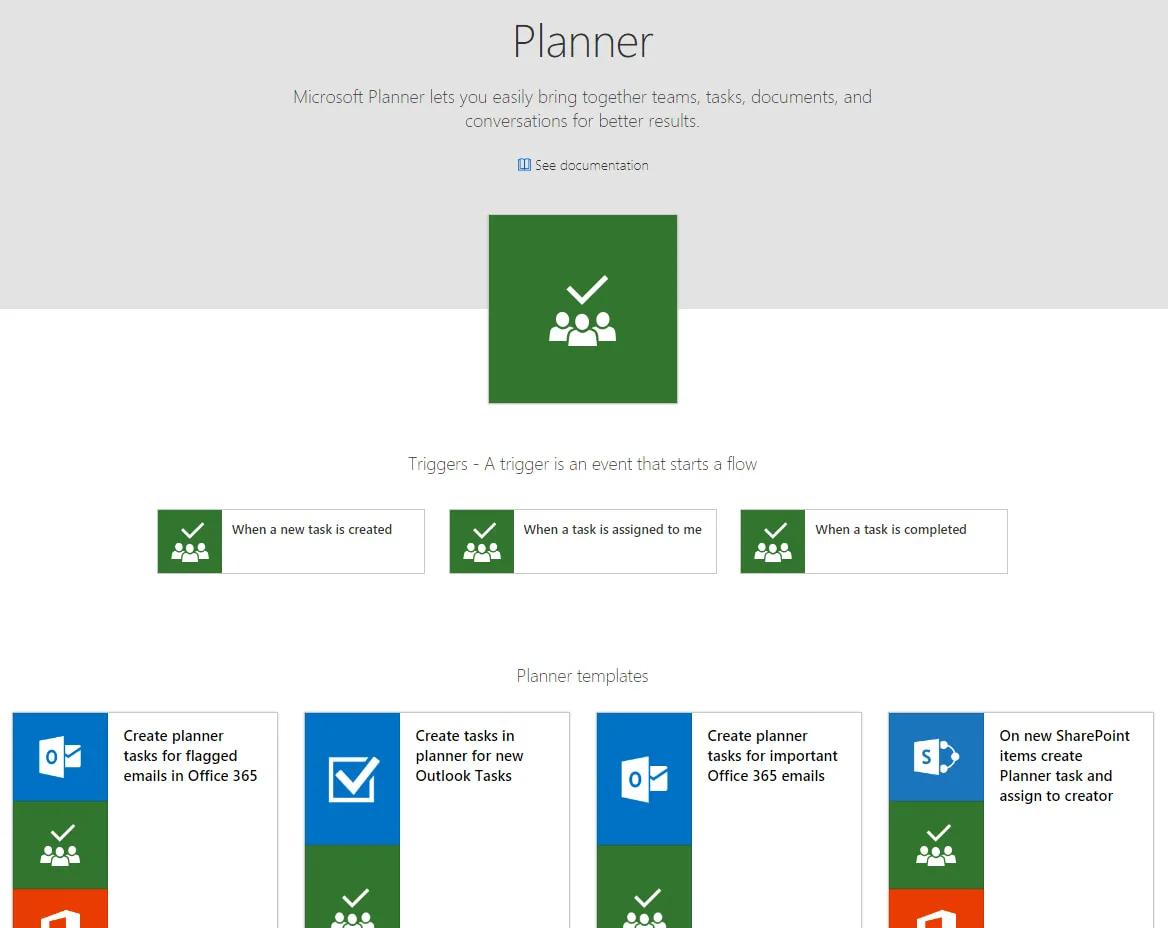
With Power Automate, we can set up triggers based on specific information in our emails, such as:
-
sender’s name;
-
keywords in the subject line;
-
category assigned to the email;
-
keywords in the email body.
In addition to creating the corresponding task in a Microsoft Planner plan, Power Automate flows can perform many other types of actions, further simplifying the management of your personal inbox.
For example, you can create automations to attach files from a SharePoint library to certain emails, add checklists, and even send Teams notifications as soon as a specific category of email is received in Outlook.
As for the use of add-ins, mentioned earlier, here is a practical example: a manager may receive an urgent request via email to update a document stored in SharePoint. With the Planner add-in, they can turn the email content into a task, optionally assigning it to a colleague and setting a due date.
Thanks to this integration, the task immediately appears in the shared plan on Teams and in the Planner view. An automation can also be implemented to send targeted notifications to team members, keeping them informed of any new developments in the tasks.
Microsoft Planner vs Microsoft Lists and SharePoint lists: differences and similarities
When talking about Microsoft Planner and its use in the workplace, some recurring comparisons come up. Among them, the most common are:
-
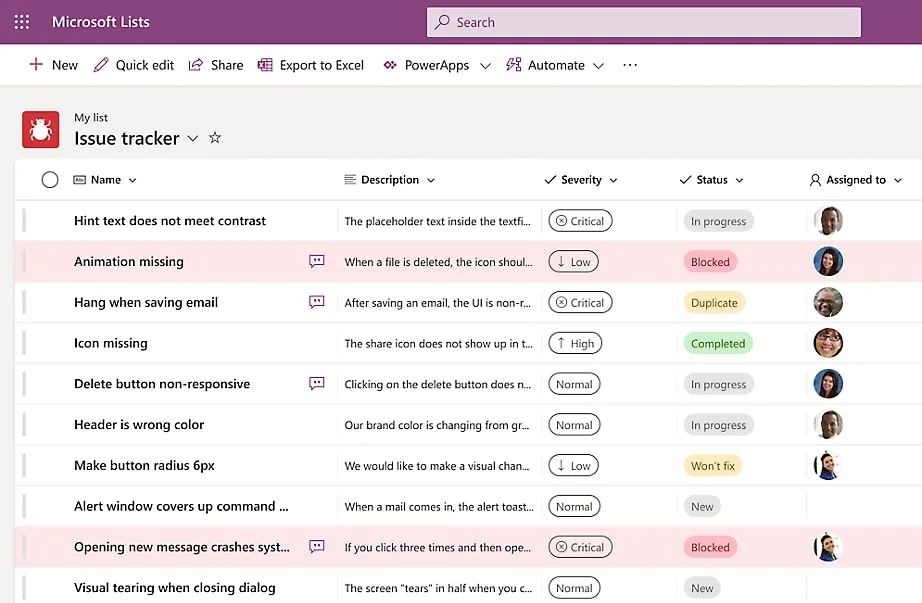
Planner vs Microsoft Lists: Microsoft Lists is another application in the Microsoft 365 ecosystem that focuses on creating structured lists (to manage tickets, inventories, personal records, etc.) both in a standalone environment and within platforms like Teams and SharePoint. Compared to Lists, Planner focuses on task management (rather than information), allowing users to effectively carry out projects and track progress.
-
Planner vs SharePoint lists: similarly to Microsoft Lists, a SharePoint list is mainly used to manage information and data in tabular format, without offering a kanban workflow. Also in this case, Planner stands out for its ability to integrate tasks assigned to a team or individuals with deadlines, checklists, related resources and priorities, making it more suitable for project management scenarios.
Going into more detail, Microsoft Lists stands out as a platform for managing structured information.
With Lists, we can create highly customizable lists to manage data such as inventories, project trackers, contact lists or approval statuses.
Its main features include:
-
Conditional formatting: permits highlighting specific data based on defined criteria (for example, highlighting overdue items in red).
-
Custom views: allows you to view and manage data in various formats (tabular, calendar, or gallery).
-
Integration with Power Platform: Lists can be connected to Power Automate, to automate data management, and to Power Apps, to build forms and apps based on information from specific lists.
-
Collaboration tracking: ideal for monitoring shared data in a centralized way, without overwhelming users with overly technical features for project management.
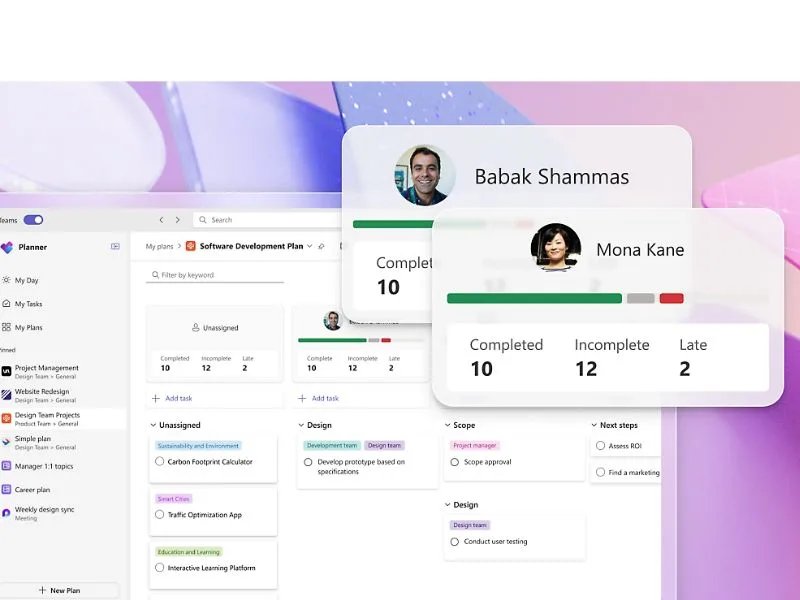
Microsoft Planner, as we’ve seen so far, is designed to manage tasks and collaborative projects. Its key features include:
-
Buckets and boards: provide a way to divide project tasks based on criteria useful to the team, such as progress status. Each task is defined, tracked, and updated on a board where users can assign information such as owner, due date, and a checklist of steps required to complete the task.
-
Priority management: Planner allows you to set the urgency level for each task, as well as the expected due date.
-
Graphical reports: in the application, you can monitor the progress of tasks in each plan through dashboards featuring various types of views, including work status and workload distribution among team members.
-
Focus on collaboration: each team member can view and update plan tasks in real time, making it easier to stay aligned with colleagues.
In the Microsoft 365 digital workplace, Lists and Planner can be used in synergy.
A practical use case is leveraging Microsoft Lists to keep track of project requests or preliminary data (such as supplier or material lists), while Planner can be used to assign and monitor operational tasks based on the list information.
The integration through Power Automate can further simplify the exchange of information between the two platforms.
SharePoint lists, for their part, serve different yet complementary needs compared to Microsoft Planner.
They are in fact an ideal tool for collecting, organizing, and managing structured data.
They are often used to create centralized databases or archives, with the ability to store rather detailed information (such as customer records, product inventories, support tickets, or internal requests), customize views and forms (allowing users to create custom fields, filters, and input forms), and, of course, automate processes thanks to native integration with Power Automate.
For example, an HR team can use a SharePoint list to monitor leave requests from colleagues, with dedicated fields for name, date, approval status, and notes.
Microsoft Planner, on the other hand, focuses on the practical management of tasks.
It is worth noting that in many scenarios, SharePoint lists and Microsoft Planner plans are used together to achieve a complete workflow, following a scheme like this:
-
Archive in SharePoint: a list can serve as the main database to store data and initial requests. For example, a customer support team can enter support request details here.
-
Operational management in Planner: once recorded, each request can be turned into a task in Planner to assign it to the appropriate technician, track its status, and monitor its closure.
-
Workflow automation: with Power Automate, we can connect a SharePoint list to Planner to automate multiple actions. One option is to implement a flow that creates a Planner task for each new item added to the list.
Microsoft Planner vs Trello: which one to choose?
Another very interesting comparison that often comes up is the one between Microsoft Planner and Trello. The latter, known for its kanban interface, has gained popularity as an agile solution for task management.

In addition to offering the same flexibility as Trello, the great advantage of Microsoft Planner is that it allows companies that already have Microsoft 365 to make the most of their licenses, thanks to the native integration shared by all the suite’s applications.
Let’s dive into the details and take a look at this table comparing these two popular project management solutions.
Planner vs Trello: feature comparison
Trello Microsoft Planner
Intuitive interface, with cards, lists, and boards to visually represent projects. Perfect for teams looking for a lean and flexible solution. Smooth integration with Microsoft Teams, SharePoint, Outlook, and OneDrive, to create a single environment where communication, collaboration, information sharing, and task management are centralized. For example, Planner tasks appear in the “Tasks” tab in Teams and in the Outlook calendar, facilitating coordination for business teams, even when working remotely.
Numerous Power-Ups (plugins) available to extend its functionality and integrate with solutions like Slack or Google Drive. Thanks to the data protection system of the Microsoft 365 environment, Planner can ensure full compliance with corporate policies and international regulations.
Versatility, making this tool suitable for teams of any size, with options to customize complex workflows. Microsoft 365 groups allow a project plan to be automatically linked to a Teams group or SharePoint site, creating a cohesive ecosystem, even in terms of user permissions, without the need for additional configurations.
Offers a competitive free plan, although with significant limitations in accessing advanced features.
Included in Microsoft 365 licenses.
At this point, one might ask: when is it better to choose Planner, and when Trello?
The answer is: it depends. The choice depends on the specific needs of your company.
In general, Trello is recommended for small businesses or independent teams looking for a quick and simple tool to implement, without the need to integrate project management activities into a true digital workplace.
Microsoft Planner, on the other hand, is the ideal solution for small, medium, and large companies that want to digitize all internal processes by creating a single workspace where systems and applications work together to support individual users, project teams, and the entire company community.
Planner vs Trello: What differentiates the Microsoft 365 solution?
Microsoft Planner AI: the future of project management
As we all know, Microsoft is increasingly integrating artificial intelligence features into its products, and Planner is no exception.
One of the main innovations is the integration of Copilot, the now well-known virtual assistant that uses generative artificial intelligence to support users in their activities within the Microsoft 365 environment.
With Copilot in Planner, we now have the ability to generate complete project plans, including goals, tasks, and phase breakdowns, starting from simple prompts written in natural language.
Moreover, Microsoft’s AI helps manage tasks by suggesting new ones based on updated objectives and provides quick answers to questions about progress status, priorities, and team workload.
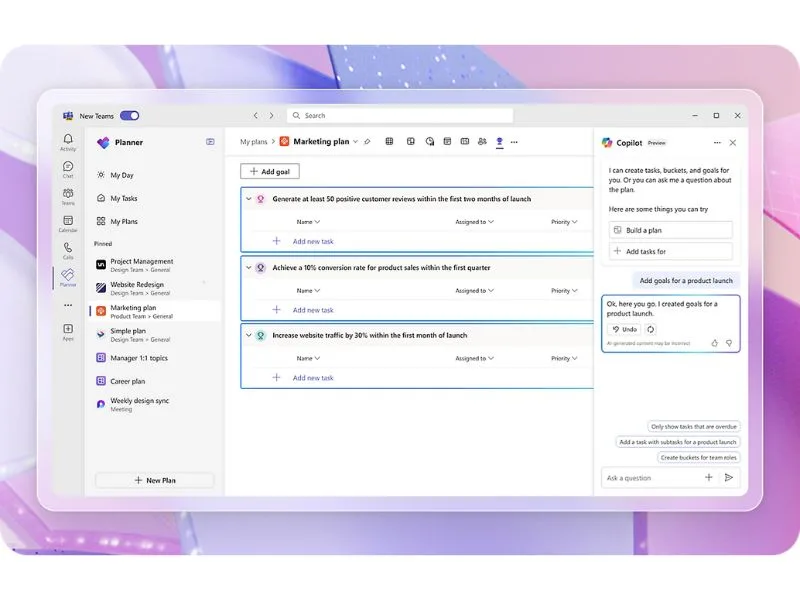
But there’s more than just Copilot: Planner has introduced new intelligent features, including the “Project Manager” agent, which assists in task management by offering tailored suggestions and automations to optimize the workflow of a team and its members.
Another innovative feature is the ability to balance the workload: by analyzing the tasks assigned to team members, the AI integrated into Planner suggests changes to avoid overloads or idle periods.
Planner views have also been improved, including detailed charts to monitor task status, deadlines, and team performance.
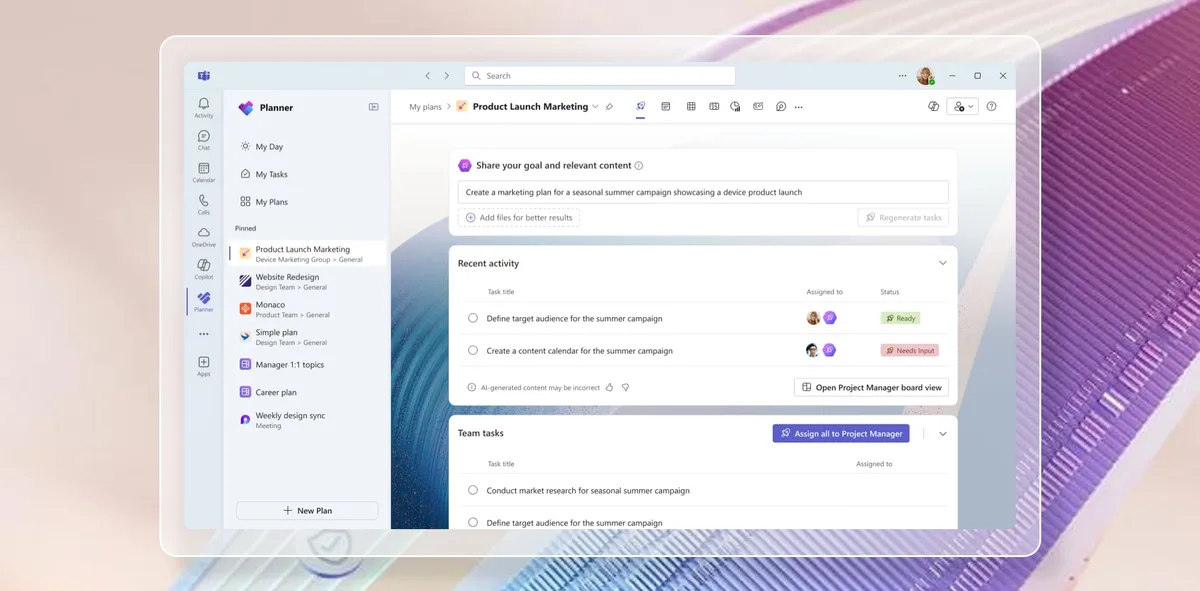
Overview of the “Project Manager” agent in Microsoft Planner
Thanks to the AI integrated into Microsoft Planner, team leaders can receive notifications with key information for the success of a project, such as when a team member’s workload is above average. In this case, it will be the artificial intelligence itself to provide suggestions on how to reassign tasks, involving colleagues with more availability or postponing less urgent tasks.
In short, we’ve covered a lot so far, but most importantly we’ve understood that the integration of Planner with other tools in the Microsoft 365 suite can only benefit the productivity and well-being of everyone in the company.