
SharePoint sites are information portals that let companies digitize activities, manage content and documents intelligently, and improve communication between colleagues (through the company intranet) and with external stakeholders (through a portal like an extranet).
In this article, we’ll take a closer look at what SharePoint sites are, what their main features are, and which templates are available to speed up creating them. We’ll also cover the steps to follow to create a SharePoint site and customize a SharePoint Site Template.
What you’ll find in this article
SharePoint sites: a brief introduction
SharePoint is the Microsoft 365 product that lets you store, organize, share, and access company information from any device, by creating modern, customizable sites.
It’s a system designed to create secure collaboration spaces with smart content and document management features, available as both a desktop and web app.
Every SharePoint site works as an information portal, letting companies digitize their activities and improve communication with people inside the organization, through the company intranet, and with external stakeholders, through a portal like an extranet. In the case of the intranet, SharePoint lets you:
-
centralize internal communication
-
streamline company document management
-
provide tools to support day-to-day productivity
-
promote services, events, and initiatives in a targeted way
But that’s not all. Below is a table published by Microsoft that does a good job summing up some of the most important features SharePoint sites offer.
SharePoint sites: 10 features to remember
SharePoint site feature Feature description
Upload files to a library Inside a document library, you can use the “Upload” command or drag and drop to import files from your PC into SharePoint, and therefore into the Microsoft 365 cloud. This lets you manage information efficiently (with metadata), securely (with permission settings), and collaboratively, from any device.
Edit files directly on the site Users with edit permissions can open files stored in SharePoint and edit them directly in the Microsoft 365 app. Seamless integration between the suite’s different platforms lets you work without interruption, always keeping the most up-to-date version of your documents.
Collaborate in real time When you open an item in a SharePoint list or library, you can edit it together with other authorized users. The number and profile of the people currently working on the document are shown in the top right. The username is also recorded in the version history, so you can track changes made by each colleague or team member.
Simple, secure sharing To share a file on a SharePoint site, just click the three dots next to the document and select “Share.” You can then send a notification email with direct access to the file, or copy the link to share it yourself. You can always adjust sharing settings to keep information secure.
Manage access to company sites Owners of a SharePoint site can let other users, including people outside the company, access the portal as owners, members, or simple visitors. You can add members to the group or just share the site.
Create a site dedicated to a working group SharePoint offers several types of sites, including team sites. These sites are useful for collaboration and communication within a small group of users. Every team site comes with a Microsoft 365 group and is enriched with features from tools like Teams and Planner. You can also create a team site without an associated Microsoft 365 group.
Add a list or library to your team site To keep the resources most useful for a group’s work close at hand, you can add a quick link to a SharePoint list or library in your team site’s navigation. Just select “New” and then choose “List” or “Library.”
Track a document’s versions By enabling version history, users can access every version of individual files in storage. This is useful for comparing different versions of a document or restoring an earlier one.
Run personalized searches Modern SharePoint sites let you retrieve the information and content most relevant to each individual user. Results are shown based on your access permissions and your activity within the integrated Microsoft 365 environment. That means results differ from person to person, even when the search terms are the same.
Get colleagues involved in communication Communication sites, like the SharePoint intranet in particular, offer advanced features for publishing content such as news posts, announcements, initiative pages, and more. Each piece of communication can be customized visually and made visible to specific groups of users or to the whole organization.
See intranet.ai in action
A ready-to-use intranet on SharePoint Online, live in days. Book a free demo with our team.
Book a demoExamples of SharePoint sites: what templates are available?
SharePoint provides pre-built templates with content and features for carrying out a specific activity (for example, managing onboarding for a new colleague, organizing company events, and so on). Besides Microsoft’s own templates, you can import custom templates to speed up creating sites that meet your employees’ needs and reflect your company’s brand.
Unlike on-premise server versions, SharePoint Online doesn’t let you build a site starting from a fully custom template. So you need to take a step back and start from the templates Microsoft provides. Specifically, you can choose between three broad categories of SharePoint sites:
-
Team site, for an agile, collaborative workspace.
-
Communication site, for building a portal dedicated to creating, publishing, and distributing news and communications. This site is typically the company intranet.
-
Hub site, for coordinating the management of multiple sites around a project, department, location, or region. These should be thought of as site aggregators, useful for:
applying a consistent navigation style and structure across different sites;
-
running searches across associated sites and aggregating the results;
-
collecting information from associated sites about events, news, or activities.
Once you’ve chosen the type of site, SharePoint provides a gallery of customizable, pre-configured templates with specific content snippets, page layouts, and web parts. Let’s briefly look at the templates available for each category.
How to create a SharePoint site in a few minutes
SharePoint templates for a communication site
A communication site is meant to improve how internal or external communications are created and distributed for an organization. Examples include the company intranet and an extranet.
It’s a type of site built for sharing news, updates, services, and documents, using important content management features, from visual customization to targeting specific user groups.
Among the most used templates for creating a communication site, we find the following.
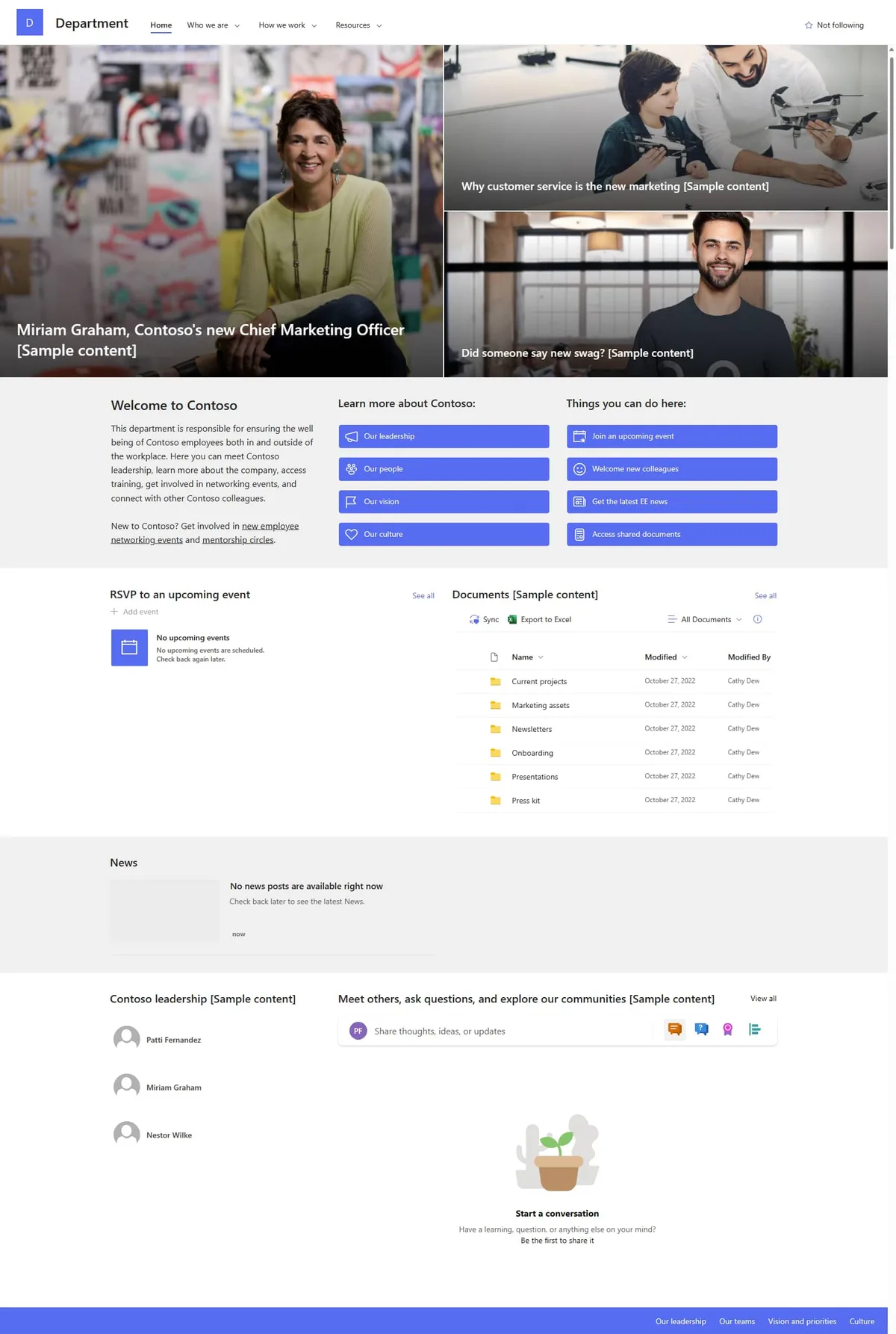
Department site
The template used to build a department or company location portal, providing web parts designed to manage communication between colleagues in the same department and with the whole organization.
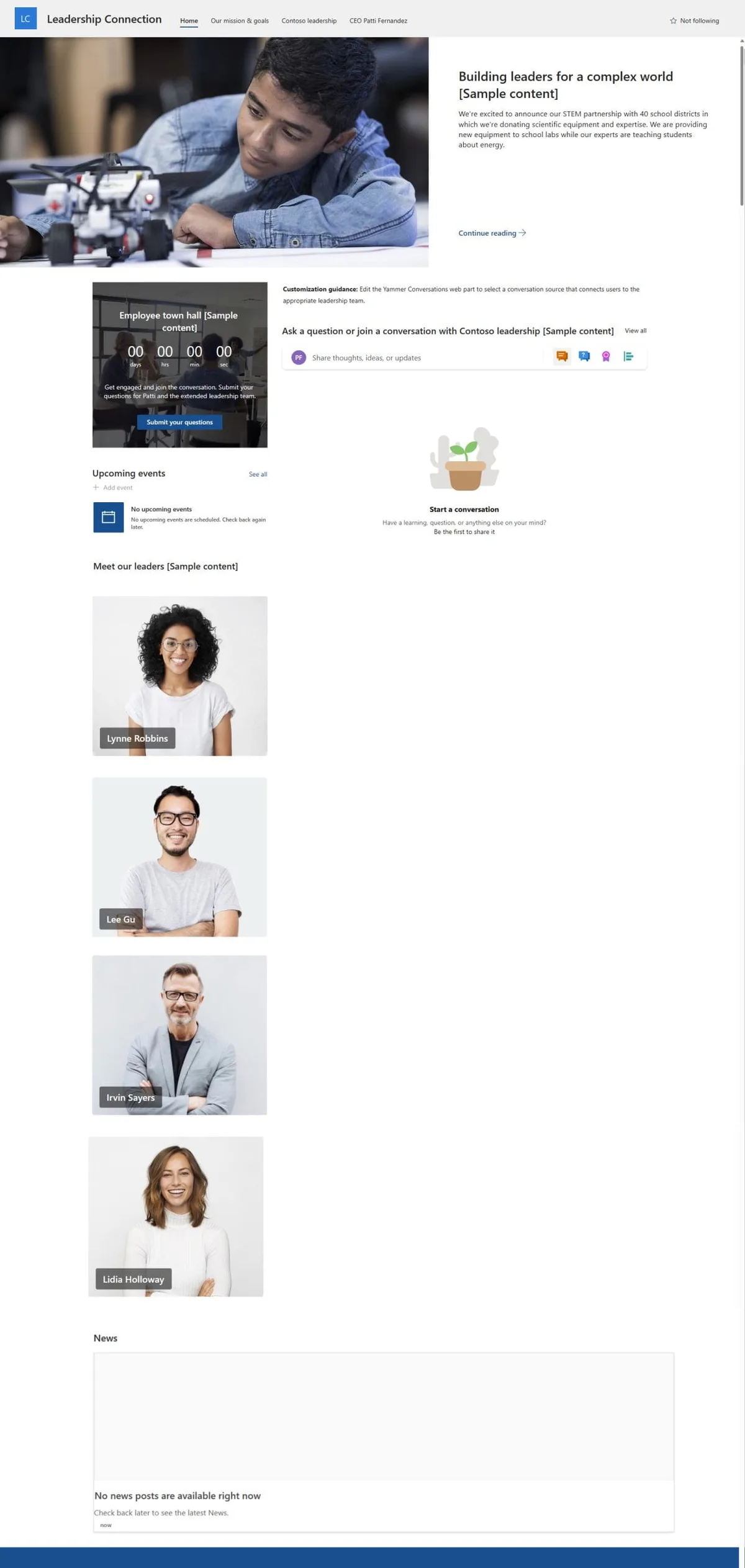
Leadership Connection Site
This template is designed to connect management with company team members. That’s why it automatically includes a conversation web part for tools like Yammer, Microsoft 365’s tool for building a company social network (now replaced by Viva Engage).
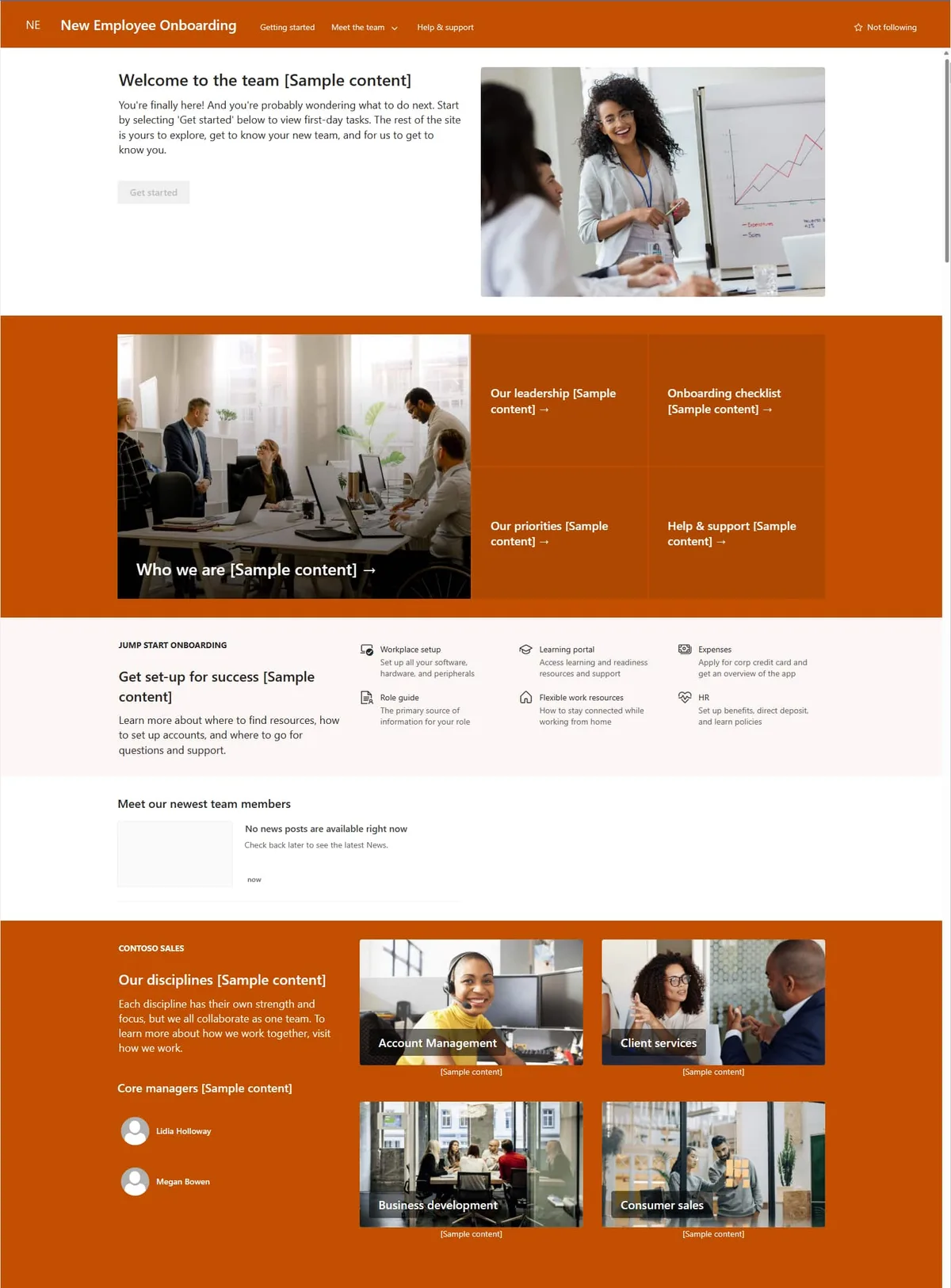
Onboarding site
The template designed to help the HR department guide new colleagues through the sensitive onboarding process, making it easier to share training resources, guidelines, initiatives, and tools useful for getting up to speed in their new role.
SharePoint templates for a team site
Team sites are meant to simplify content and information management within a working group. That’s why they’re created together with an associated Microsoft 365 group (except for team sites created in the SharePoint Admin Center, where there’s a template without a Microsoft 365 group).
Let’s look at the most used templates for this category.
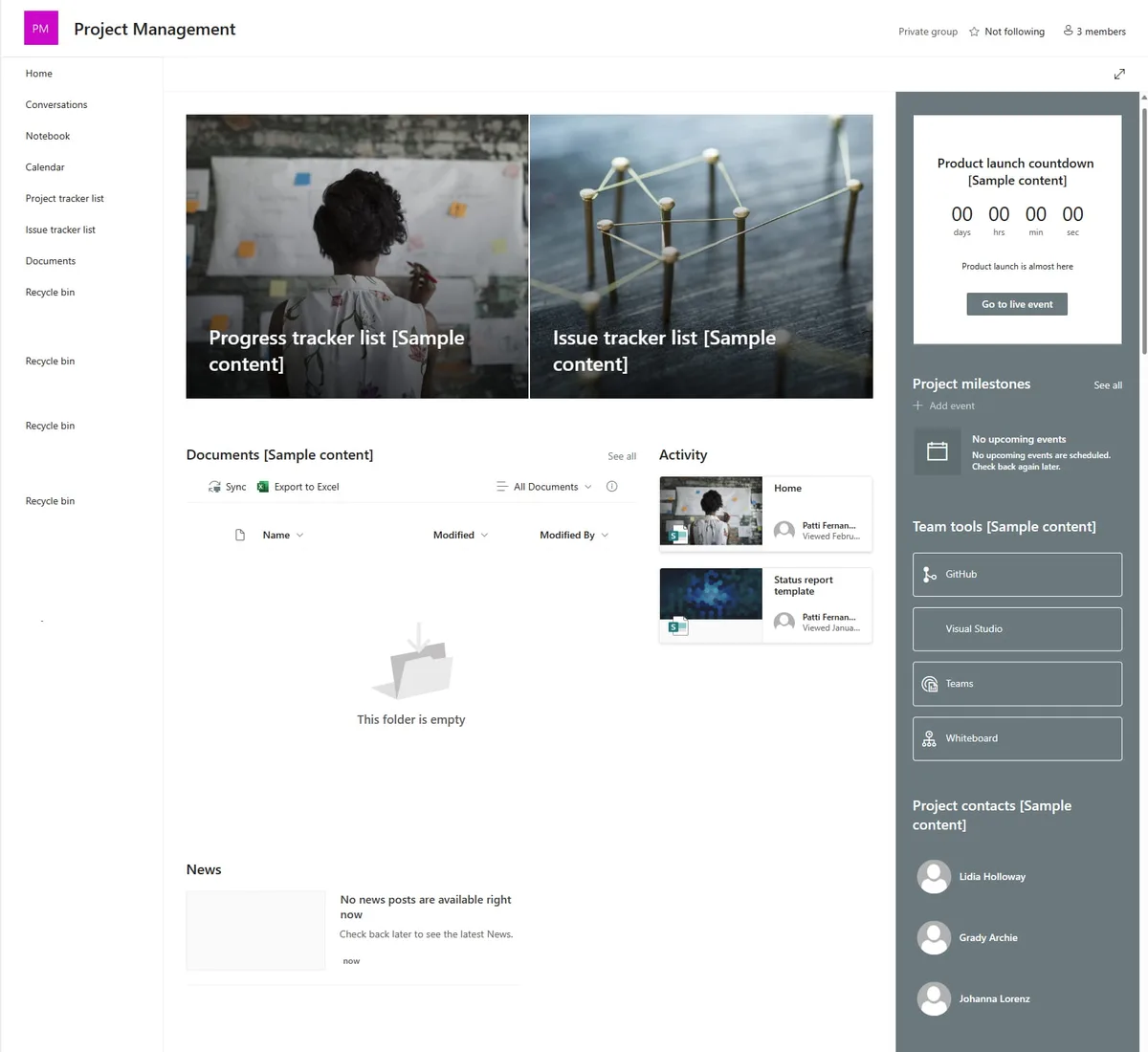
Project management site
The template designed to simplify project management, giving a specific group of users a space to share updates, collect meeting notes, and manage their documents.
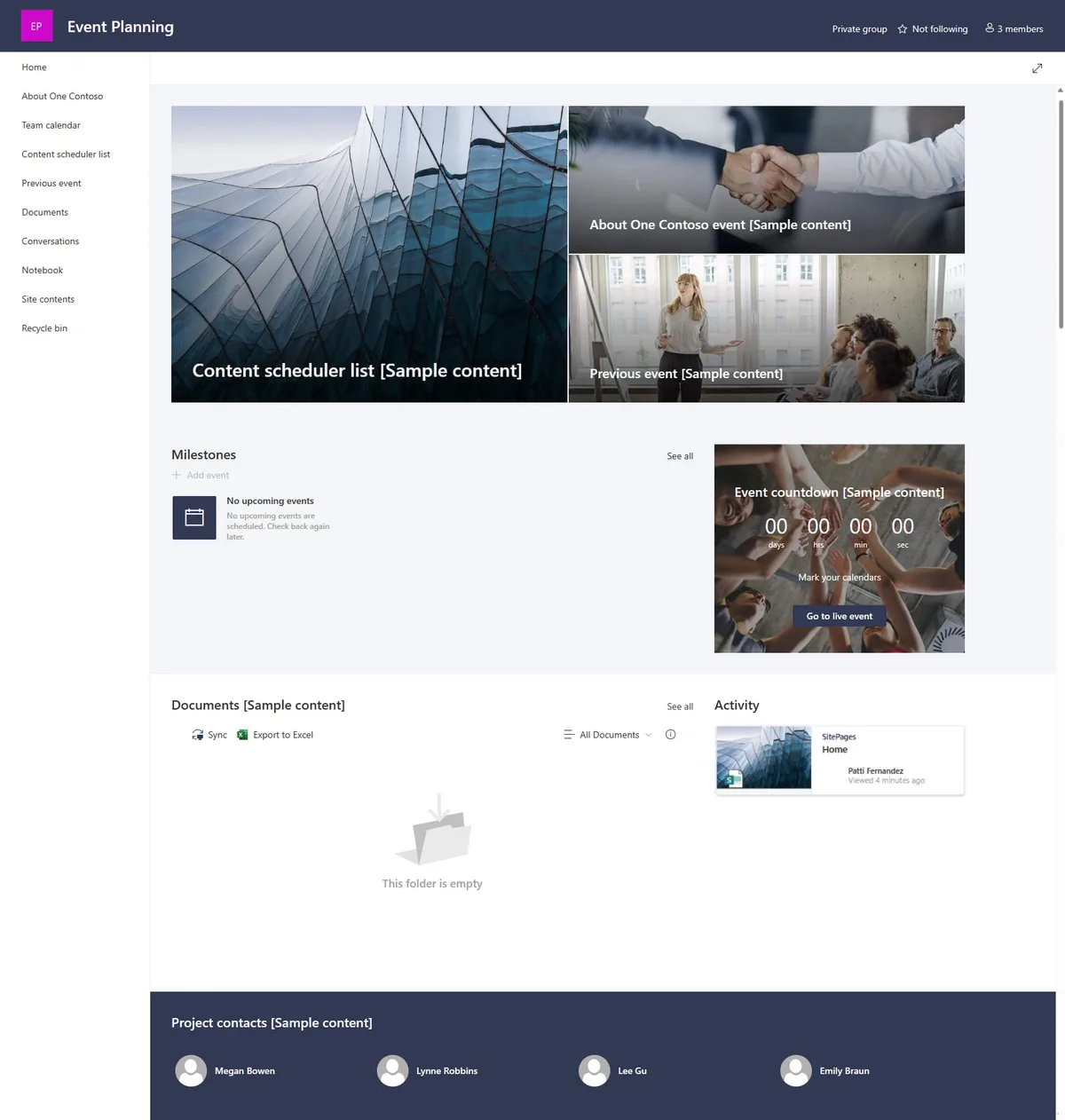
Event planning site
The template focused on coordinating and planning company events and initiatives. In particular, its features let you manage deadlines, resources, and materials related to each event.
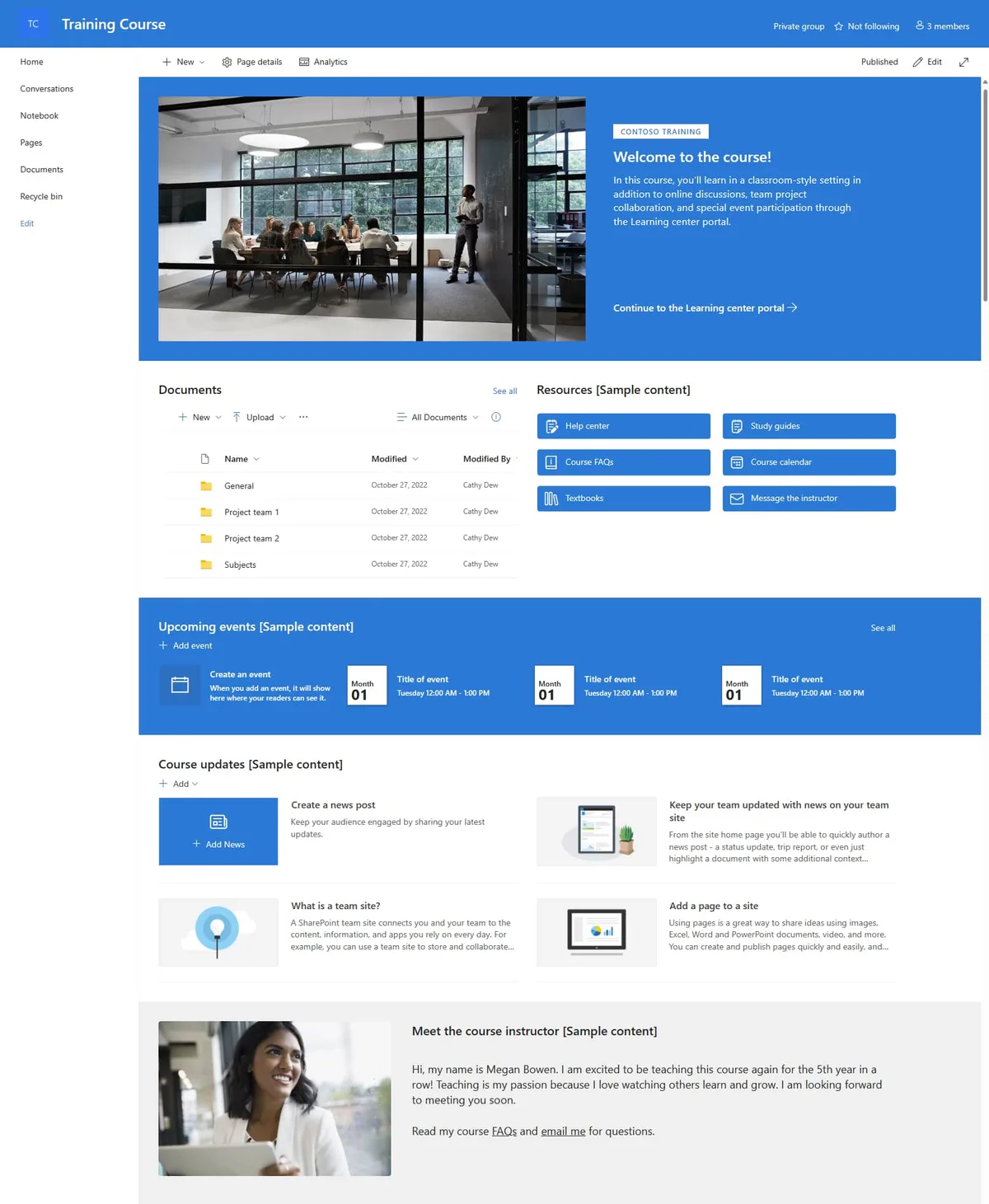
Team training site
The template for training and professional growth for people in the company. It provides an intuitive interface for uploading training content and distributing it to users in a specific working group or department.
SharePoint Online page templates
Besides templates for creating entire sites, SharePoint also offers page templates that serve a similar purpose. In practice, they’re meant to speed up creating pages that are already set up in terms of content and features available to users.
Page templates let you quickly create pages within SharePoint sites, with custom layouts and configurations. Taking the example of a site dedicated to onboarding, users with edit permissions can create and share with colleagues ready-to-use pages to promote resources and initiatives useful for every new hire.
Here’s how to create a page template:
-
Click “New” at the top of an existing page.
-
Select “Page” or “News post.”
-
Choose the template to start from. To create a page from scratch, choose the “Blank” template.
-
Customize the structure and content of the new page.
-
Select “Save as template.”
Once created, the template is added to the “Templates” collection and becomes available to every user with edit permissions on the SharePoint site. Keep in mind that, even though a template can be edited over time, those changes don’t affect pages already created from it.
Also, even when a page is created from a template, you can customize its content and features without those changes being carried back to the original template.
How to create a SharePoint site: the steps to follow
There are two ways to create a site with SharePoint Online.
The first is available to anyone with a SharePoint Online license and permission to create new sites within the tenant. The second is only available to people with admin rights in the company tenant, and uses the features included in the SharePoint Admin Center.
Let’s look at both, the standard and the advanced method, in detail.
Creating a SharePoint site: standard method
From microsoft365.com, open the SharePoint app to reach the homepage and find the “Create site” command (top left). Selecting this command lets you choose whether to create a team site or a communication site.
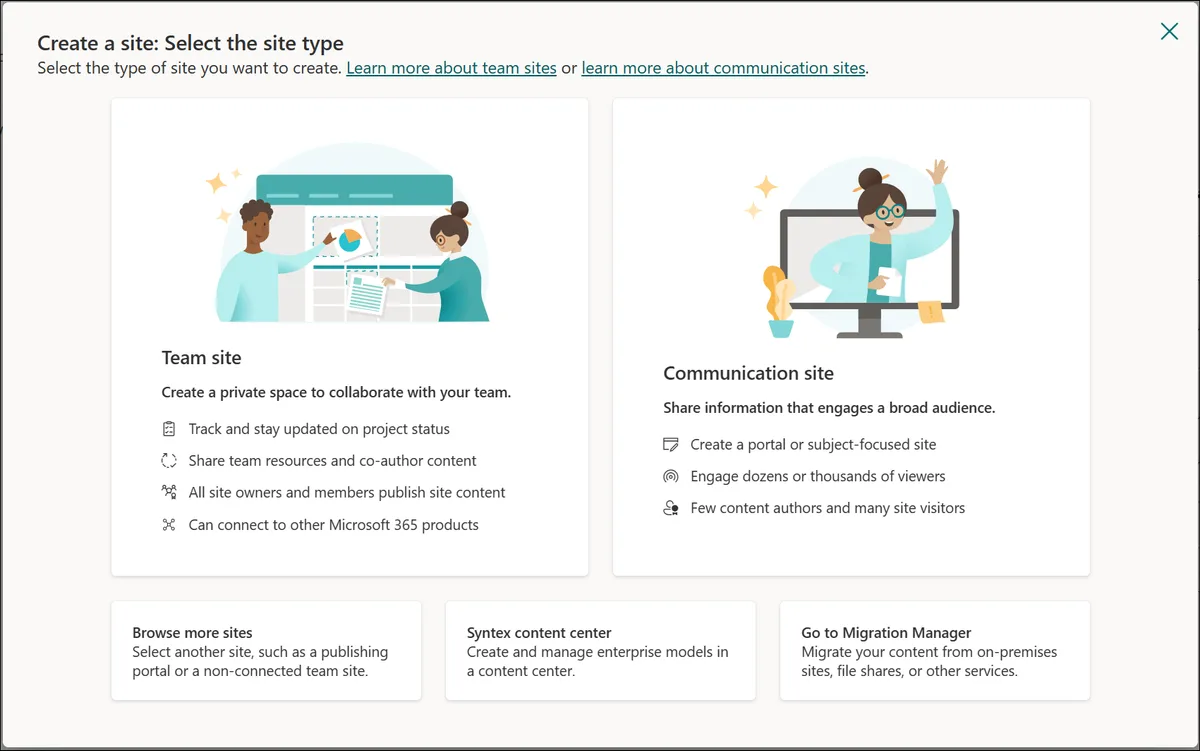
Once you’ve selected the site type, you can choose which template to start from. Here, SharePoint offers pre-built templates for specific content and features, such as managing onboarding for a new colleague or organizing company events.
Alternatively, the “Standard site” template, with no special configuration, is always available. For our example, let’s choose this one.
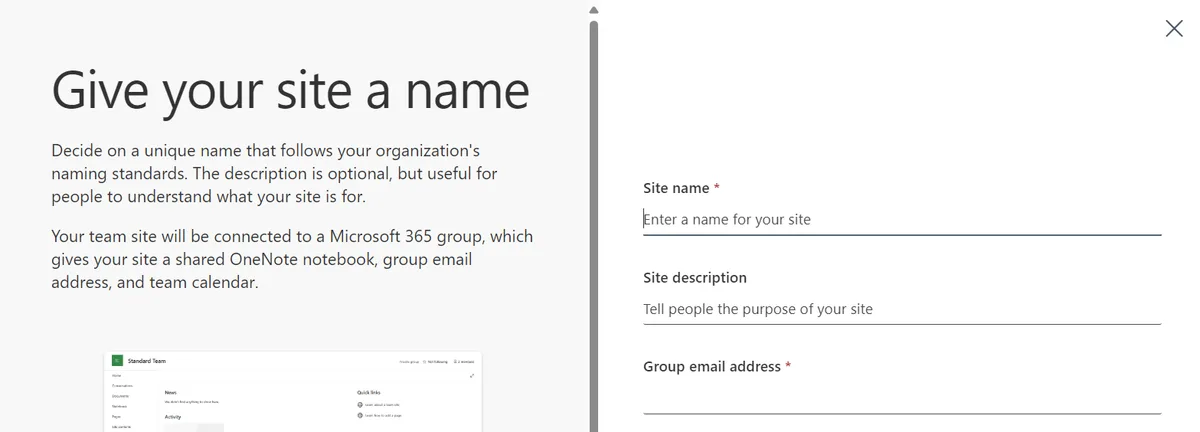
Next, SharePoint asks you to:
-
give the new site a name (required);
-
write a short description (optional);
-
customize the address of the mailbox associated with the site (a required choice, only present when creating a team site);
-
customize the site’s URL.
After that, you can set the new team site as:
-
Public, available to everyone in the company.
-
Private, visible only to specific people.
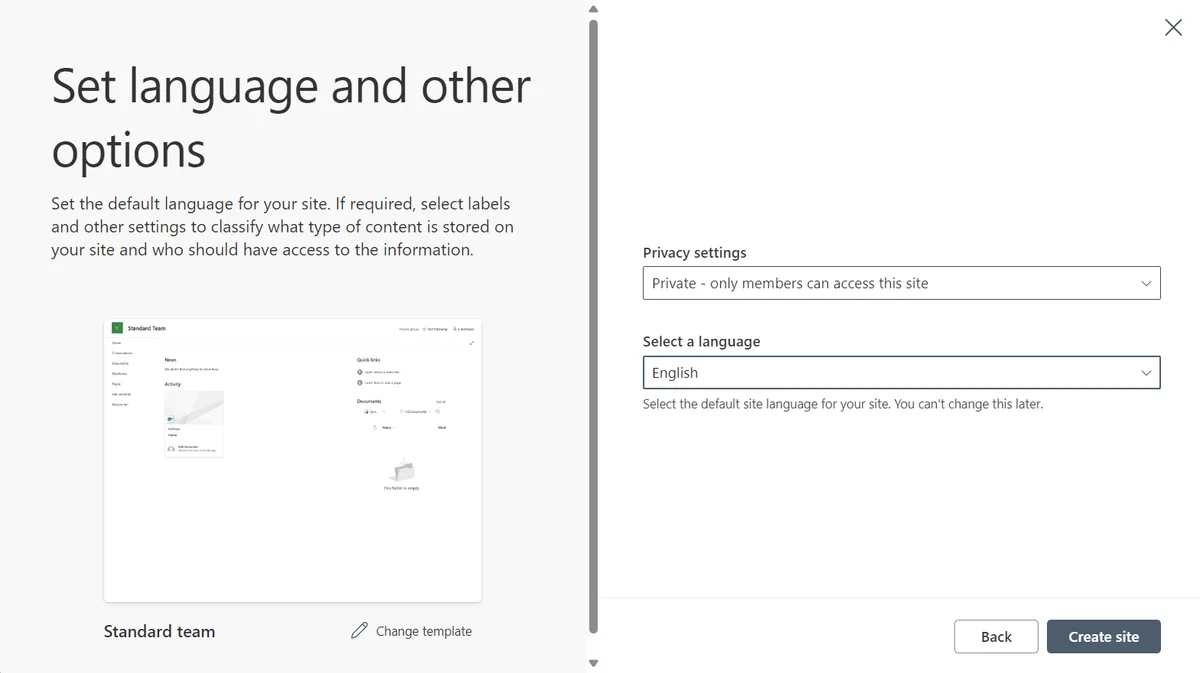
To wrap up the initial setup, you need to set the new site’s primary language.
This is an important step, since the default language can’t be changed later. If you ever need to change the primary language, the only option is to create a new site and transfer the content from the existing one into it.
We recommend reading our in-depth guide on how to create a smart intranet with Microsoft 365 SharePoint.
Creating a SharePoint site: advanced method, admins only
From the SharePoint Admin Center, users with admin rights can go to the “Active sites” section and use the “Create” command to set up a new SharePoint site.
Besides the standard choice between a team site and a communication site, SharePoint offers admins the following additional options:
-
View exclusive templates for creating a new site.
-
Create a central site for SharePoint Premium AI models, the add-on that lets you use artificial intelligence to process data found in SharePoint documents.
-
Access Migration Manager, to manage migrating content from your local network to SharePoint Online.
Choosing the first option lets admins create a site starting from special templates. Among them, the “Team site” template, which, unlike the standard template, doesn’t come with a Microsoft 365 group. This is particularly useful when you want to create a collaboration site without weighing it down with internal communication features, like a group-specific mailbox in Outlook.
Once you’ve chosen the template that best fits your needs, the site configuration process follows the same steps as the standard method.
SharePoint Site Template: how do you customize a site template?
To customize a SharePoint template, you need to be the site owner or an admin. Once you have the necessary permissions, you can move on to applying and customizing a template.
Let’s start with applying a template to a SharePoint site:
-
Create a new SharePoint site.
-
Select “Home.”
-
Open “Site settings.”
-
Select “Apply a site template.”
-
Choose the template you want to customize.
-
Click “Use template.”
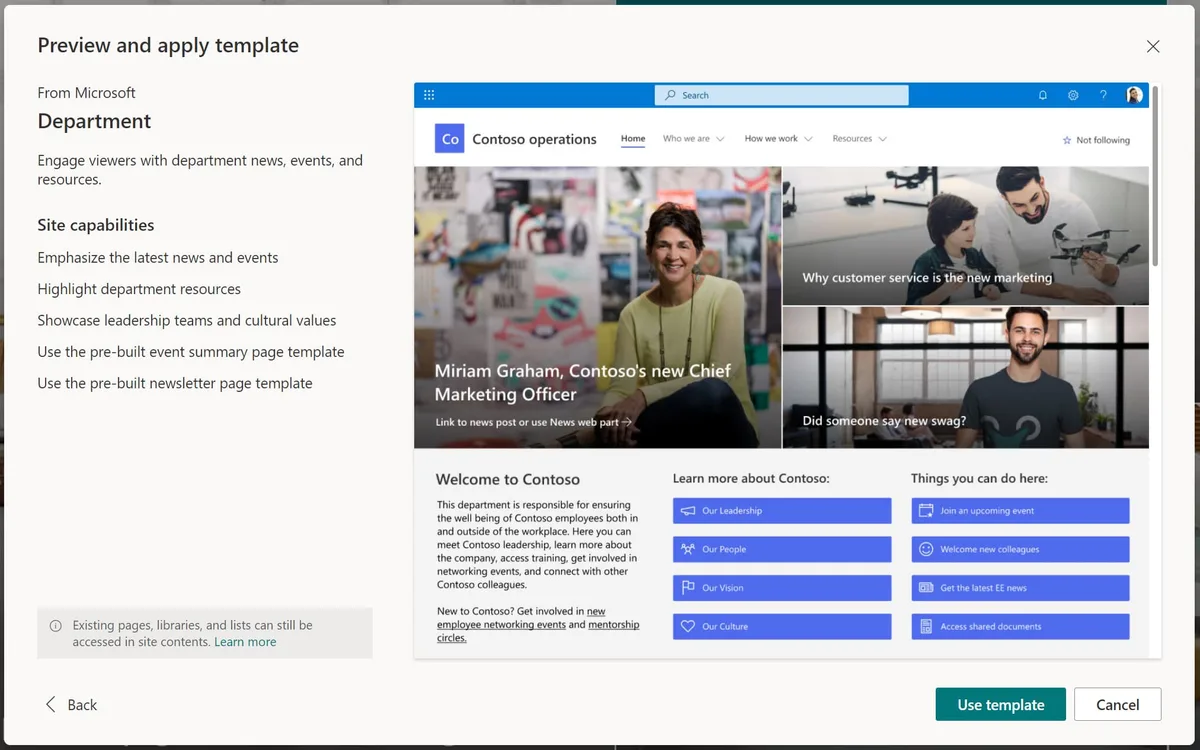
At this point, the new site will automatically be set up with the content, design, navigation, and features included in the applied template.
Here’s how to customize the template applied to your site:
-
Click “Edit” in the top right.
-
Add, delete, or edit elements on the site. To edit a web part, just select it and click “Edit web part.”
-
Select “Save as draft” or “Republish,” once your changes are complete.
The customized template will show up under “From your organization,” a section you can access every time you create a SharePoint site and see the available templates.
This same section also groups together the custom templates a company decides to import without customizing one of Microsoft’s pre-built templates. Here are the steps to follow to create this type of SharePoint site template:
-
Disable publishing features on the SharePoint site you want to create the template from.
-
Enable a custom script at the tenant level, from the Admin Center settings.
-
Select the SharePoint site to use as the template. In Settings, click “Site information” and then “View all site settings.”
-
Select “Save site as template” under “Site actions.” If this option isn’t visible, it means publishing hasn’t been disabled, or the custom script hasn’t been enabled correctly.
-
Give the new template a name and click “OK.”