**
What you’ll find in this article
-
What Live Events are
-
A complete, free guide to learn everything about Live Events
-
Teams, Yammer, or Stream: which platform should you use for live events?
-
The roles you need to run a live event
What are Live Events?
Live Events are one of Microsoft Teams’ most groundbreaking tools, the go-to collaboration platform.
They let company users create online events, broadcasting video and meeting content to large groups of online recipients, up to 20,000 people, to be precise.
Live events focus on interacting with participants from start to finish, before, during, and after, keeping everyone engaged and interested.
Through these events, you can create internal webinars, or events to share multimedia content with users outside your organization, such as clients or vendors.
If your company has multiple locations in different places, you can shrink the distance and connect your entire company network with a single click, a live event.
The CEO or company managers can spread messages easily through live events, making sure they’re heard and understood by every employee, and getting efficient, trackable results through reports.
Events can be run through Teams, Yammer, or Stream.
In this article, we’ll look at the differences between these platforms to help you pick the right one, which roles you need to put together an event, and you can also dig deeper, step by step, into everything you need to know, like planning a live event and how you can use it in your company, in our complete, free guide below.
Want to run successful live events?
We’ve put together a complete, free guide with everything you need to run highly engaging, high-performing live events.
-
Discover what you can do with live events
-
How to create a live event step by step
-
Business use cases for successful internal communication, with tips and best practices straight from our experts
Go to the guide
Which live event platform is right for you? Teams, Yammer, or Stream?
The audience for your live events
-Question 1: how many users are you expecting to take part in your Live Events?
If you’re expecting fewer than 10,000 users, you have plenty of choice, you can use any of the 3 platforms interchangeably, Teams, Yammer, or Stream.
If your live event needs to be watched by more than 10,000 people at the same time, the only option is to run it through Microsoft Stream.
That’s because Yammer and Teams have a maximum limit of 10,000 concurrent views.
We’d still recommend keeping an eye on Microsoft’s documentation to stay up to date in case that limit gets raised, which happens fairly often given how user needs evolve.
-Question 2: among the participants of your live event, are there people outside your company, or is it internal users only?
If external people are involved, you should rule out both Stream and Yammer.
Both require a license, so you need to be part of the organization to be able to watch the event.
The experience you want to offer in your Live Events
Question 3: what kind of experience do you want to offer participants for interacting with the people running the event?
If your live event is meant to spark an open discussion that doesn’t need moderation, you can use Yammer.
Yammer, in fact, supports real-time Q&A without needing moderators.
If you’d rather moderate the discussion, you can use Microsoft Teams.
As for Stream, if you absolutely want the ability for participants to interact during the live event, you’ll unfortunately need to rule it out, since it doesn’t have Q&A by default.
As an alternative, though, you could embed the Stream player inside an intranet, where you can set up a discussion area using Yammer’s default component.
Running your live event
Question 4: what’s the technical skill level of the person handling the event’s production?
If you use Microsoft Stream, you need to know some broadcasting, audio, and video software solutions, which require more advanced technical skills than what’s needed to run events on Teams or Yammer.
The content of your Live Events
Question 5: what kind of content do you want to deliver?
If it’s simpler content, like sharing a webcam feed or a PowerPoint presentation, both Teams and Yammer are a good fit, since you can use their production tools to share your desktop, individual apps like PowerPoint, and choose whether to add the webcam video and audio stream to that content.
If you’re planning more advanced content production, though, the first two options, Teams and Yammer, won’t cut it.
You’ll need Microsoft Stream.
Once you’ve chosen your platform, sort out the roles for your live event
What types of roles can we assign to the people taking part in our live event?
Live events let us define four different roles.
Let’s go through them together.
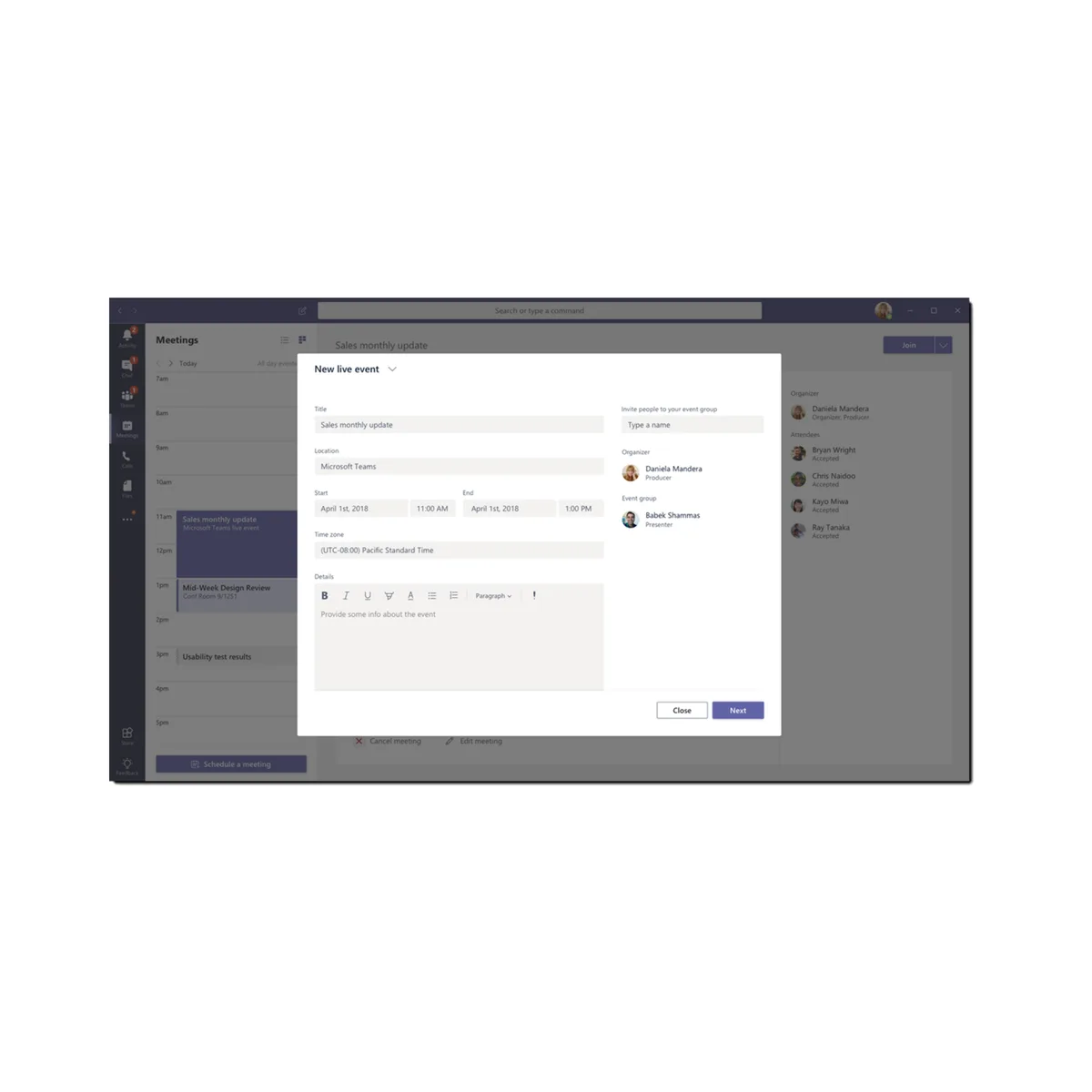
The event organizer
The first is the organizer, meaning the person who chooses to organize the live event on Microsoft Teams, Yammer, or Microsoft Stream.
They decide the event’s time, title, and description, and most importantly, who gets assigned the other roles.
This is a very important role, because besides being able to decide who handles the other activities within the live event, they’re the only one who can edit the event before it goes live.
Pay attention to this detail, because it means that once an event is live, not even the participants can be changed anymore.
The event producer
What do they do?
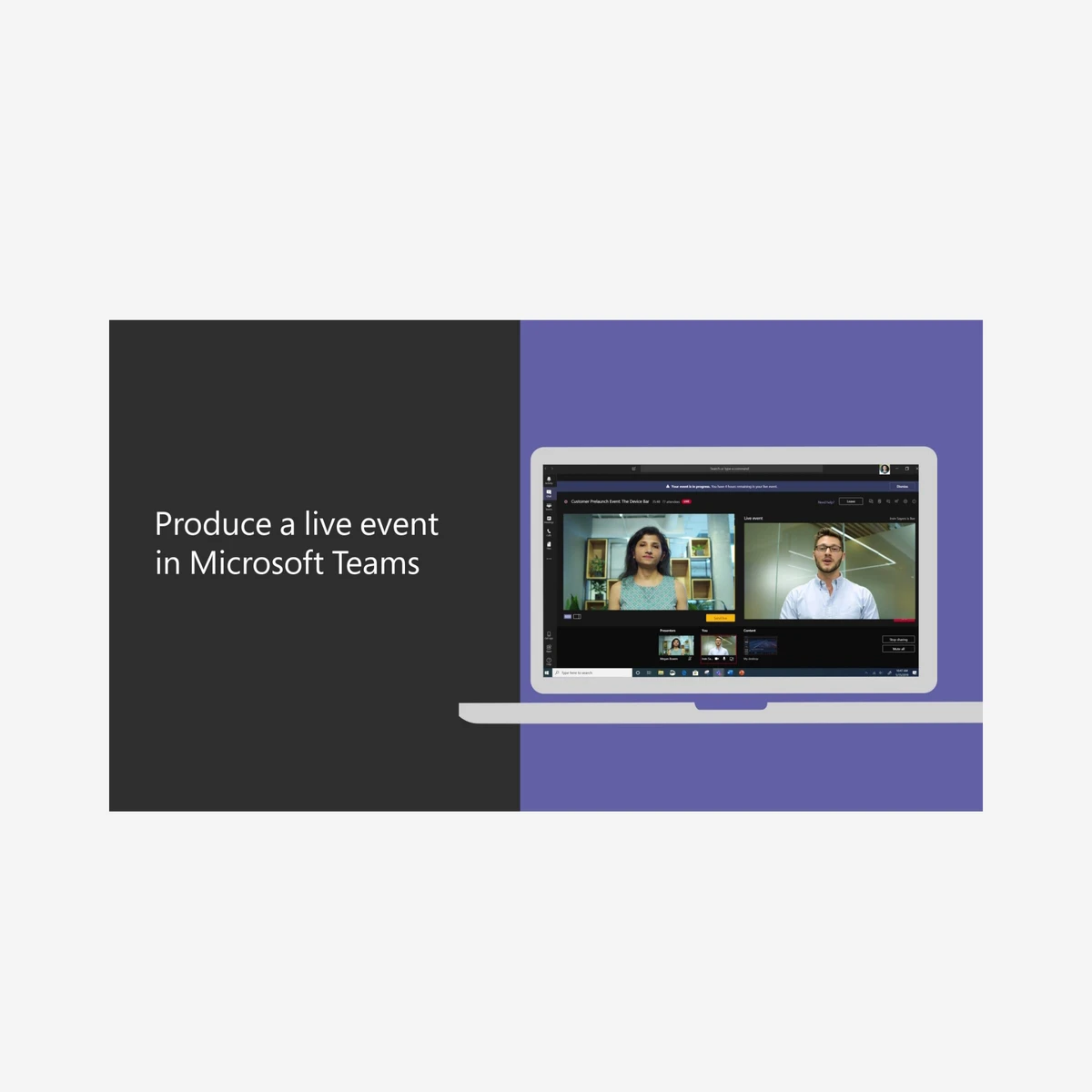
They represent the production side of our event.
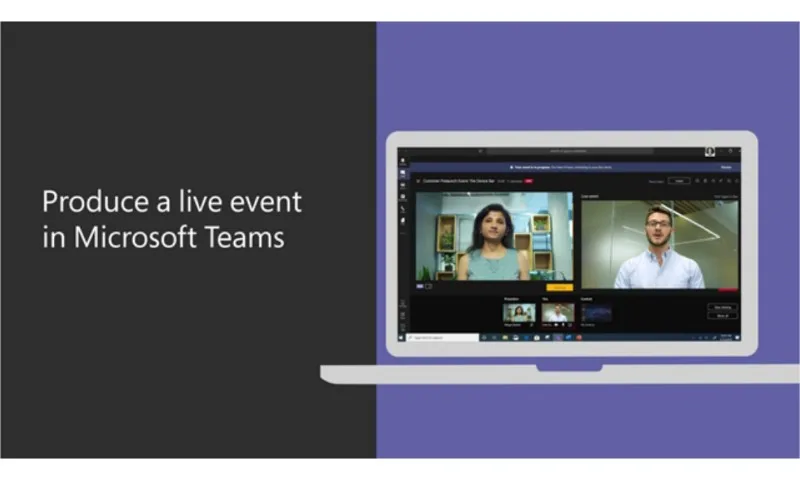
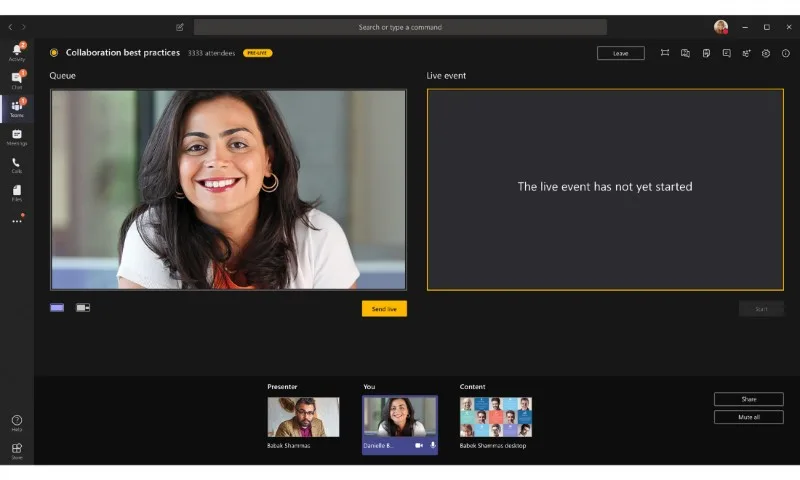
For a Teams or Yammer event, they use Microsoft Teams to choose what content gets shown and decide whether to enable Q&A, which they can also moderate themselves.
The producer also decides which people present during our live event can publish content at a specific point in the event’s timeline.
A producer is also responsible for one of the most important features.
They decide the layout of the content that will be part of the event.
This applies especially to Microsoft Teams or Yammer events.
They can choose full-screen content or a split layout, with a larger section for something like a presentation, and a smaller section showing the webcam feed of whoever is speaking.
What about on Microsoft Stream?
We just looked at the producer’s role for Teams and Yammer events.
On Stream, though, the producer is the person who, through their own broadcasting setup, sends the content to Microsoft Stream, and therefore decides pretty much everything, from what material gets broadcast to how it’s laid out for viewers.
The Live Event presenter
Let’s move on to the event’s presenter.
These are the people who can share content during the live event.
A presenter signs in to Microsoft Teams for a Teams or Yammer event, and can share:
-
their webcam
-
their desktop
-
a specific application on their computer, like a PowerPoint presentation
Of course, a presenter can also interact with people in real time using chat.
If we instead create a live event with Microsoft Stream, the presenter role doesn’t exist, because in that case the event’s production is more complex.
The attendee of your events
The fourth type of role within Microsoft 365 live events is the attendee, meaning the end user who joins as a viewer of our live event.
In this case, the only options people have are to watch and enjoy the event and to access the Q&A area.
Run everything by yourself
Of course, don’t worry, you can also run an event on your own, covering all three of the first roles for production, organizing, and presenting.
Tip: get at least two screens available, this way you can have Microsoft Teams’ production interface on the left screen, while on the right screen you can monitor what end users are actually receiving.
This helps you avoid accidentally sharing content during your event.
Live events: once it’s over
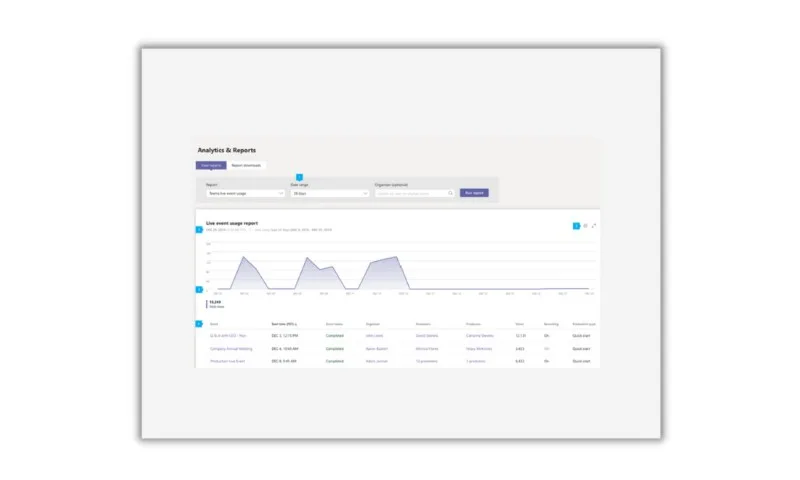
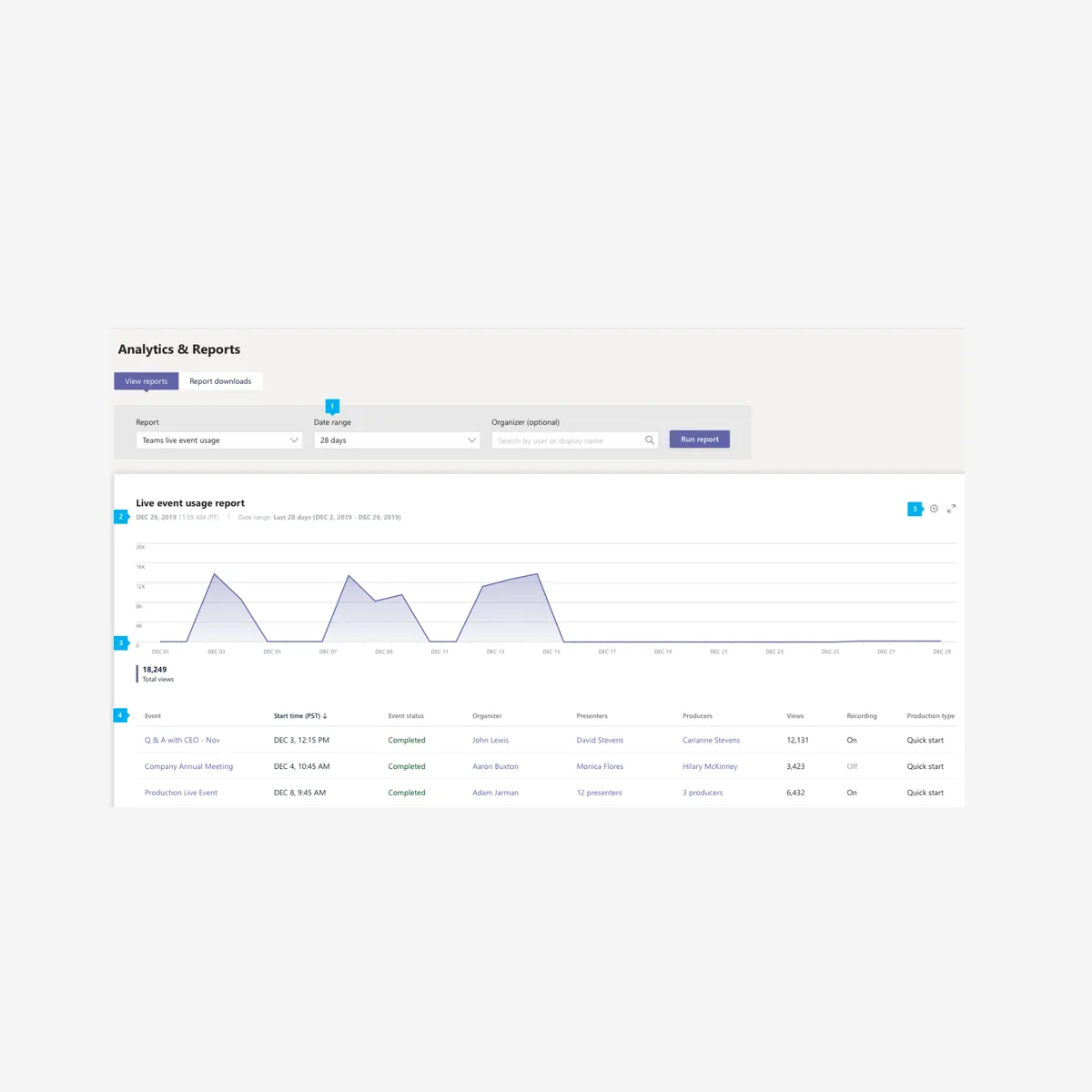
At the end of the event, only the organizer and the producer can access the attendance statistics available for every live event run through Microsoft Teams.
This lets them analyze what the engagement was like among people during the live event.
To view the report, just follow these steps:
-
In the left panel of the Microsoft Teams admin interface, click Analytics & reports > usage. On the View reports tab, under Report, select Live event Teams.
-
Under Date range, choose a preset range or set a custom one. You can pick a range to view data up to a year, six months before and after the current date.
-
Under Organizer, you can choose to view only the live events organized by a specific user.
-
Click Run report.
The event organizer
The first is the organizer, meaning the person who chooses to organize the live event on Microsoft Teams, Yammer, or Microsoft Stream.
They decide the event’s time, title, and description, and most importantly, who gets assigned the other roles.
Organizer
This is a very important role, because besides being able to decide who handles the other activities within the live event, they’re the only one who can edit the event before it goes live.
Pay attention to this detail, because it means that once an event is live, not even the participants can be changed anymore.
See intranet.ai in action
A ready-to-use intranet on SharePoint Online, live in days. Book a free demo with our team.
Book a demoThe event producer
What do they do?
They represent the production side of our event.
For a Teams or Yammer event, they use Microsoft Teams to choose what content gets shown and decide whether to enable Q&A, which they can also moderate themselves.
The producer also decides which people present during our live event can publish content at a specific point in the event’s timeline.
A producer is also responsible for one of the most important features.
They decide the layout of the content that will be part of the event.
This applies especially to Microsoft Teams or Yammer events.
They can choose full-screen content or a split layout, with a larger section for something like a presentation, and a smaller section showing the webcam feed of whoever is speaking.
What about on Microsoft Stream?
We just looked at the producer’s role for Teams and Yammer events.
On Stream, though, the producer is the person who, through their own broadcasting setup, sends the content to Microsoft Stream, and therefore decides pretty much everything, from what material gets broadcast to the viewing layout.
The Live Event presenter
Let’s move on to the event’s presenter.
These are the people who can share content during the live event.
A presenter signs in to Microsoft Teams for a Teams or Yammer event, and can share:
-
their webcam
-
their desktop
-
a specific application on their computer, like a PowerPoint presentation
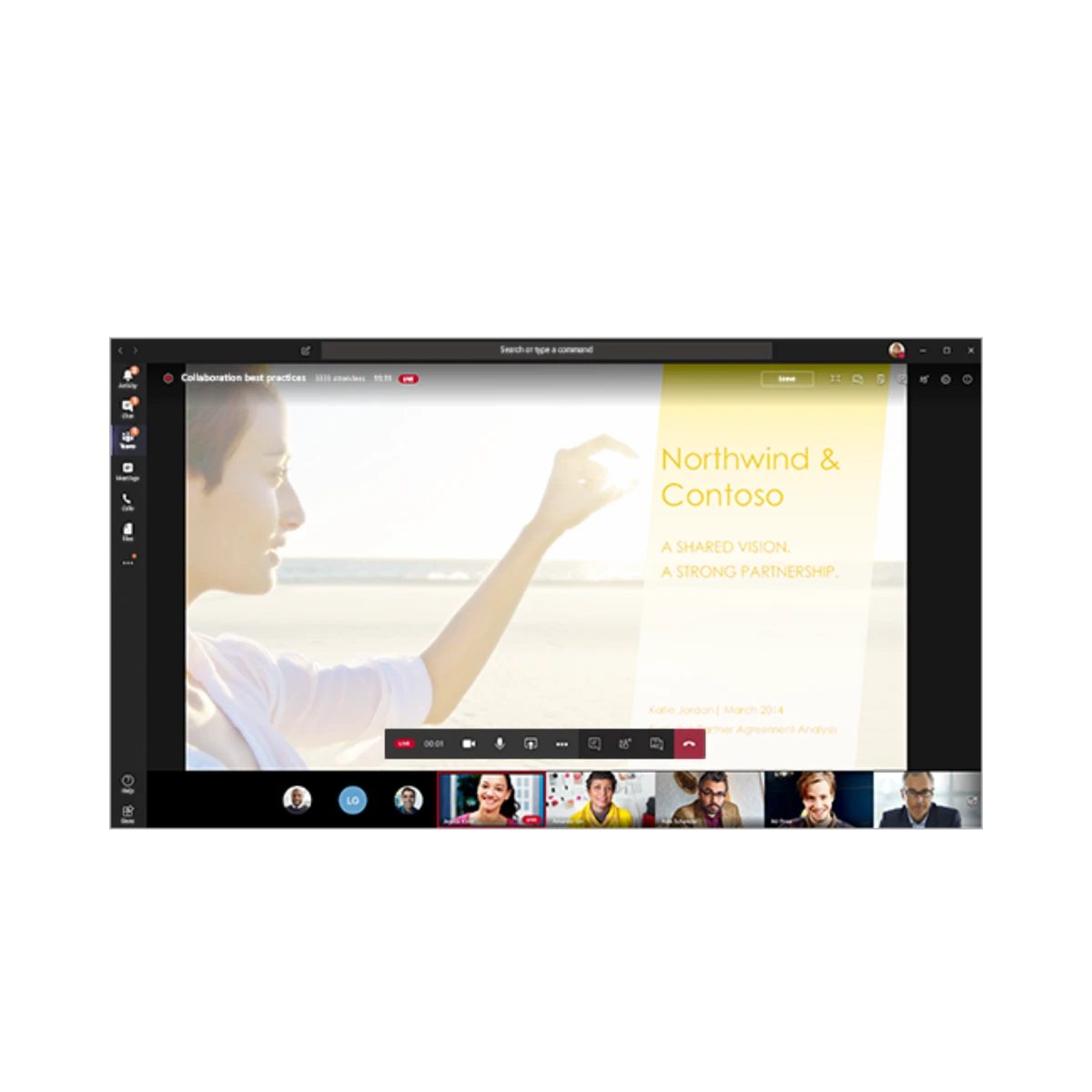
Of course, a presenter can also interact with people in real time using chat.
If we instead create a live event with Microsoft Stream, the presenter role doesn’t exist, because in that case the event’s production is more complex.
The attendee of your events
The fourth type of role within Microsoft 365 live events is the attendee, meaning the end user who joins as a viewer of our live event.
In this case, the only options people have are to watch and enjoy the event and to access the Q&A area.
Run everything by yourself
Of course, don’t worry, you can also run an event on your own, covering all three of the first roles for production, organizing, and presenting.
Tip: get at least two screens available, this way you can have Microsoft Teams’ production interface on the left screen, while on the right screen you can monitor what end users are actually receiving.
This helps you avoid accidentally sharing content during your event.
Live events: once it’s over
At the end of the event, only the organizer and the producer can access the attendance statistics available for every live event run through Microsoft Teams.
This lets them analyze what the engagement was like among people during the live event.