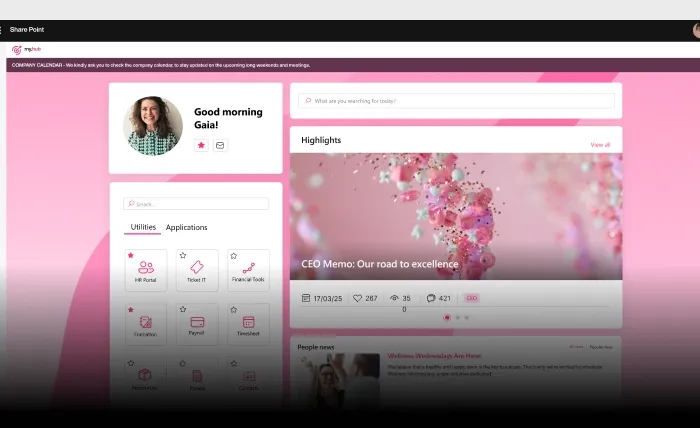
My Favorites
SharePoint Favorites: What are the benefits?
The page that brings together yourFavorites in the SharePoint intranet.
Access a single space with the news, contacts, documents, and applications saved in the different web parts of your intranet.
SharePoint Favorites: What are the benefits?
Our component allows you to bring together in one place on the intranet the news, contacts, documents and applications you want to keep at hand. You will then be able to find and immediately access content saved in the different SharePoint web parts, without wasting time on searches.
Find the resources you need, now
- People Directory
- FAQ pages
- Business Applications
- News
- Documents
Interact with your Favorites from a single space on the intranet
- Access tabs with your contacts' details
- View answers to your frequently asked questions
- Use the apps for your daily activities
- Delve into the news that interests you
- Read or download your documents

Simple configuration

How users save items to My Favorites
Users add content to their personal dashboard by clicking the star icon within each web part across the intranet: People Directory, FAQs, Company Apps, News Archive, and Company Documents. The My Favorites page then updates automatically, gathering every saved item into a single space. There is no manual maintenance for the user, as each section reflects the current favorites pulled from the connected SharePoint Online lists in real time.
Flexible configuration for administrators
Each of the five sections is configured by pointing the web part to the relevant SharePoint site URLs and list URLs, with support for multiple lists per content type. Administrators can set the maximum number of items shown per section, customize the Load More button text, rename section titles, and hide individual sections or the entire web part when empty. The Documents section also supports a custom language property and a toggle for the download icon.
Documentation
Explore the technical guide for this feature on our documentation site.
Frequently asked questions
Which types of content can be saved in My Favorites?
My Favorites consolidates five content types from across the SharePoint intranet: contacts from the People Directory, frequently asked questions from FAQ pages, links to Company Apps, articles from the News Archive, and files from Company Documents. Each section can be enabled or disabled based on company needs.
How does a user add an item to their favorites?
Within each web part, the user clicks the star icon next to the contact, FAQ, app, news item, or document they want to keep at hand. The My Favorites page then updates automatically to display the saved item under its corresponding section, with no further action required.
Can administrators control how many items appear in each section?
Yes. Administrators can set a maximum number of items shown per section, applied uniformly across all tabs, and customize the behavior and text of the Load More button. They can also rename section titles, hide specific sections, and configure the web part to disappear entirely when no favorites are present.
Does the component require ongoing manual setup?
After the initial configuration, which points each section to the relevant SharePoint site and list URLs, the web part runs automatically. It pulls saved items directly from the connected lists and refreshes as users add or remove favorites, so no recurring manual updates are needed.
Related features
The complete SharePoint intranet integrated with Microsoft 365, starting from 3,950 €/year.
- 80+ apps for communication, training, and knowledge sharing
- Compatible with Microsoft 365 and Microsoft Viva
- Operational within 24 hours from purchase, with 5 days of consulting