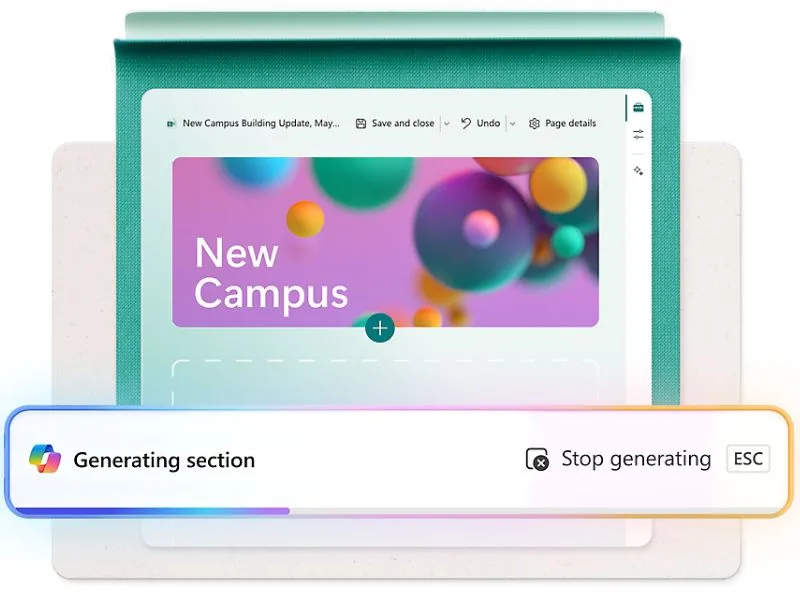
The digital shift has pushed companies to rethink how they manage customer relationships. Adopting a CRM (Customer Relationship Management) system is now a driver for boosting competitiveness and making the most of human capital. In this space, SharePoint Online, already well established as a collaboration and document management platform, also lends itself to being set up as a CRM, offering a flexible internal solution that integrates with the entire Microsoft 365 ecosystem.
In this article, we’ll look at the core concepts, the reasons behind this kind of transformation, and the strategic planning stages for building an effective SharePoint CRM.
What you’ll find in this article
Turning SharePoint into a CRM: what it is and what it’s for
In today’s market, companies increasingly need to track, update, and share information about their customers. That’s where a CRM system comes in, letting you centralize data from multiple sources, improving visibility into opportunities, and ensuring better collaboration between departments.
Companies already using Microsoft 365 tools can use SharePoint to create a tailor-made CRM environment, leveraging the tools already available in the Redmond ecosystem and adding document management and automation features. This approach lets you cut costs tied to adopting third-party CRM solutions, while also letting you customize the system to your company’s specific needs, making sales and support processes easier to organize.
But what exactly is a CRM?
We’re talking about a system designed to manage and analyze interactions with current and potential customers, centralizing all the necessary information in one place.
What does a CRM actually do?
What a Customer Relationship Management system does
CRM feature Benefits for customer management
Contact management Every piece of information about a customer or prospect (name, email, purchase history, preferences) is easily accessible.
Opportunity tracking Helps you follow the sales journey, such as who’s shown interest in a product but hasn’t purchased yet.
Sales cycle management Organizes sales activities, reminds you of important deadlines, and helps salespeople work more efficiently.
Customer service support Lets you respond to requests faster and track issues to offer better support.
Data analysis Provides reports and statistics to understand what’s working and where to improve.
Essentially, a CRM works like a “control room” connecting departments like sales, marketing, and customer service, optimizing teamwork. This way, a Marketing department can use the CRM to build targeted campaigns, while Sales can focus on the most promising opportunities, and Customer Service can resolve issues quickly and with a personal touch.
Now it’s easier to understand why using SharePoint as a CRM can be useful for organizations already using Microsoft 365 solutions, or thinking about adopting them.
As mentioned, SharePoint is mainly known as a tool for document management and internal collaboration, but it can also be set up as a CRM thanks to its flexibility. So how exactly does SharePoint work as a CRM?
- Centralizing information. We can create a tailor-made structure to collect and organize customer data, for example:
Lists: tables containing customer information, such as name, contacts, requests, interaction history.
-
Libraries: archives for storing documents like contracts, invoices, or reports tied to each customer.
-
Customization with metadata and lookups.
Metadata: lets you tag and classify data (for example, customer status: “Active,” “In negotiation,” “Inactive”).
-
Lookups: link lists to each other, creating useful connections (for example, linking a customer list to an order list).
-
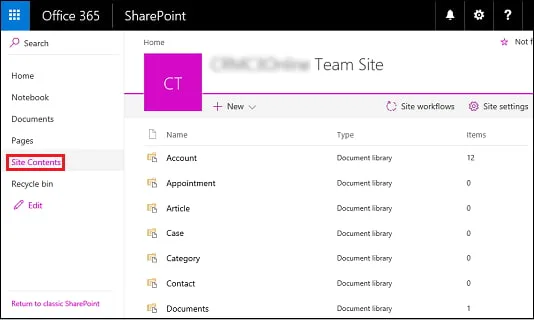
Custom pages. We can create visual dashboards to show the most relevant data, such as a customer list with details of their latest interactions.
On the security side, SharePoint includes an advanced permission system, letting you control who can access customer data. This way, department managers can access only the customers assigned to their team, while sensitive documents (contracts, strategic plans) can be visible only to authorized people.
You can also configure SharePoint to fit your company’s specific needs, from creating customer folders split by department to setting up Document Sets to group related documents (such as quotes, orders, and reports) into a consistent structure.
To put it even more simply, let’s imagine we want to build an organized system to manage our customers and their information using SharePoint. The first step is good planning, meaning thinking about what our company actually needs to keep everything under control. It’s like planning a house’s layout before you start building it.
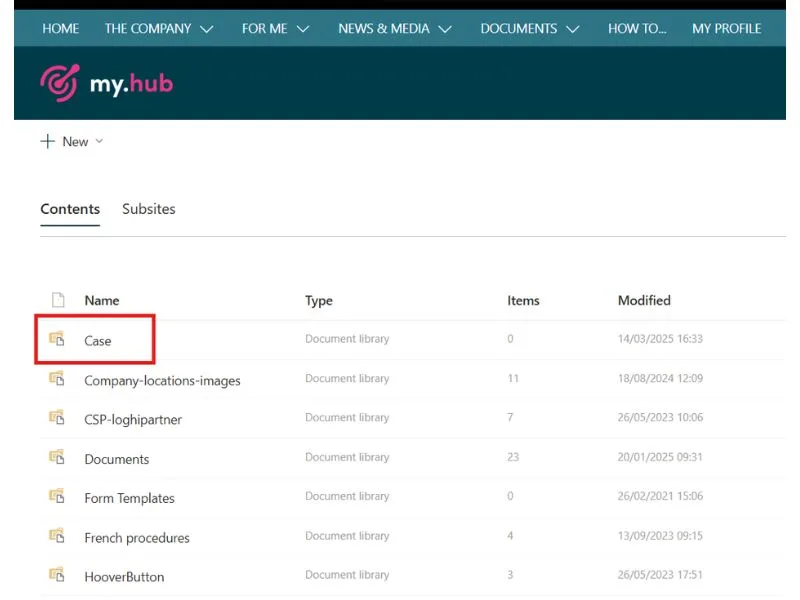
First, we create a central site on SharePoint that becomes our reference point. This site can be one of two types:
-
Communication site: useful if we want lots of people to read and browse the information (such as reports or announcements).
-
Team site: perfect for group work, where different teams can collaborate and update data together.
Once we’ve chosen the type of site, we move on to organizing the information. This is where the lists and libraries we mentioned earlier come in.
Lists are like registers where we record all the important data. There can be a list for customers, or for sales opportunities to keep track of which deals are in progress.
Libraries, on the other hand, are used to manage documents: contracts, quotes, or any other file tied to customers. Instead of creating a thousand folders inside other folders, we use metadata, tags that help us classify files. This way, we can add a tag with the customer’s name or the document type and instantly find what we need.
Another “shortcut” SharePoint offers is the ability to link lists using lookup columns. That means we can, for example, click on a customer’s name in a list and see every deal or document tied to that customer. It’s basically like having a thread that ties everything together.
Finally, to avoid confusion, it’s very important to set clear rules, like using standardized names for files and columns (for example, “Contract_Customer_X” instead of “Doc1”).
Building a CRM system with SharePoint might sound complex, but it’s actually simple if you think of it as a project to carry out step by step.
See intranet.ai in action
A ready-to-use intranet on SharePoint Online, live in days. Book a free demo with our team.
Book a demoStep-by-step guide to building a SharePoint CRM
The main goal is to create a centralized space where all customer information is organized and easily accessible. To reach that goal, you need to follow a structured path that starts with creating the site, moves through configuring lists and document libraries, and ends with building an intuitive dashboard.
Every step is designed to build a solid, scalable system, able to adapt to the company’s specific needs and grow with it over time.
1. Create a SharePoint site
As mentioned, the first step is creating a site dedicated to the CRM, which will be the foundation for the whole system. This site will be like the digital office where you store and manage all customer information. So, we’ll choose whether to create a Communication site or a Team site, based on what we need. For example, if a sales team works closely with the marketing department, a Team site will be the better choice.
After choosing the type of site, we need to configure it to fit our CRM goal. So, first we give our site a clear, descriptive name (for example, “SharePoint CRM”), then we set up a permission system, to decide who can see what. Then, we connect our dedicated CRM site to Microsoft 365 groups.
We’ve now built an initial setup that doesn’t need to be rigid, but modular and scalable, letting us add new features or change existing ones as the company’s needs grow. For example, we can start with a basic customer list and then add other features like opportunity or document management.
2. Configure SharePoint lists
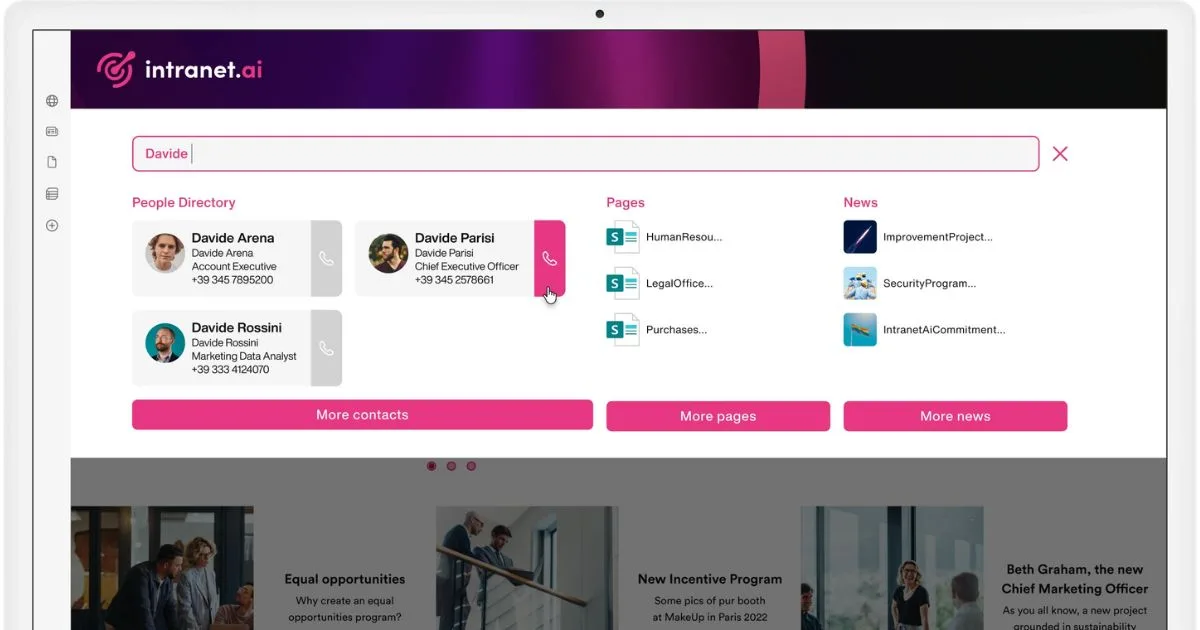
After creating the dedicated site, the next step is to focus on SharePoint lists, because they’re the heart of the system. Lists collect and organize all the important information, like who our customers are, which opportunities we have in progress, and what we need to do to handle each situation.
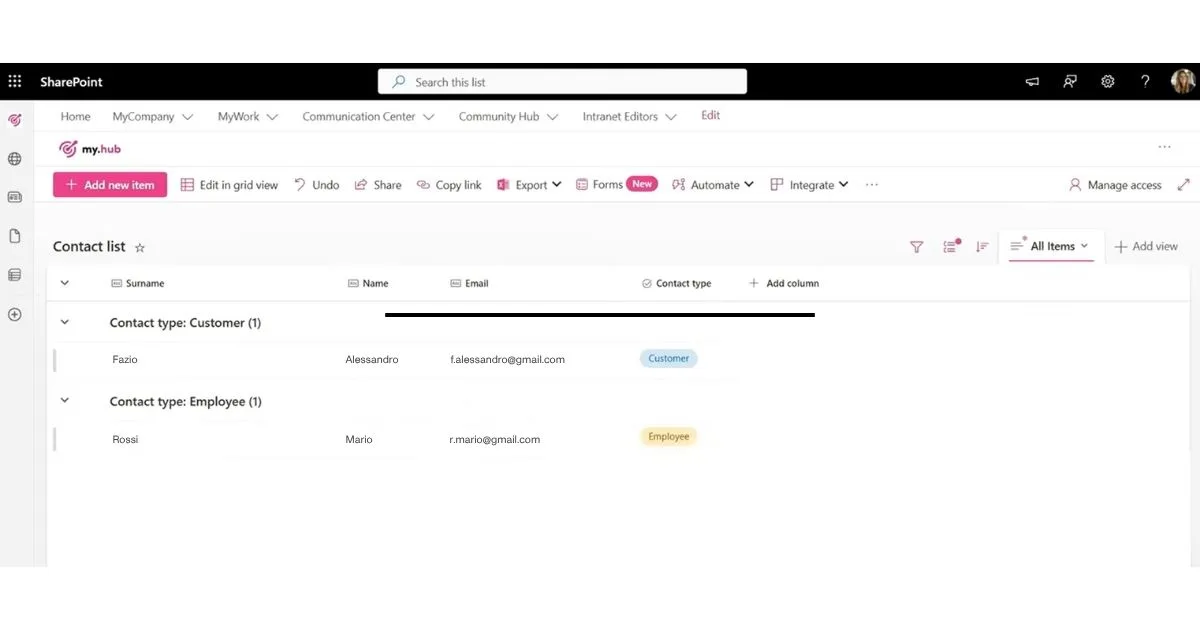
For example, think about the Customers and Contacts list: here we’ll enter names, addresses, phone numbers, and maybe some custom information, like the customer’s industry or the name of the main contact person. It’s like having a digital address book, but much more powerful, because we can add useful details and use them to link data to other lists. These connections make everything much simpler: we can see, for example, not just who the customer is, but also what we’ve already done with them and which deals are still open.
Then there can be the Opportunities list, where we track every deal in progress. Here we don’t just record the potential value of a deal, but also its status: has it just started? Is it almost closed? Maybe we have a deadline to meet, and thanks to this list, we won’t risk forgetting it. Another benefit is that every opportunity can be linked to a specific customer: just click to know who it’s tied to and which documents have been uploaded.
3. Manage Document Sets
Speaking of documents, file management is just as important.
With Document Libraries, we have a place to store everything, from contracts to quotes. And this is where another very useful tool comes in: Document Sets. Think of it as a virtual container that groups together all the documents for a customer or a deal. We don’t have to search through a thousand folders: we find everything right away, and we can even set up a page that shows us, at a glance, the most important files and some key information.
Setting up a Document Set involves:
-
Customizing a Welcome Page that clearly shows the included documents and the customer’s key information.
-
Setting up shared metadata, ensuring every document within the set inherits the information needed for categorization.
-
Defining rules to automate processes like document review or approval.
This approach lets us organize everything intuitively. No more confusion with classic folders, which can sometimes turn into a real maze. With metadata, instead, we can classify every document and find it quickly.
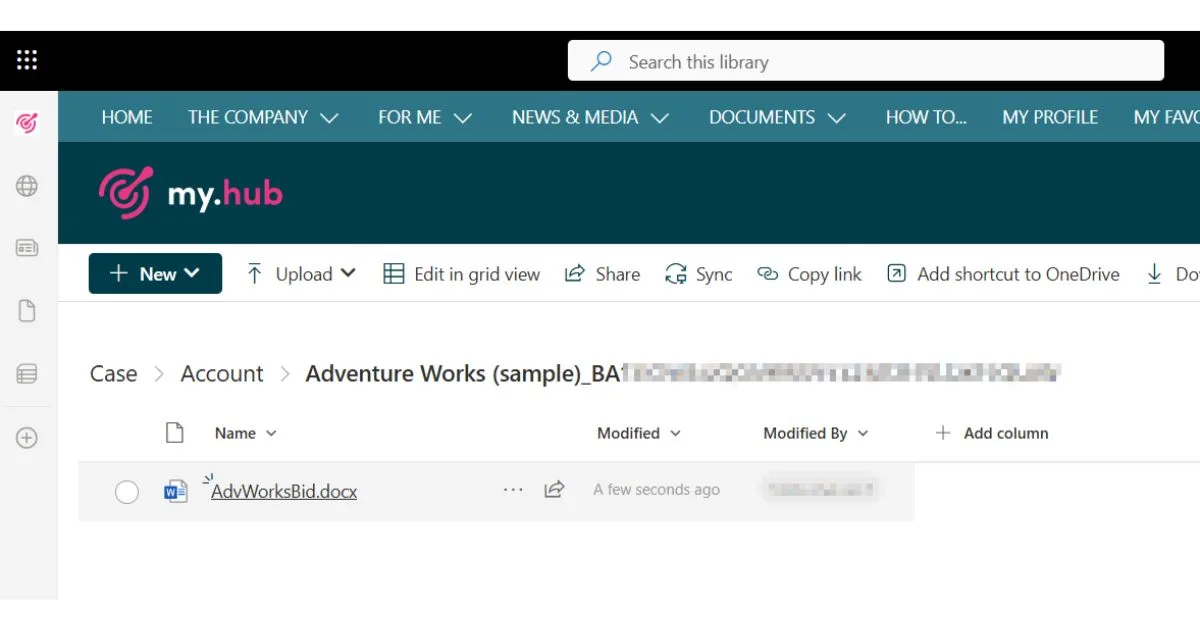
4. Create a dedicated SharePoint page
After creating the lists and libraries for the CRM in SharePoint, it’s time to make everything accessible and easy to use, by creating a dedicated page within the site. This page will be a central dashboard, a panel that collects and displays, in an organized way, all the important information about customers, opportunities, and documents.
Imagine having a digital desk where you can see everything you need at a glance: the customers you’ve recently added, the deals in progress, important documents like contracts or quotes.
To do this, SharePoint uses web parts, which work like widgets (“blocks”) that we can place on the page to display data. For example:
-
A web part for the customer list, with contacts and key information.
-
Another one to show opportunities, with deal status and key dates.
-
A section dedicated to documents, where you can access the most relevant contracts or reports.
This page doesn’t just organize the data, it also makes it easy for anyone who needs it to consult.
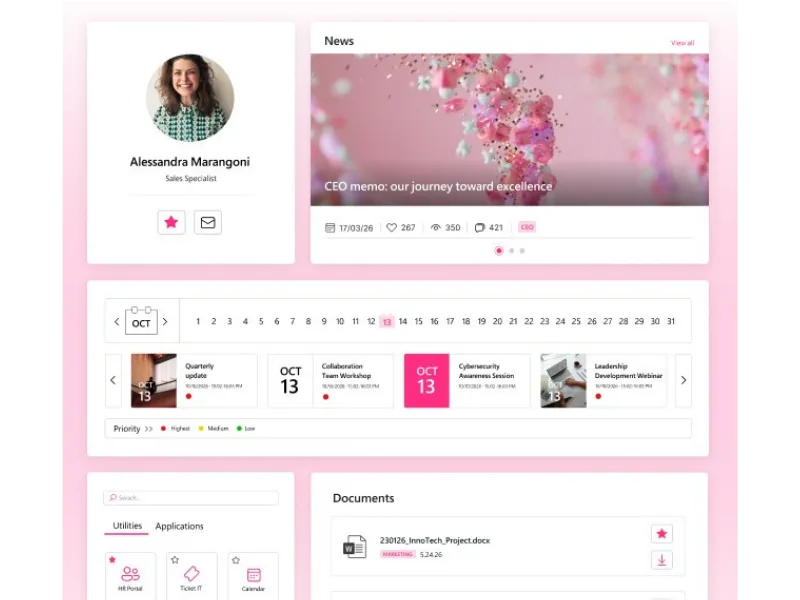
5. Add a filtering system
Another very important aspect of a CRM in SharePoint is the ability to use Dynamic Filtering. This system links lists and libraries together, letting you automatically filter data based on what you select. Here’s a practical example:
-
We click on a Customer in the main list;
-
Right away, on the same page, we see every opportunity tied to that customer and the related documents, like contracts or quotes.
This synchronization is possible thanks to the lookup columns and metadata we set up in the lists and libraries: this way, Dynamic Filtering lets us focus only on the data we care about, without having to manually search through multiple lists or sections.
Think of the dashboard as a personalized control panel. When we access the page, we can:
-
Filter data with a click, for example by choosing a specific customer.
-
Immediately see the related opportunities and documents, without switching from one list to another.
-
Work faster and in a more organized way, because everything syncs automatically.
In short, this dedicated page gives us a complete, immediate view of everything related to our customers and their deals.
SharePoint CRM: integrations with Microsoft 365
The Microsoft 365 ecosystem, powered by the Power Platform, simplifies and improves company data management in a way that changes how you work. This is possible thanks to deep integration between tools like SharePoint CRM, Power Automate, Power Apps, Power BI, and Microsoft Teams, which together form a unified, intelligent platform.
But what does that mean in practice?
SharePoint CRM and Power Automate
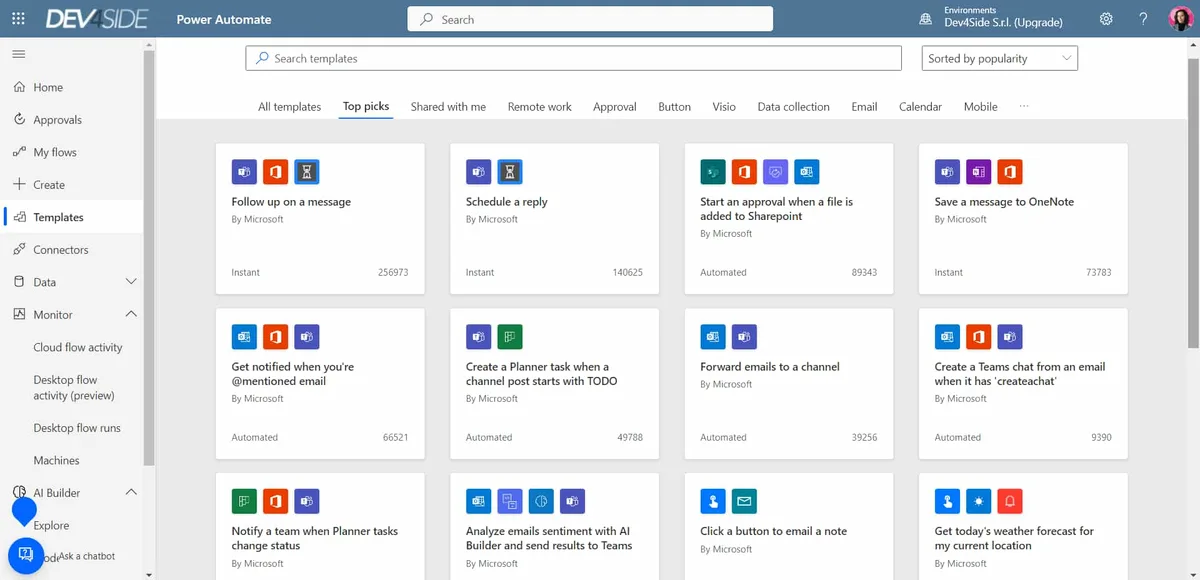
Power Automate lets us automate repetitive tasks and complex workflows. This tool stands out as the backbone of automation in a CRM system built on SharePoint.
The ability to create workflows that react to specific events and integrate seamlessly with the lists, libraries, and metadata already set up in the CRM site makes our work a lot easier. Instead of manually carrying out repetitive tasks, an automated workflow could trigger immediately when a new customer is added and registered in SharePoint CRM, sending personalized notifications via email or Microsoft Teams to the relevant users.
It can also start the data entry approval process, and can even automatically create a dedicated folder in the Document Library associated with the customer.
SharePoint CRM and Power Apps
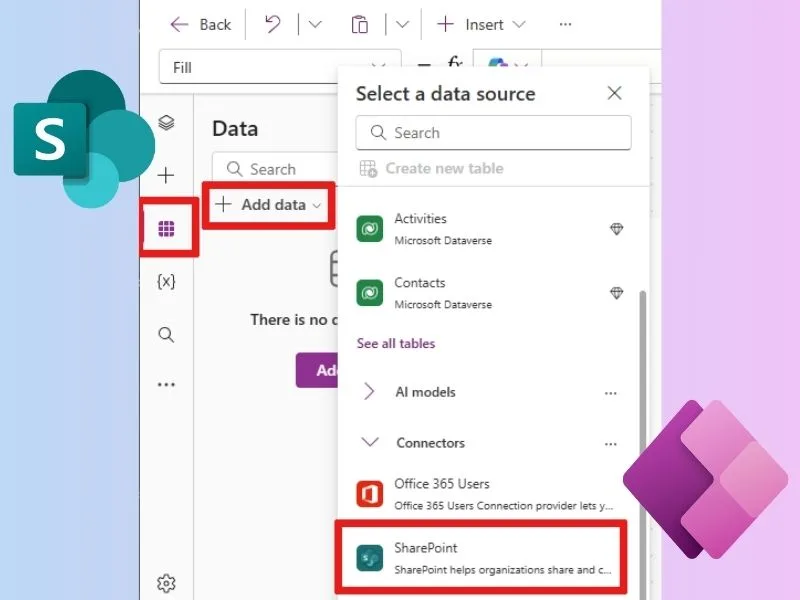
With Power Apps, instead, we can build custom low-code business applications, offering an intuitive interface that makes accessing and managing data easier. In the context of a SharePoint CRM, this flexibility lets us design specific apps for different departments, like sales, customer service, or marketing, each displaying data in a personalized, relevant way.
To give a practical example, an app built with Power Apps can offer a dashboard that shows, in real time, the status of deals, contact priorities, and customer information. These apps can include interactive elements like charts, dynamic filters, and buttons to update information, so the user always has a complete, up-to-date view of CRM activities.
On top of that, using Power Apps lets you implement custom forms for data entry, reducing errors and standardizing the information collected. Integration with other data sources, like files stored in document libraries or data from external systems, also lets you build apps that act as a central hub, consolidating all the useful information and giving sales staff a single interface to interact with the CRM.
SharePoint CRM and Power BI
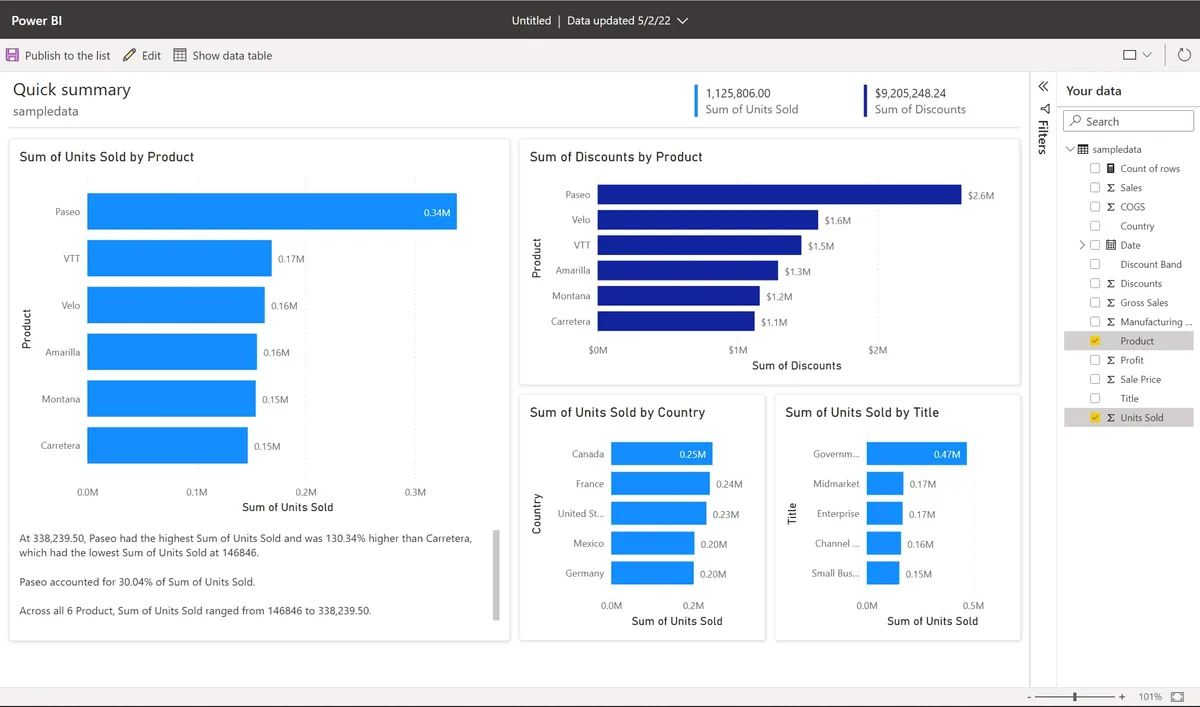
Continuing with the Power Platform tools, it’s time to talk about Power BI: with this tool, we can turn the data collected in SharePoint CRM into visual reports and interactive dashboards. The ability to aggregate information from different sources (lists, document libraries, Power Automate workflows, even external data) lets us get a real-time overview of sales performance.
To give a few practical examples, with Power BI we can track deal conversion rate, analyze sales volume by sector, or see which customers generate the biggest economic return. Dashboards can be set up to update automatically, letting managers spot issues or opportunities early and plan corrective strategies.
SharePoint CRM and Microsoft Teams
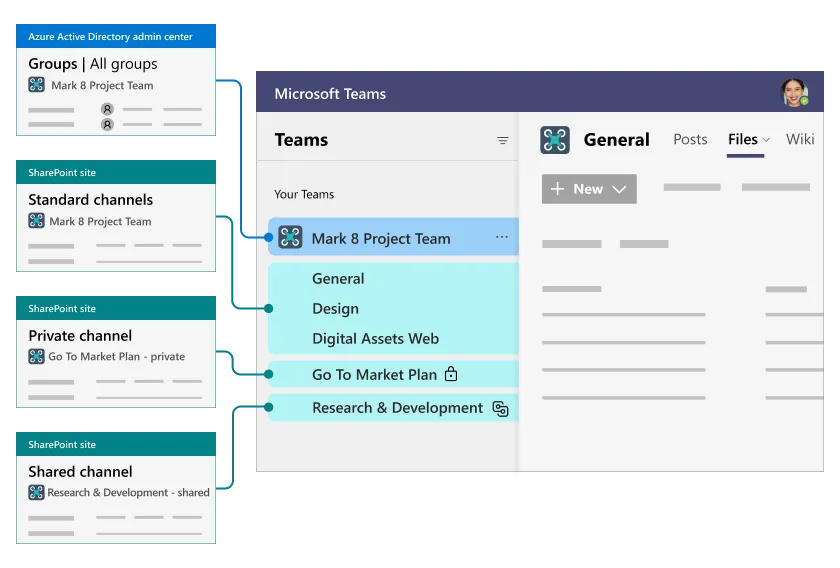
Let’s move on to the integration with Microsoft Teams, which lets us access CRM data directly from the chat and collaboration environment. Teams, in fact, acts as a key meeting point for communication and collaboration, integrating perfectly with SharePoint CRM’s features. Creating dedicated teams lets you manage customer relationships in a modular way, splitting information and activities by customer or market segment.
Each team, with its own dedicated channels, keeps communications focused on activities related to a particular customer or a set of deals. This structure not only makes it easier to access documents, which stay stored in SharePoint, but also to share updates, plan activities, and coordinate projects.
Native integration between Teams and SharePoint enables automatic file syncing and collaborative features like virtual meetings, chat, and real-time notifications. Every change or update is immediately communicated to team members, cutting down response times.
SharePoint CRM and Microsoft Viva
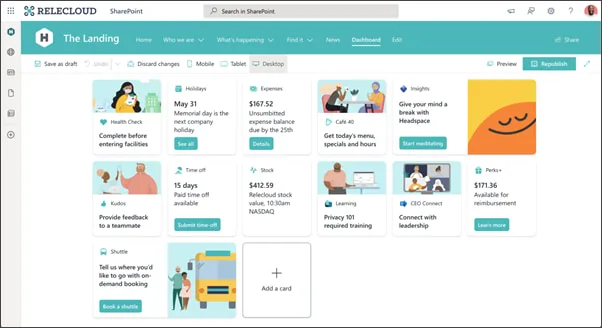
Beyond the classic integrations, we can also look at some more modern solutions that let you get even more out of SharePoint as a CRM. Take the Microsoft Viva platform, which integrates perfectly with SharePoint CRM and Microsoft Teams. This platform was designed to improve the work experience through modules like Viva Connections, Insights, Learning, and Topics.
With Viva Insights, for example, we can get personalized suggestions for managing our time and activities better. For instance, if we spend a lot of time in meetings, Viva Insights might suggest scheduling dedicated focus time, highlighting when we’re most productive, or, by analyzing SharePoint CRM data, it could flag which customer-related activities are due soon or need attention. In practice, it’s like having a virtual assistant that helps us work more effectively.
With Viva Topics, instead, we can stop wasting time looking for a specific document or piece of information: using artificial intelligence, this tool comes in handy when working on a customer in SharePoint CRM, because it can automatically identify every document, email, Teams conversation, and resource tied to that customer, organizing them into a single view. Another benefit is that Viva Topics builds a kind of automatic “company encyclopedia”: for every project or customer, we can see essential information like contacts, history, and key resources, all gathered in one place.
SharePoint CRM and Microsoft Planner
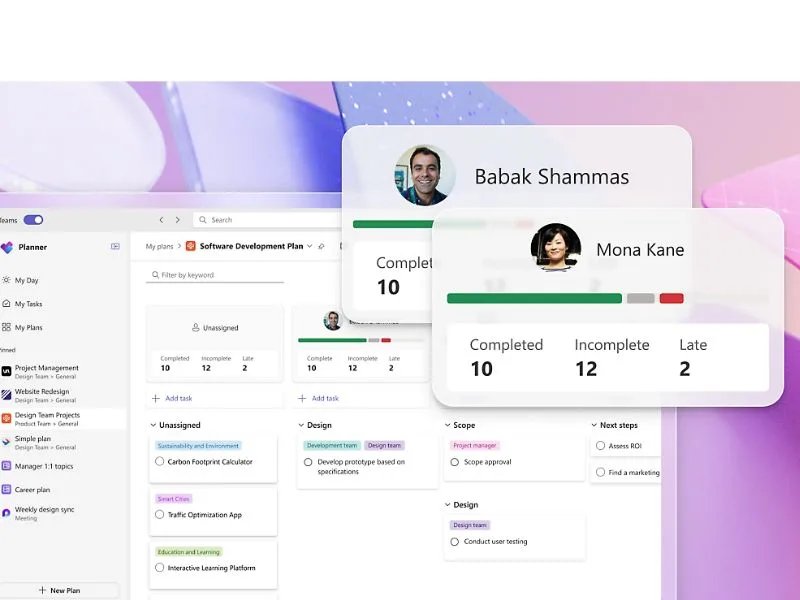
Another Microsoft tool that can come in handy for a SharePoint CRM is Planner, perfect for organizing and tracking every activity related to our customers in a shared context.
In practice, we can create a plan dedicated to a customer directly in Planner, with cards for each activity: “Prepare the contract,” “Present the proposal,” “Follow up on onboarding.” Each card includes deadlines, priorities, and assignments: for example, we can assign contract preparation to a colleague with a deadline for next Friday.
Finally, we can take advantage of the integration between SharePoint CRM and Teams, so customer information stored in SharePoint is automatically pulled into Planner. Plus, every update to the plan can be sent as a notification in Teams, so the whole team stays aligned.
SharePoint CRM and Microsoft To Do
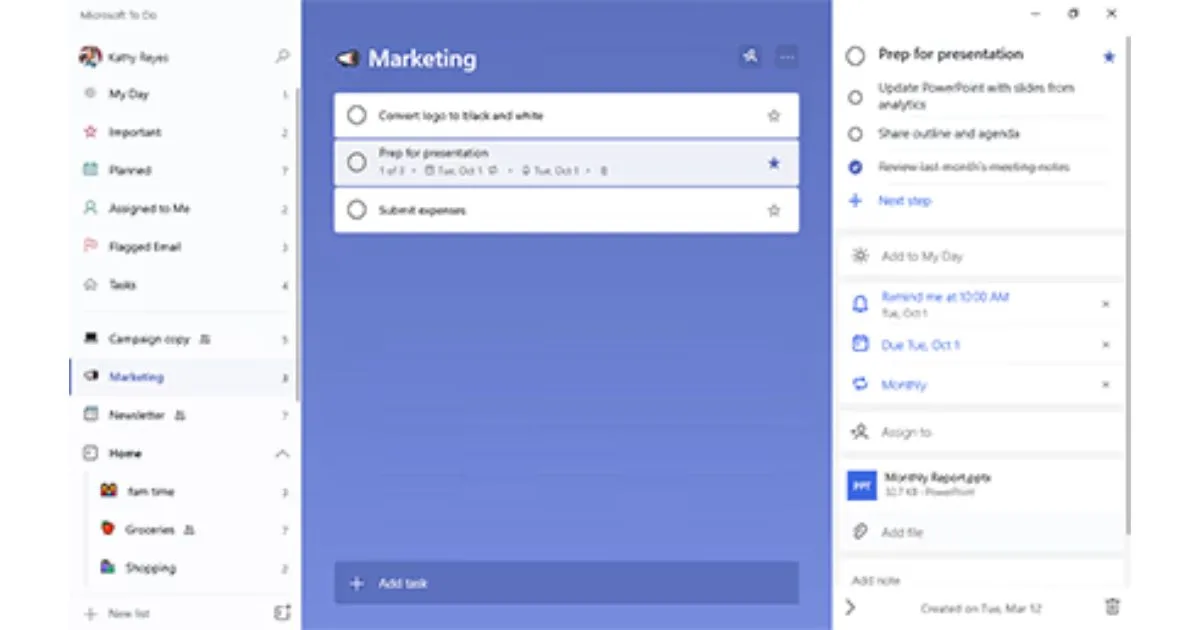
While Planner organizes team work, To Do handles our personal tasks. For example, if we’re assigned a task in Planner, it’s automatically synced to our To Do list.
We can create a dedicated list for each project or customer and include tasks like “Call the customer,” “Review the report,” or “Update the contact list.”
To Do also reminds us of deadlines and syncs across all our devices, so we never forget anything, even when we’re out of the office.
SharePoint CRM, Dynamics 365, and Dataverse
Now let’s imagine we want to take customer relationship management to the next level. That’s where Dynamics 365 and Dataverse come in, two tools that, integrated with SharePoint CRM, transform the way we collect, analyze, and use data.
Dynamics 365 is like a super-CRM that lets us not only manage customers, but also analyze their behavior and anticipate their needs. In practice, it lets us simplify the management of the following:
-
Customer journey: we can track every stage of a customer’s journey, from the first interaction all the way to closing a deal. For example, if a customer visits our website, signs up for the newsletter, and requests a quote, Dynamics 365 records all this information and links it to the customer’s profile.
-
Behavioral predictions: thanks to built-in AI algorithms, we can predict which customers are more likely to make a purchase or which ones might churn. This lets us act ahead of time, offering targeted discounts or promotions.
-
Personalized offers: we can segment customers based on preferences, behavior, and purchase history. For example, a customer who bought a premium product might receive offers for related exclusive services.
If Dynamics 365 is the visible face of customer management, Dataverse is the engine that powers everything. It’s a centralized data platform that connects SharePoint, Power Apps, and other tools. In practice, it lets us centralize data, combining, in a single database, the information collected about a customer from SharePoint CRM, Power Apps, and Dynamics.
With Dataverse, we can also process large amounts of data to spot trends and get useful insights. For example, we could analyze customer feedback to understand which products perform best in specific markets.
Take the case of a customer who sends a support request through a Power Apps app, updates their profile in SharePoint CRM, and attends an event organized by our company. Dataverse can bring all this information together, making it available in Dynamics 365.
SharePoint CRM and Microsoft 365 Copilot
Finally, let’s wrap up this list of tools that integrate with SharePoint CRM with a game-changing one, based on artificial intelligence: let’s talk for a moment about Microsoft Copilot.
Imagine having a personal assistant always by your side, ready to handle complex tasks for you, suggest smart actions, and help you work faster. That’s exactly what Copilot does, the AI assistant built into Microsoft tools like Word, Excel, Teams, and SharePoint.
Let’s say we need to prepare a detailed customer report for our boss. In the past, that meant manually collecting data, analyzing it, building charts, a long and tedious process, in short. With Copilot, we can simply ask the tool, in natural language, to create a report. For example, we can ask it: “Generate a chart with last quarter’s sales data broken down by sector.” At that point, the AI analyzes the data in SharePoint CRM, automatically imports it into Power BI, and gives us back a report with charts, tables, and useful insights, all in just a few minutes.
Here’s another example: imagine working on a CRM project and receiving a lot of emails and Teams messages. Sometimes it’s hard to tell what’s actually a priority. Copilot helps by analyzing the content of emails and chats, identifying important requests or urgent topics. It then suggests specific actions, like replying to a customer, assigning a task to a colleague, or scheduling a meeting.
To give a few more examples, in Word, Copilot can help us write a sales proposal or a summary of a CRM report, simply by asking it: “Create a document explaining the results of our latest marketing campaign.” In Excel, instead, it can build advanced analysis: if we ask it “Show me average sales per customer over the last year,” the spreadsheet will be generated with charts and formulas already set up. In short, Copilot is like having a tireless, super-expert colleague working alongside us in Word, Excel, Teams, SharePoint, and much more, helping us do more, do it better, and do it faster.
It’s worth saying that implementing this CRM system in SharePoint, possibly integrated with other solutions, doesn’t require adopting everything all at once.
You can start from a specific need, like automating a process or improving reporting, and gradually integrate the other tools. With support from consultants or companies specialized in building Microsoft 365-based solutions, you can tailor solutions to your company’s priorities: that’s exactly the case with intranet.ai, which offers its customers a wide range of resources and features to optimize company productivity with tailor-made intranets.