Since it launched, SharePoint Online has evolved a great deal and keeps evolving today, giving users new ways to make the most of the platform. The modern experience stands out for its responsive, configurable interfaces, designed to simplify day-to-day content management.
This shift aims to support increasingly fluid collaboration, integrating automation tools and cloud services, as well as advanced artificial intelligence tools, to further simplify work and speed up productivity.
In this article, we’ll explore how this shift can transform the way you work, offering an increasingly dynamic and intuitive digital environment.
What you’ll find in this article
SharePoint Classic vs SharePoint Modern: features compared
The terms SharePoint Classic and SharePoint Modern refer to the two user interfaces available in SharePoint Online and in more recent versions of SharePoint on-premise (2019 and later).
These aren’t two different editions of SharePoint, but rather two user experience modes with significant differences in design, features, and usability.
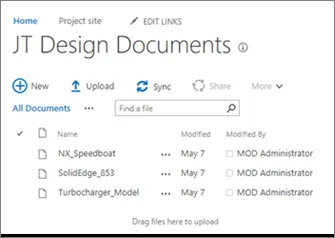
SharePoint Classic
The “Classic” experience is the more traditional version of SharePoint, inherited from earlier versions of SharePoint Server (2013 and 2016) and still available in SharePoint Online for compatibility reasons.
It’s characterized by:
-
A dated interface, closer to a traditional company website with rigid layouts.
-
Static pages with customizations based on Master Pages and Page Layouts.
-
Heavy use of “legacy” web parts and solutions built with JavaScript and jQuery for advanced customization.
-
Lists and document libraries with a less intuitive UI, often relying on context menus.
-
A less optimized experience for mobile devices, with limited responsive capabilities.
-
Compatibility with custom solutions built with SPFx or SharePoint Designer, which require more complex maintenance and updates.
SharePoint Modern
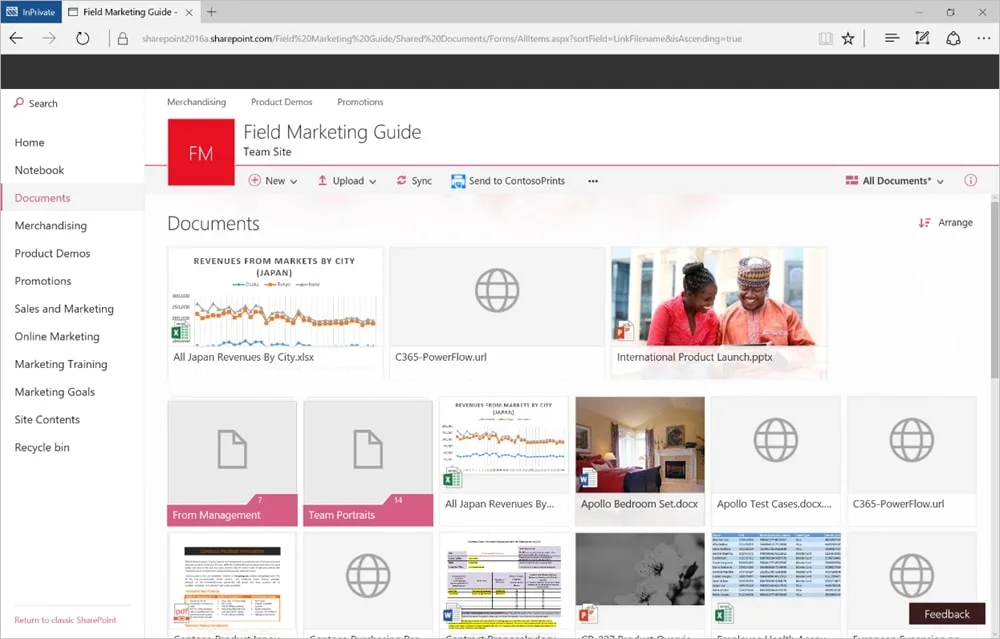
The “Modern” experience is the default mode in SharePoint Online and in SharePoint Server 2019 and later. It was built to improve usability, collaboration, and integration with Microsoft 365.
Its main features include:
-
A more intuitive, responsive design, optimized for mobile devices and screens of every size.
-
Dynamic pages that are easy to customize thanks to a drag-and-drop interface.
-
New modern web parts, more flexible and regularly updated, compatible with Microsoft 365 and Power Platform.
-
An improved document management experience, with native support for OneDrive Sync, Quick Edit, Teams integration, and advanced versioning.
-
Improved navigation, thanks to tools like mega navigation, hub sites, and a search experience powered by Microsoft Search.
-
Better security and governance, with Microsoft Purview, sensitivity labels, and advanced data protection controls.
See intranet.ai in action
A ready-to-use intranet on SharePoint Online, live in days. Book a free demo with our team.
Book a demoSharePoint Classic vs Modern: which should you choose?
If your organization still uses SharePoint on-premise 2016 or earlier, chances are the experience is mostly “Classic.”
SharePoint Server 2019 supports both styles, but Microsoft recommends adopting the Modern version for new implementations.
SharePoint Online, on the other hand, is now designed to be used with Modern mode, although it’s possible to force the Classic view to ensure compatibility with existing solutions.
In short, SharePoint Classic is a legacy interface, useful only in contexts that need advanced customizations or compatibility with older systems. SharePoint Modern, on the other hand, represents the platform’s future, with a better user experience, deeper Microsoft 365 integration, and more advanced collaboration tools.
SharePoint Modern experience vs Classic experience
SharePoint Classic vs Modern is a comparison that often comes up when working or designing solutions within Microsoft’s SharePoint environment.
The term “Classic experience” refers to the more traditional SharePoint mode, around for several versions and characterized by an interface made mostly of pages with fairly static layouts, lists and document libraries with rather static styling, and a structure partly inspired by earlier Microsoft technologies.
By contrast, “Modern experience” refers to the new experience Microsoft introduced more recently, designed to offer a more up-to-date, flexible, and responsive design, compatible with mobile devices and more in line with what today’s users expect.
That said, to really understand what it means to adopt modern mode versus classic, you need to look at the various aspects that set the two experiences apart, considering interface, features, customization potential, and how they’re used.
1. Look and User Experience
First of all, the most obvious difference between classic and modern lies in the look and the user experience.
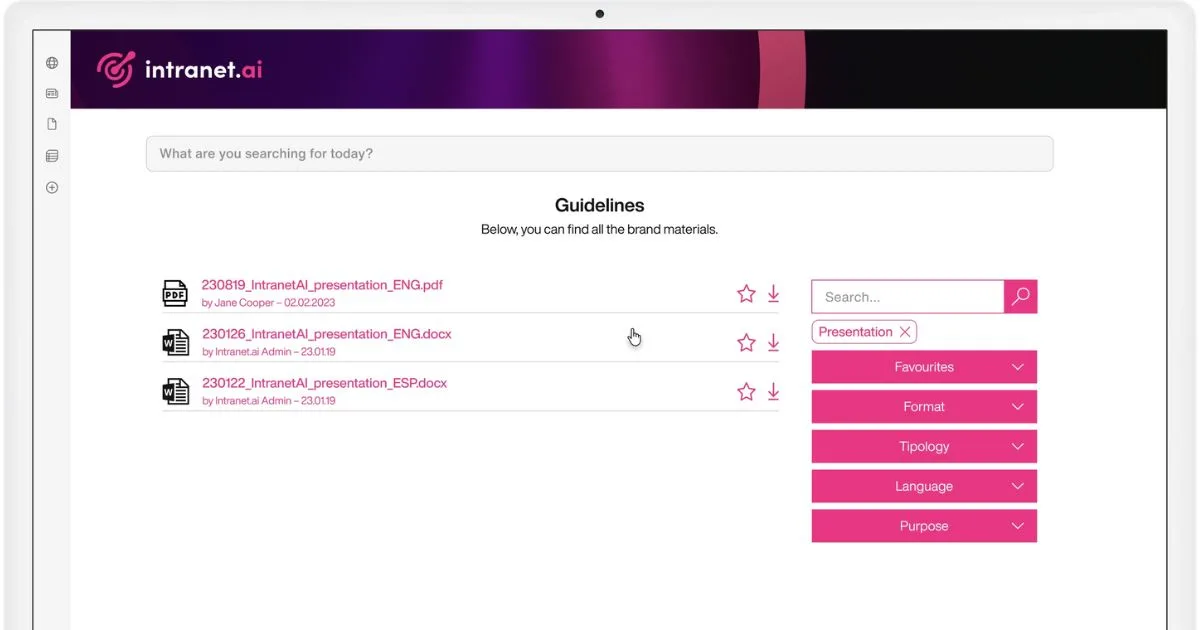
SharePoint Classic pages are built on a layout many longtime Microsoft users were used to: fairly dense menus, tight spacing, and a content organization that sometimes needed development skills to change in any meaningful way. Document libraries and lists, in this version, had a standard look, with columns and text entries that weren’t always intuitive if you wanted to do quick analysis or fast edits.
With the Modern experience, SharePoint pages look cleaner and more responsive, with a design that easily adapts to screens of every size, including smartphones. Document libraries and lists have an interface closer to OneDrive’s, allowing for smoother use and letting you add columns and filters right away. It’s also easier to switch from list view to grid view, which lets you edit information directly in a table, without having to open individual editing screens.
2. Customization
Another point of comparison is customization potential.
SharePoint Classic offers a lot of freedom to anyone able to work with custom code or use advanced tools like SharePoint Designer and master pages. In classic mode, SharePoint developers can work extensively with CSS, JavaScript, and page layout, building tailor-made solutions. However, this kind of work requires specific skills, and there’s a risk of creating pages that are less responsive or not fully compatible with future platform updates.
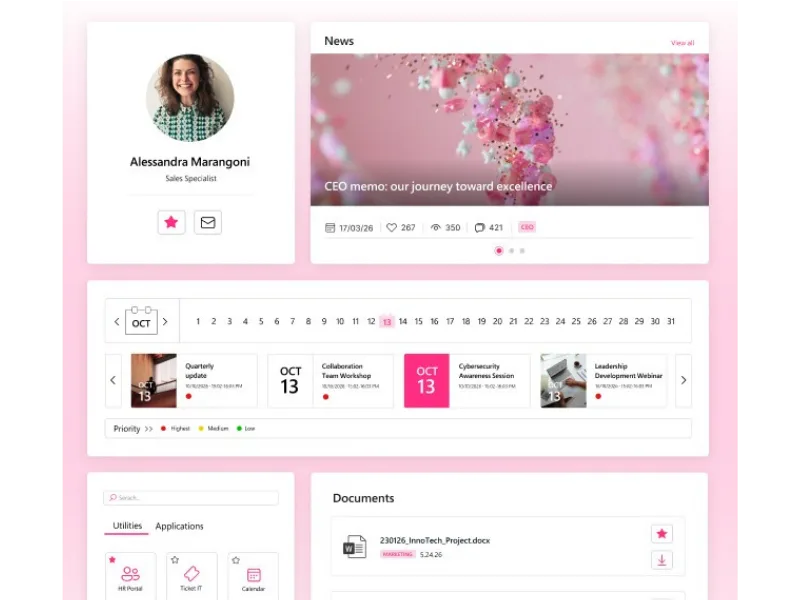
The Modern experience, on the other hand, reduces the need for deep customization in favor of a set of ready-to-use web parts, visually consistent and optimized for use on any device. Thanks to these web parts, we can add sections, images, documents, news, and more with a more user-friendly approach, without needing to write any code. While this might seem like a limitation for anyone wanting extreme flexibility, the truth is it reduces the risk of incompatibility and guarantees a nicer, more immediate interface, which every user can contribute to without needing specialized developers.
3. Integration
An important chapter in comparing SharePoint Modern vs Classic is integration features.
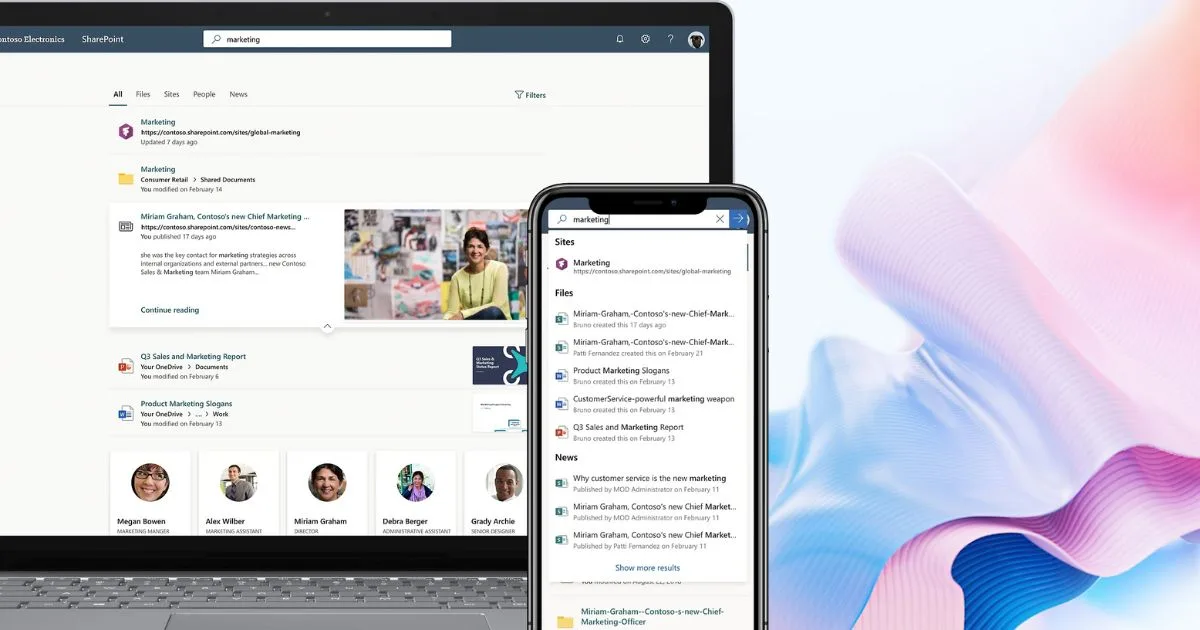
In the Modern experience, we find native, deep integration with Microsoft 365, which makes it easy to add elements like a Viva Engage news feed, OneDrive files, and Microsoft Teams channels. This cross-cutting approach encourages more dynamic collaboration, where SharePoint content can be linked to Teams chats or virtual meetings, creating a smooth, centralized workflow.
In the Classic version, integration is less seamless: you can still connect certain services, but it often requires manually configuring web parts or adding scripts.
With the Modern experience, many of these tasks become more intuitive, thanks to buttons and configuration panels that appear directly in the graphical interface.
4. Lists and libraries
There’s also a big difference in how lists and libraries are managed.
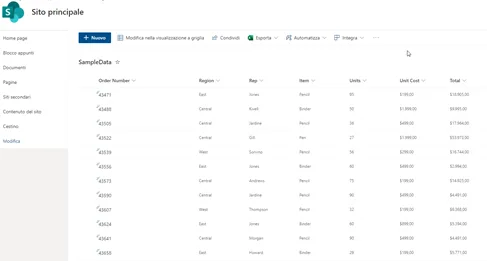
In the Modern experience, lists have more versatile interfaces, letting you group, filter, and create custom views quickly. On top of that, the Quick Edit feature lets you edit multiple rows at once and see the results in real time. Modern document libraries are also closer to the OneDrive experience: drag and drop is easier, and navigation feels more intuitive, with grouping options and filters that appear smoothly.
In Classic mode, these actions tend to require several clicks, and the interface isn’t quite as “smart.”
5. Sites
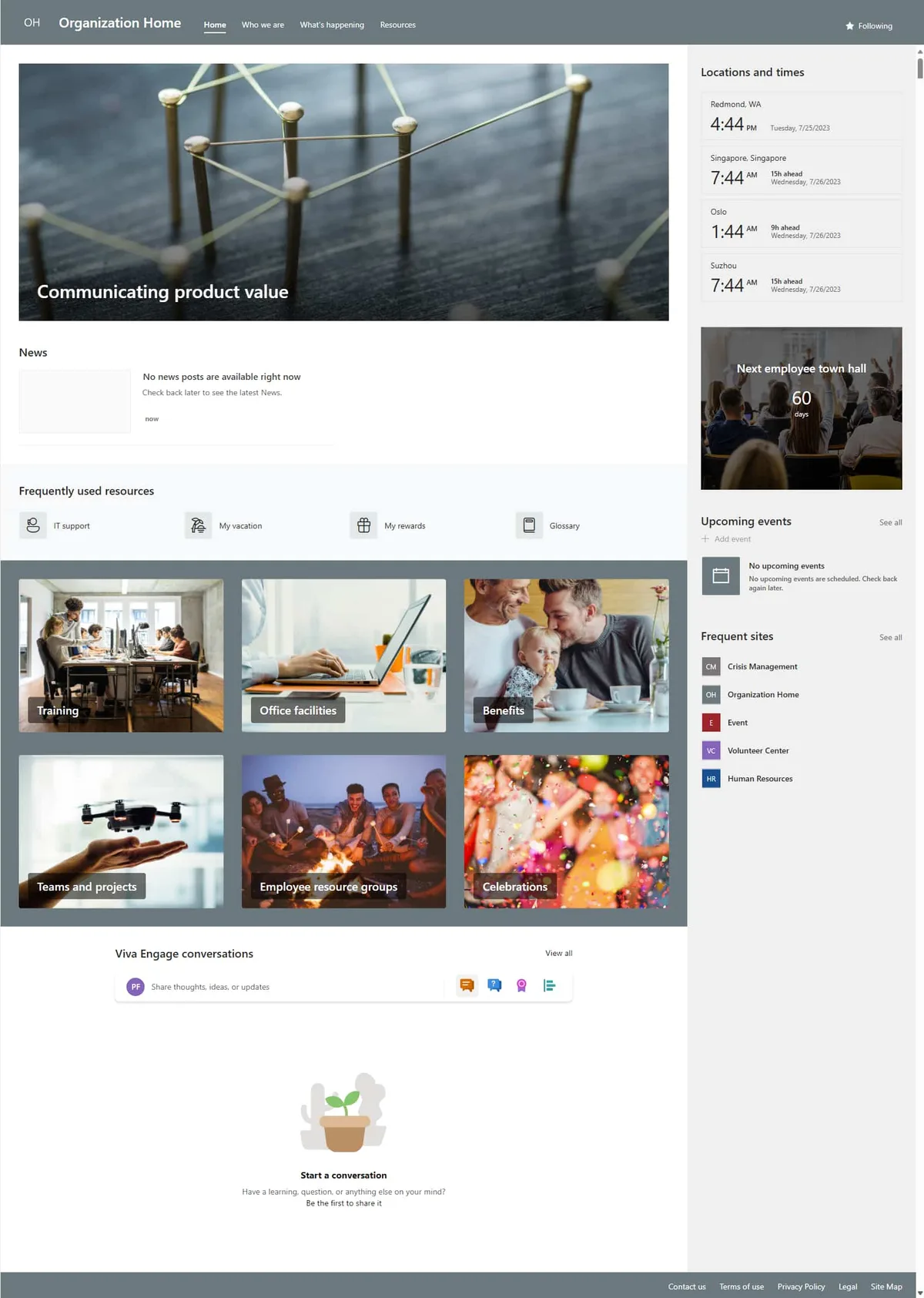
Another innovation introduced with the Modern experience is the presence of Modern Team Sites and Communication Sites, two types of sites built for different purposes but sharing the same responsive, extensible design philosophy.
Modern Team Sites are built specifically for collaboration within groups, can be linked to Microsoft Teams, and include features like Planner for task management or the Microsoft Viva feed.
Communication Sites, on the other hand, target a broader audience within the organization, letting you share news, events, and content with a large number of users, with an eye-catching layout and web parts that highlight images, video, and data.
6. Security
On the security side, there aren’t major differences between Classic and Modern, since both experiences are built on the same SharePoint Online (or On-Premise) foundation, and therefore share the same access control, encryption, and compliance settings.
That said, adopting modern sites and pages tends to simplify permission management and makes the user experience more consistent, including when adding or removing members. And if we factor in the adoption of technologies like Microsoft Power Automate or Power Apps, the Modern experience becomes an advantage, since it makes it easier to use ready-made web parts and components to connect automated workflows to our lists and libraries.
In the Classic version, these tasks are more cumbersome and often require custom code or third-party solutions.

7. Migration
Another important topic to keep in mind is migrating an existing site from classic to modern.
If we own or manage an older SharePoint environment, we’re probably wondering whether it’s worth switching to the modern experience. In general, Microsoft encourages this transition, precisely to ensure an interface that’s more in line with today’s expectations and better mobile support.
That said, a direct migration might require checking custom components, master pages, and any graphic themes set up in the past.
We’ll therefore need to assess which of our customizations are compatible with the modern environment and, if needed, find alternatives based on modern web parts or more recent frameworks like the SharePoint Framework (SPFx), created specifically to extend the Modern experience in a secure, officially supported way. Many companies take a gradual approach, creating new sites in Modern mode and giving more complex sites, possibly full of customizations, time to be reviewed and reorganized.
This strategy avoids disruptions or malfunctions and lets you gradually take advantage of new features. In any case, if you don’t have the technical skills to carry out a migration of this scale, you can rely on the intranet.ai team, who bring significant experience in this area, having worked with companies that now make full use of a modern, refreshed experience.
SharePoint Classic vs Modern: views and pages
Comparing Classic View and Modern View in SharePoint isn’t just a matter of looks, it has real implications for content management, collaboration, and platform maintenance.
Classic View is defined by the Ribbon, an interface with many commands packed into fixed toolbars, while Modern View uses more intuitive contextual menus, which only appear when needed, reducing visual clutter and simplifying the user experience.
Another important aspect is site management.
Modern View offers pre-built templates, like Team Sites and Communication Sites, with layouts already optimized for mobile devices and built-in collaboration tools. This makes it faster to create new workspaces compared to Classic View, which often required more complex manual customization.
From a maintenance and update standpoint, Modern View is directly supported by Microsoft, with continuous updates that improve usability and security. By contrast, solutions built in Classic View with custom code may need periodic reviews to stay compatible with new versions of SharePoint Online, making management more costly over time.
Finally, Modern View represents Microsoft’s future direction, with a smoother experience, greater integration with Microsoft 365, and a lighter maintenance footprint. As already explained, while organizations with custom extensions built in Classic View may be reluctant to migrate right away, it’s clear that moving to Modern is the more strategic choice for ensuring scalability, support, and ongoing updates.
Moving on to SharePoint pages, these play a key role in managing information and documents, shaping the effectiveness of internal communication and company collaboration.
With the introduction of Modern Pages, Microsoft revolutionized the concept of structure and customization compared to traditional Classic Pages.
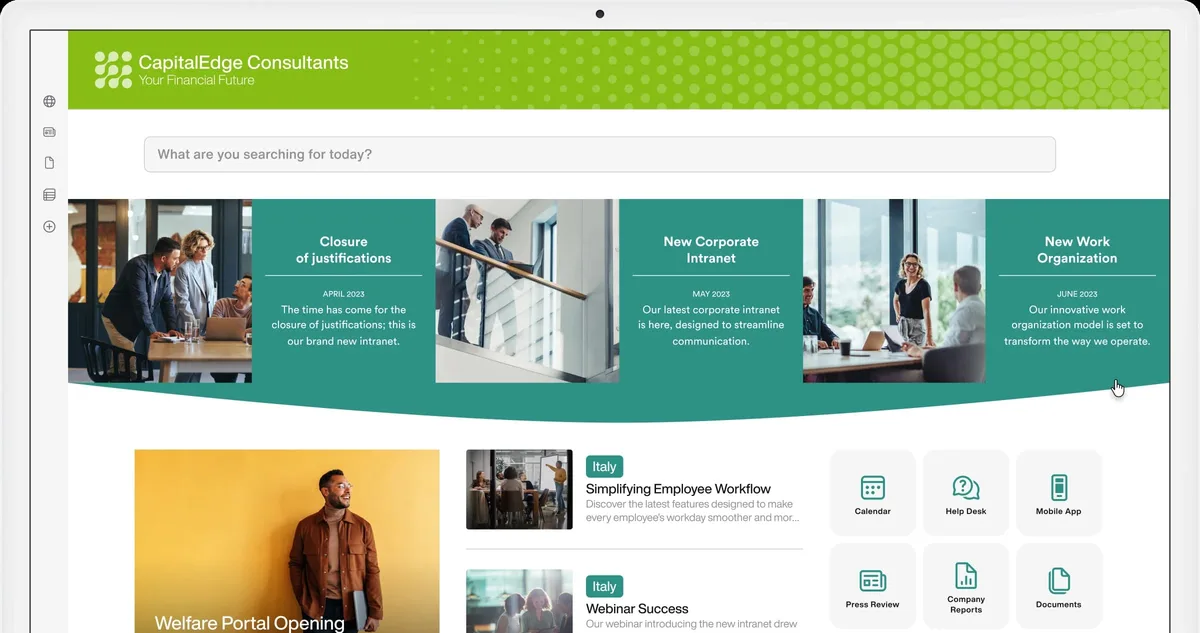
Modern Pages leave behind the old approach based on master pages and static layouts, introducing a modular system with flexible sections and dynamic web parts, manageable without any programming knowledge. This lets you update content through drag-and-drop and intuitive panels, making page creation more accessible even for non-technical users.
Another advantage of Modern Pages is optimized load speed, thanks to Microsoft 365’s cloud infrastructure, which ensures efficient content delivery on a global scale.
Modern web parts also offer more advanced features than classic ones, letting you easily integrate multimedia content, company feeds, and interactive tools, without needing to touch code or complex configurations. This system improves collaboration and versioning, making it easier to manage permissions and share content within work teams.
Here too, over the long term, the choice between Classic and Modern Pages can affect the platform’s technological sustainability.
Microsoft continuously updates Modern Pages, introducing new web parts and innovative features, while Classic Pages only get compatibility updates, with no meaningful evolution. Anyone who keeps using classic pages risks ending up with an increasingly static setup, less integrated with new collaboration tools. Choosing Modern Pages, on the other hand, means adopting a flexible, constantly evolving model, able to adapt to the digital workplace’s future needs.
Classic vs Modern SharePoint team sites
In the past, Classic Team Sites were the backbone of company sharing, letting you store documents, manage lists, and set up detailed permissions.
However, with the introduction of the Modern Experience, Microsoft turned SharePoint into a more versatile, intuitive tool, with a refreshed interface, deeper Teams integration, and better mobile support.
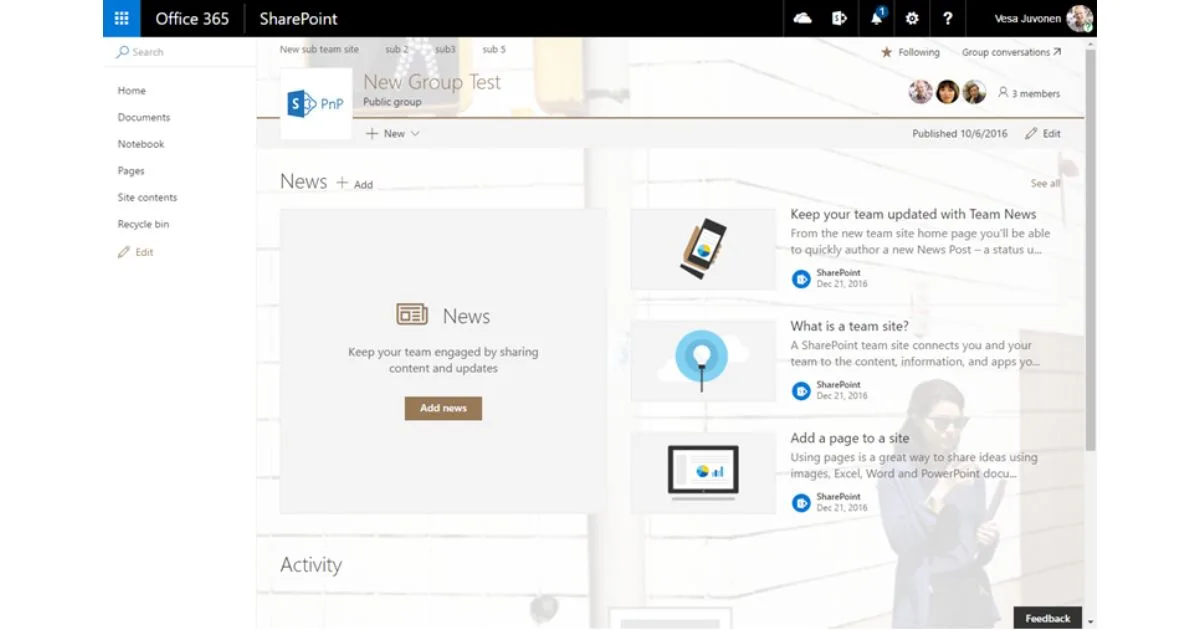
In Classic Team Sites, the interface is more rigid and less adaptable, with a fixed vertical menu and a static homepage showing document libraries, lists, and announcements. Every change requires code customization or advanced tools like SharePoint Designer, making maintenance more complex. Integration with other Microsoft services is also more limited: sharing with external users and using advanced messaging tools require manual configuration and extra steps.
Modern Team Sites, on the other hand, connect directly to a Microsoft 365 Group, automatically generating a complete environment with:
-
A security group, for centralized user management;
-
A shared mailbox for internal communications;
-
An integrated calendar, synced with Outlook;
-
OneNote, for taking notes and sharing information quickly.
This structure makes management simpler and collaboration more effective. Every modern site includes an interactive homepage, with customizable web parts that can be added or removed with a click, without writing any code. This makes it easy to create informational sections, image galleries, news feeds, and other dynamic content.
In terms of user experience and mobile compatibility, Modern Team Sites are designed to work on any device. The layout automatically adapts to screens of every size, making it easier to access documents and tasks even from a smartphone or tablet. In Classic Team Sites, on the other hand, the mobile experience is often problematic: many pages aren’t optimized and need design work to improve how they display.
Modern Team Sites also integrate directly with Microsoft Teams, creating a link between files, conversations, and projects. In a Classic Team Site, this integration isn’t native and requires manual configuration, with the risk of files and team communications falling out of sync.
When it comes to real-time collaboration, Modern Team Sites improve teamwork thanks to advanced co-authoring features: multiple users can edit Word, Excel, or PowerPoint files online at the same time, with real-time updates and a version history that’s always accessible. In Classic Team Sites, versioning is less intuitive, and simultaneous edits to documents can create conflicts between users.
Searching for content in modern sites is more efficient thanks to dynamic filters that update automatically. This cuts down the time needed to find information within lists and document libraries.
Let’s sum up the key differences between the two “eras” of SharePoint sites in the table below:
Classic team site vs Modern team site comparison
Feature Classic Team Site Modern Team Site
Interface Rigid layout, vertical menus, dated style Modern design, more intuitive and adaptable
Customization Requires code and SharePoint Designer Configurable web parts, no code needed
Mobile access Pages not optimized for mobile devices Responsive layout for every screen
Microsoft 365 integration Limited, manual configuration needed Native with Teams, OneDrive, and Outlook
Permission management Detailed but complex, risk of errors More intuitive, based on Microsoft 365 Groups and Microsoft Entra ID
Collaboration Manual versioning, limited co-authoring Real-time co-authoring with history
Content search Less advanced search tools Dynamic filters and faster search
Modern Team Sites also let you automate workflows thanks to integration with Power Automate and Power Apps. This makes it easier to simplify repetitive tasks, like managing approvals or automatic notifications, reducing manual work.
For example, you can set up rules that trigger a workflow when a new document is uploaded or when a list is updated, improving team productivity.
In Classic Team Sites, automation requires custom code or additional tools, making it harder to implement advanced processes.