
Every workplace is built on a heterogeneous mix of applications, services, and data that are too often disconnected from one another. However, companies that have invested in the Microsoft 365 digital workplace can rely on the SharePoint Online connectors to easily solve this complex issue by creating a bridge that can coordinate information smoothly.
In this article, we will explore how the adoption of connectors can improve efficiency and collaboration among colleagues while also reducing errors in carrying out core internal processes.
We will also look at how to integrate SharePoint connectors across various scenarios, from e-commerce to the ERP world, and then analyze the key aspects that allow individual companies to gain the greatest value from this specific set of tools.
What you will find in this article
What are they?
The integration of applications and services is a crucial factor for ensuring proper collaboration between departments and individual professionals within a company, as well as for improving the overall efficiency of the organization. With this in mind, SharePoint Connectors make it possible to link the SharePoint Online platform to a variety of external systems, with the goal of simplifying data management and information exchange in the company’s digital workplace.
We are talking about tools that allow SharePoint to be connected with other applications, platforms, or databases, in order to synchronize shared data and automate internal processes, enhancing SharePoint’s capabilities as the foundation of a complete digital infrastructure.
While SharePoint is designed to facilitate collaboration and content management by offering centralized file storage in lists and libraries, the availability of connectors further extends these capabilities by enabling a direct connection to other applications.
SharePoint connectors should therefore be understood as a set of components that enable data exchange between the Microsoft 365 platform and external environments. The integration can range from simple file uploads to a document library to more complex workflows involving the updating of lists and libraries based on data coming from an external ERP or CRM system.
In detail, the term “SharePoint connector” includes both the solutions natively developed by Microsoft and third-party products that use the platform’s APIs and web services.
The difference lies in the range of supported operations and the degree of specialization.
On the native side, Microsoft offers connectors integrated into tools like Power Automate, Power Apps, and Power BI, which provide preconfigured actions and triggers to create, read, and update data in SharePoint lists and document libraries. These native connectors are particularly useful for those looking to set up repetitive workflows quickly and without development skills.
It should be noted, however, that Power Automate includes both standard connectors and premium connectors, each with specific licensing requirements. In practice, while standard connectors are accessible through basic Power Automate licenses, using premium connectors requires the purchase of additional licenses.
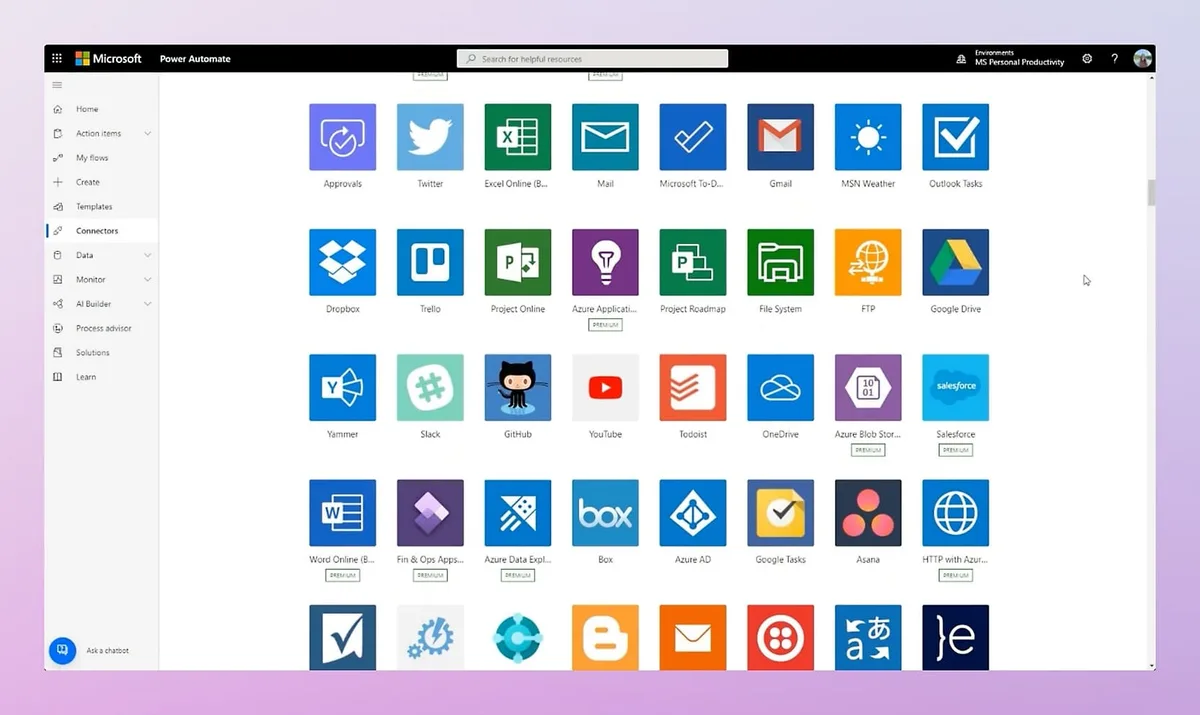
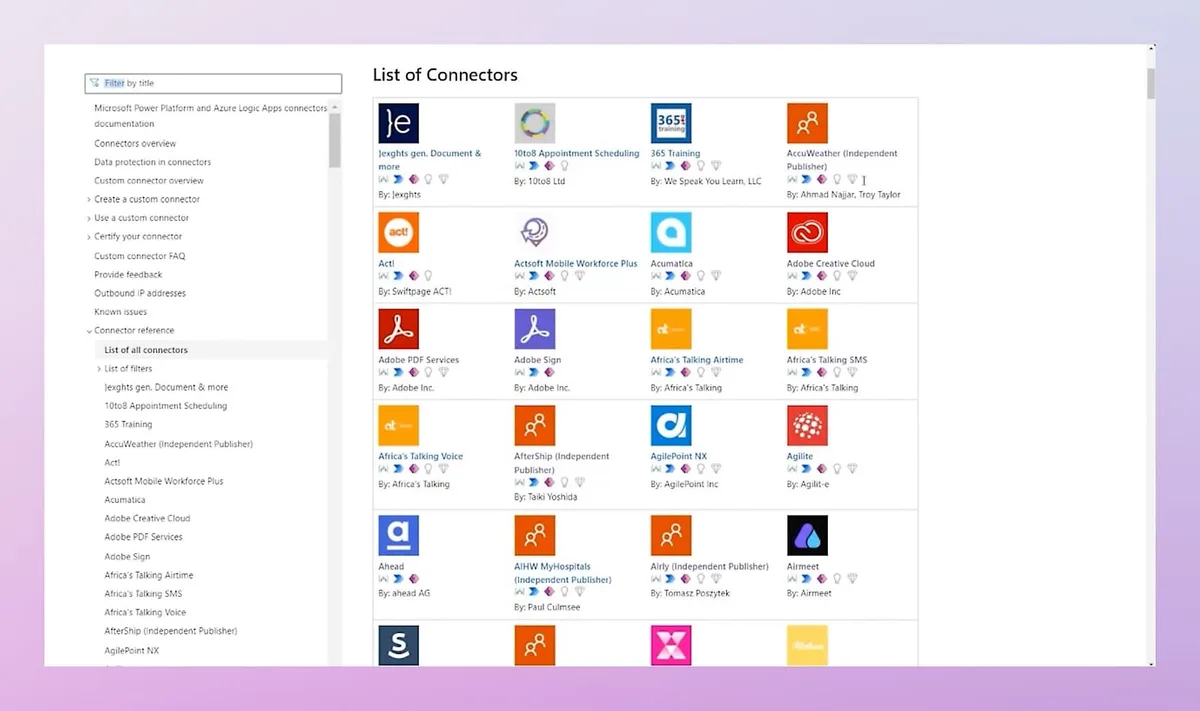
In addition to the official connectors, there are also third-party ones.
Some software integration companies, including intranet.ai, offer their own adapters specifically for SharePoint, designed to simplify data reading and writing processes.
These solutions are typically used in more complex architectures, where multiple sources (ERP, CRM, legacy databases) are integrated with SharePoint as the document repository.
Another aspect to consider is the migration from on-premises environments to SharePoint Online.
In many cases, companies operate on outdated installations that no longer meet their scalability and flexibility requirements. This is where connectors help to simplify migration by linking old on-prem solutions to new cloud environments, gradually enabling the use of more modern services.
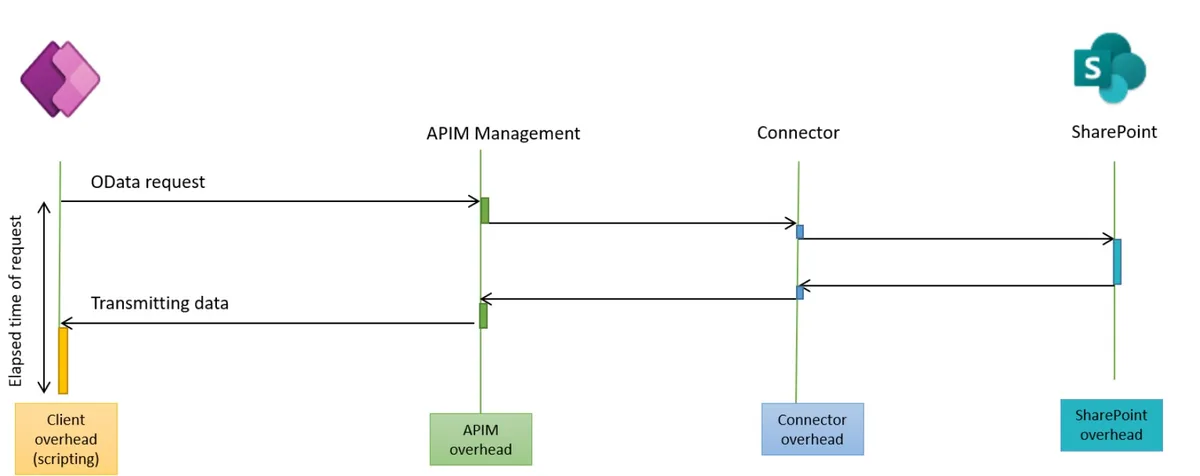
Data access also benefits, becoming centralized as information from various systems is collected in a single repository. One example is document management: when an invoice is created within an ERP system, a SharePoint connector can automatically place it in the designated library, tagging it with the necessary metadata for easier retrieval by the relevant users.
Let us conclude with a factor that is perhaps the most important in terms of benefits: the ability to scale and customize workflows.
Thanks to SharePoint connectors, a company can start with simple automation solutions (such as list updates) and then expand the scope of action to include handling large volumes of data and integrating with an increasing number of services.
See intranet.ai in action
A ready-to-use intranet on SharePoint Online, live in days. Book a free demo with our team.
Book a demoIntegrations with Microsoft 365 and third-party tools
Microsoft 365 offers a range of applications that are natively designed to work with SharePoint through built-in connectors that simplify workflow automation and the creation of custom solutions. The goal is to connect applications, data, and processes in a cohesive way, leveraging the potential of SharePoint Online as a repository and integration hub.
Power Automate, formerly known as Microsoft Flow, uses the SharePoint connector to build automated workflows. This means you can trigger specific actions when something happens in SharePoint, such as:
-
When a new item is added to a list.
-
When a file is uploaded to a document library.
Let’s take the example of a user updating a record in a SharePoint list. At that point, Power Automate can:
-
Send an email to the relevant department.
-
Copy the updated data to a CRM software or to an Excel sheet stored in OneDrive.
-
Send a notification to the responsible users in Teams.
Integration with Power Apps, on the other hand, allows the creation of low-code applications, meaning apps that do not require programming knowledge. These applications can read and edit data directly from SharePoint.
For example, a department can create an app to collect internal requests by linking it to a SharePoint list. Or a warehouse can use an app to monitor inventory with real-time updates.
The SharePoint connector also works with Power BI, enabling you to link lists and document libraries to create interactive reports and dashboards, visually representing the data stored in SharePoint lists and libraries in real time.
In this case, a team can analyze support ticket data collected in a SharePoint list to identify the most frequent issues. Or a manager can track project progress by analyzing files uploaded to SharePoint.
The examples above show how SharePoint has evolved in recent years, becoming a hub that can act as a connector between various platforms, facilitating the integration of company data and processes.
Another example of this evolution is Microsoft Lists, the application that grew out of SharePoint lists. In the past, lists were mainly used to collect structured data. Now, thanks to a more intuitive interface and customizable views in Lists, the same information can be organized in Kanban-style boards.
However, the evolution goes beyond the interface. With Microsoft Syntex, SharePoint’s capabilities are enhanced by artificial intelligence and machine learning. Syntex enables the automation of tasks that used to require tedious manual procedures. For example, if a company manages a large volume of invoices, Syntex can automatically recognize key fields such as amount, date, and customer name, and enter them into the document metadata.
The same applies to any type of documentation: Syntex can classify files based on their content, generating folders or workflows without the user having to manually organize documents.
Beyond Microsoft 365 integrations, SharePoint can serve as a bridge to external systems.
In some teams, tasks are managed using applications like Trello, Asana, or Monday.com. However, since these platforms are often disconnected from the rest of the digital workplace, the documentation attached to tasks often ends up scattered.
By connecting Trello or Asana to SharePoint, team members can set up an automated flow to create folders in SharePoint corresponding to the new tasks. This way, all documents related to tasks are uploaded to a single repository, staying in sync with the cards while benefiting from SharePoint’s features for versioning, permissions, and governance.
The same principle applies to companies that rely on external Customer Relationship Management systems, such as Salesforce. In some cases, managing sales documents, contracts, or marketing materials directly within the CRM can be inefficient and quite costly, while SharePoint is specifically designed for document management and sharing.
By connecting the two platforms, every new opportunity or account created in Salesforce can automatically generate folders in SharePoint, maintaining constant alignment of information. The result is an integrated workflow in which salespeople upload contracts and proposals to SharePoint, but view them easily from the CRM.
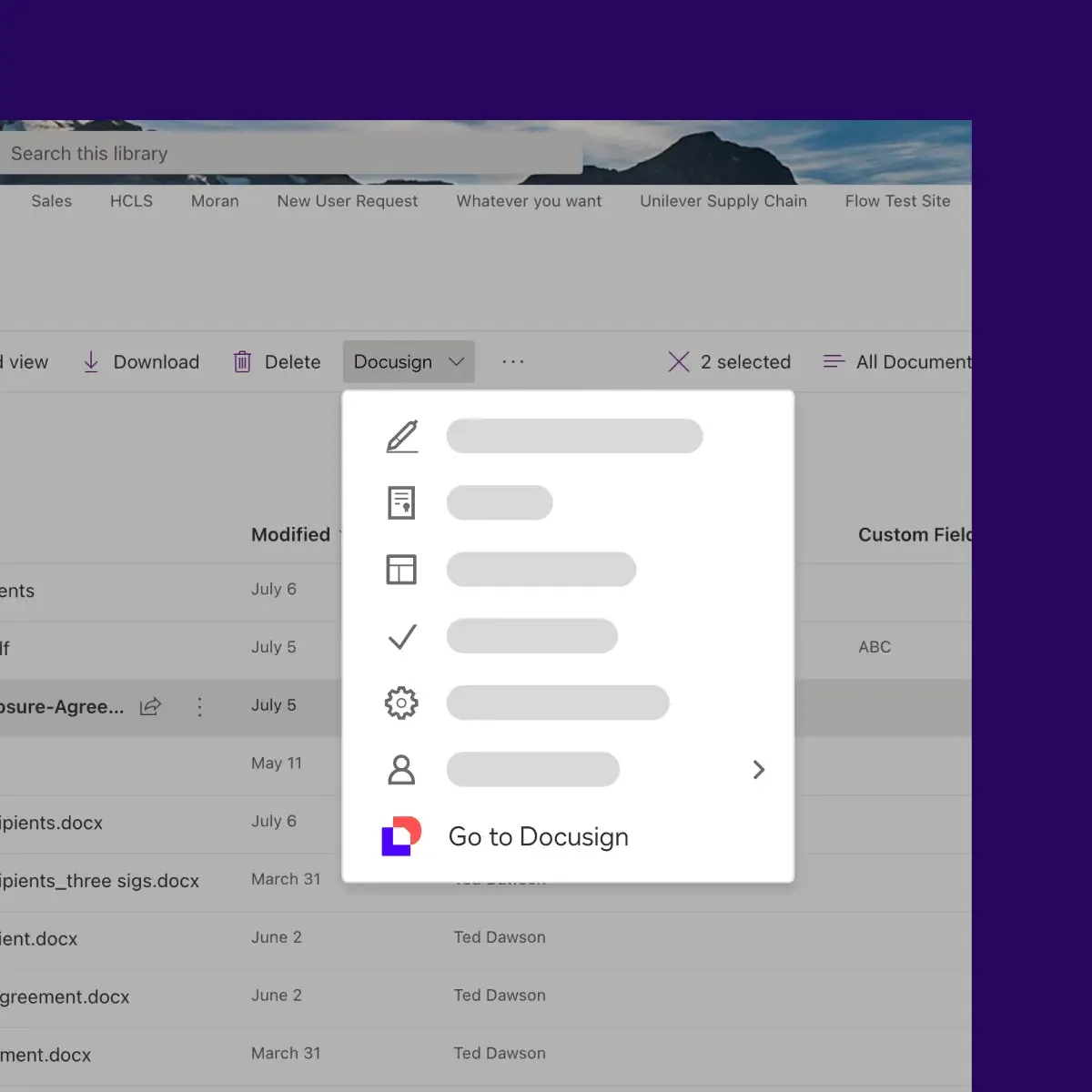
Another increasingly requested integration is with electronic signature services like DocuSign or Adobe Sign. Anyone dealing with contractual documents knows how much time and how many complications can arise from downloading a file, sending it to the client, waiting for the signature, downloading the signed version again, and reuploading it to the final repository.
With an active connector on SharePoint, it takes just one click to start an electronic signature workflow. The document leaves SharePoint, reaches the recipient, gets signed, and returns automatically to its original library, complete with all metadata confirming the validity and date of the signature.
There are also “unconventional” use cases.
It is possible to create a knowledge base on SharePoint, enhanced with a Power Virtual Agents chatbot capable of answering users’ most frequently asked questions. Consider the financial sector, where SharePoint lists collecting budget or expense data can feed a Power BI report in real time, hosted on an intranet page or on a dedicated departmental site.
In the events sector, managing trade shows and conferences can be optimized by integrating a participant list with logistics (hotel bookings, presentation materials), so that everything is in a single portal and invitation or follow-up emails can be automatically synchronized with tools like Mailchimp.
The HR department, for its part, can take advantage of the integration with LinkedIn Talent Hub to receive CVs and candidates to evaluate, as well as the ability to save each document in specific folders, trigger approval flows, and create personalized notifications for managers.
There is an entire ecosystem of solutions developed by third parties (platforms or individual providers) that expand integration capabilities, especially useful for managing specialized processes or connecting services not included in Microsoft’s offerings.
These are providers that offer dedicated SharePoint connectors within their platforms, often called iPaaS (Integration Platform as a Service), which allow users to read and write data on SharePoint through preconfigured procedures and workflows, without having to build every single API call from scratch.
In practice, users work with a graphical interface to build their own integration flows, defining how to authenticate with different systems, how to map fields (for example, those from a CRM or ERP) onto SharePoint lists or libraries, and how to handle execution errors.
However, when working with an external connector, there are certain aspects to evaluate, such as the quality of technical support and the frequency of updates.
From this perspective, it is important to keep in mind that Microsoft periodically releases new versions of the SharePoint APIs or updates existing ones to extend or improve their functionality. If the third-party connector does not keep up with these changes, the company may face malfunctions or compatibility issues that could hinder the efficiency of the entire digital infrastructure.
That said, the capabilities of third-party connectors can be very helpful when connecting platforms such as Google Cloud or other external data storage and analysis services.
A typical case is when a company has a data warehouse on Google Cloud and wants to synchronize specific datasets with SharePoint. In such a scenario, the connector can monitor folders or repositories on Google Cloud Storage and automatically transfer reports or generated files to a document library. In this way, users do not need to access multiple portals to find the latest update, because everything is made available within SharePoint, which becomes the central point of the workflow.
The same logic applies to data integration systems like Informatica Cloud Data Integration or the Mulesoft Anypoint Platform. These environments serve as hubs where data from various company systems converge, from CRMs and ERPs to relational databases and cloud services. In this sense, the SharePoint connector enables delivery of processed data, in the form of documents or records, directly into SharePoint libraries and lists.
Each integration flow, therefore, becomes a way to have in SharePoint the latest update coming from production, sales, or warehouse systems, with clear advantages in terms of centralization and information accessibility.
As we have seen, the existence of both Microsoft native connectors and third-party connectors significantly expands the integration landscape. On one hand, tools like Power Automate can be used to orchestrate basic processes within Microsoft 365; on the other, iPaaS solutions can manage more complex scenarios where SharePoint is just one of the systems involved.
It follows naturally that the end result is greater flexibility, allowing the IT department to choose, case by case, the most suitable strategy for each individual project or department.
Use cases and adoption examples
When it comes to introducing a SharePoint connector into the company ecosystem, the focus is often only on the technical aspect of the integration. In reality, the true value becomes evident when considering the situations in which these connectors can simplify employees’ daily work.
Precisely because SharePoint Online has become such a versatile hub, using a connector brings significant benefits in scenarios where different systems need to communicate with a centralized document repository.
It is therefore useful to examine some of these use cases.
A first notable example involves companies that use Microsoft Dynamics 365 Business Central to manage financial and administrative processes, which involve large volumes of documents such as invoices and orders.
The integration between this solution and SharePoint eliminates most upload and archiving activities. When an invoice is issued in Business Central, the connector can generate a PDF and transfer it to a dedicated folder in SharePoint, assigning relevant metadata for file retrieval such as invoice number, creation date, and payment status. As a result, the accounting and administrative departments can quickly find all the documents they need, gathered in one place, without searching through multiple systems.
In addition to Dynamics 365, many companies use other enterprise-grade ERPs (like SAP) or custom-built CRMs. These are powerful but often complex platforms capable of generating data flows that require significant processing if not managed properly, from inventory loads to production bills of materials and shipping management.
In the case of SAP, the SharePoint connector can intercept newly created shipping documents and make them immediately available in a logistics area set up in the intranet or in a SharePoint team site. Thanks to this integration, operations teams can avoid accessing the SAP portal altogether to check shipment statuses or download packing lists.
Looking at the e-commerce sector, the use of a connector becomes almost essential.
Online stores generate daily orders, receipts, payment confirmations, and delivery notes. All these documents need to reside in a centralized and well-structured system to be easily retrievable. An integration flow that transfers data from the sales portal to SharePoint allows both accounting information and supporting documentation (such as return policies or related marketing content) to coexist in a single platform.
When needed, finance, marketing, and customer care departments can collaborate without switching between different tools; instead, they find in the SharePoint repository a single source of truth for all order- and customer-related matters.
The same principle applies to ticketing systems.
If the CRM records reports, but the support team wants to track each update in a SharePoint list, the connector takes care of synchronizing the data between systems. In this way, the ticket status, operational notes, and related documents (screenshots, manuals, or procedures) are managed directly in SharePoint, where additional automations or notification rules can be configured.
A separate mention should be made for hybrid environments, where part of the infrastructure is still on-premises (perhaps for historical or security reasons), while other components reside in the Microsoft 365 cloud.
In these scenarios, connectors can act as bridges, allowing workloads to be gradually moved to SharePoint Online or keeping the two environments in sync.
One example is a legacy on-premises application that continues to generate orders or reports, which still need to be uploaded to SharePoint Online to be shared with remote teams. By setting up an integration flow, each new file created in the local folder is immediately uploaded to the cloud, where it can be viewed, edited, and approved with centralized permission management.
In this regard, we must mention the Microsoft Graph connector for SharePoint Server, which allows users to search for content stored in SharePoint On-Premises or use that content in Copilot, making it easier to index documents and site pages from the “server” instance and improving access to company data.

For all these integrations to succeed, it is essential for the company to plan an initial analysis of its needs, identifying which systems need to communicate with each other and at what speed. Integrating “everything with everything” indiscriminately can cause more confusion than benefits and may impact the overall performance of the digital workplace.
At the same time, it is important to train the staff responsible for managing and monitoring the new workflow setup, and to define clear governance rules.
Regarding governance, a good starting point is to answer questions such as:
-
Who should be allowed to create or modify a connector?
-
Who is responsible for resolving potential errors?
It is advisable to start with a pilot project, possibly focused on a single department or key process, and then gradually extend the use of connectors to other areas, learning from the inevitable adjustments along the way.
In all our examples, the common element remains the presence of SharePoint as the “endpoint” (and often the starting point, for companies that already base their digital workplace on Microsoft technology).
This is the vision that makes the idea of a SharePoint connector truly powerful, because it is not about implementing a simple data exchange mechanism, but about reshaping the company’s IT infrastructure to make it more flexible, scalable, manageable, and secure.