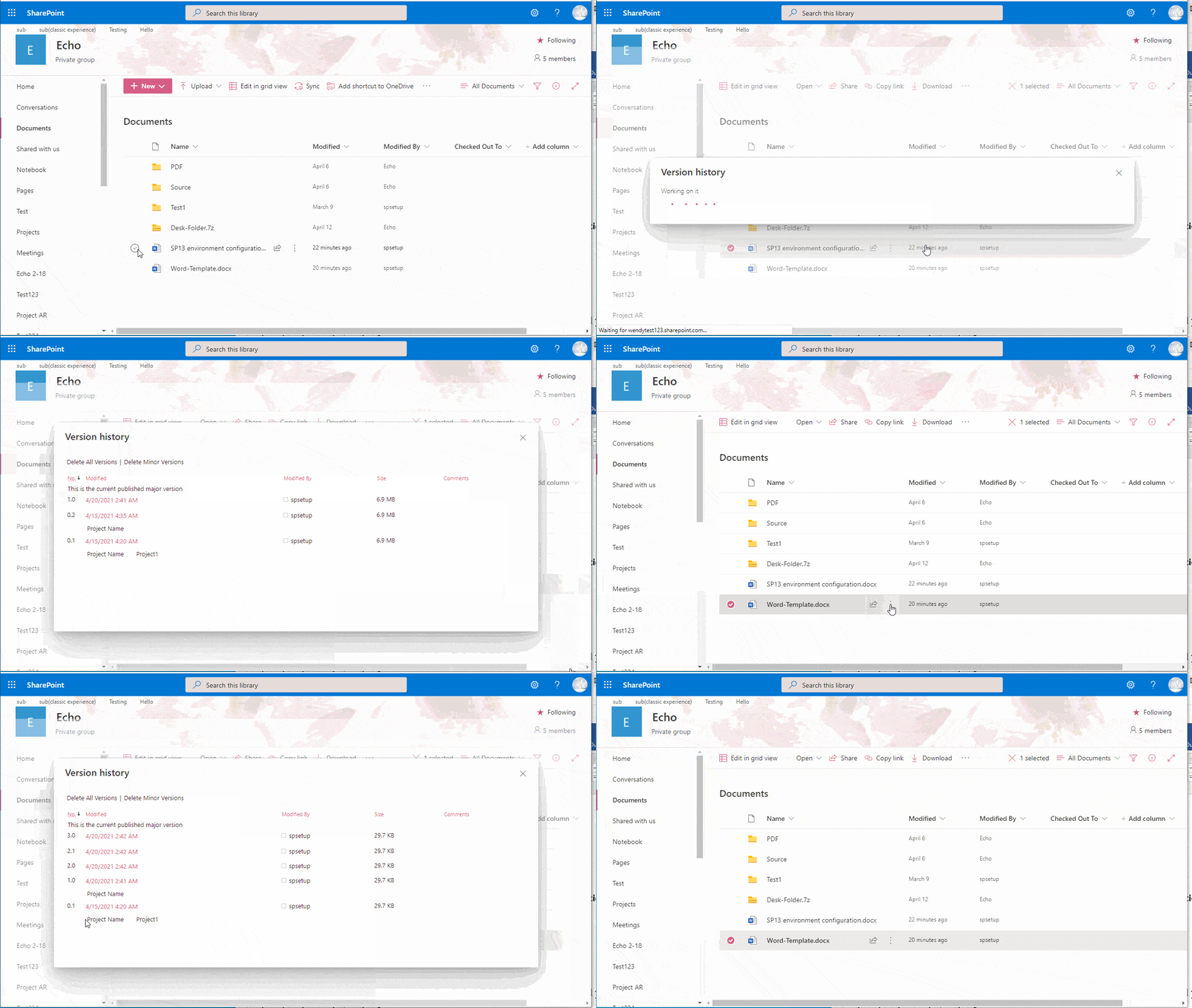
Effective versioning represents one of the most important features of SharePoint as a document management system. It simplifies the management of content in a list or document library by tracking all versions created after a file is modified. Once enabled, this feature allows access to the history of versions, view information about individual changes made to a file, and restore any of the previous versions.
In this article, we will see what SharePoint versioning is, what it allows you to do, how to enable it within a list or library, and how to disable it. Finally, we will discuss best practices for managing content in SharePoint to never exceed the available storage.
What you will find in this article
SharePoint Version History: What is it?
“Versioning” refers to one of the key features of SharePoint as a document manager, which allows storing, tracking, and restoring versions of files in a list or document library. With this feature, SharePoint can create a version every time a change is made to a file and allow authorized users to:
-
access the version history of individual files in a list or document library;
-
view information such as the date and author of each change to a file;
-
restore a file to any previous version saved in the history.
This makes it easier to manage content stored within a SharePoint site, especially when files and documents are created and modified in collaboration with colleagues or even external people to the organization (as long as they have the appropriate access permissions).
SharePoint versioning is available by default for any type of file present in a list or library, including site pages. However, the mechanism behind this feature changes depending on whether the files are created or modified in a list or a document library.
In document libraries, versions are created both for major changes (e.g. adding a section to a document) and for minor changes, such as correcting a spelling mistake. In contrast, lists can only store versions created from major changes.
In both, it is possible to limit the number of versions stored.
To conclude our brief introduction, here is a summary of what versioning allows you to do within SharePoint.
SharePoint Versioning: What does it allow you to do?
SharePoint Versioning feature Feature description
Version history recording SharePoint versioning allows you to see the date and author of each change made to the files in a list or library. For example, if a user changes the due date of a document, that information is automatically stored in the version history. Additionally, you can view any comments left by the author of the change.
View a previous version All users with access to a SharePoint list or library can view a previous version of a file without overwriting the current version.
Restore a previous version SharePoint versioning allows you to compare and replace the current version of a file with one of its stored versions. Once a previous version is restored, the current one is saved in history.
See intranet.ai in action
A ready-to-use intranet on SharePoint Online, live in days. Book a free demo with our team.
Book a demoSharePoint Version History settings: How to manage it?
The versioning system allows you to track and manage information stored within SharePoint lists and document libraries, as well as view, compare, and restore any version present in a document’s history.
When versioning is enabled, new versions of a file are created in the following cases:
-
When a file is created for the first time or uploaded to SharePoint.
-
When a file with the same name as an existing file is uploaded and the “Add as new version to existing files” command is used.
-
When the properties of a file are modified.
-
When a file is opened, modified, and saved using the “Save for the first time” command. Clicking the “Save” command does not create a new version to avoid overloading the history.
-
When a file is checked out, modified, and checked back into SharePoint.
For Microsoft 365 customers, the versioning system in SharePoint is automatically enabled when a list or document library is created. For SharePoint Server users, versioning is enabled by default only when a document library is created.
It is therefore important to know how to enable this feature within both a library and a list to make the most of SharePoint’s capabilities.
Let’s see the necessary steps below.
How to enable version history in SharePoint
To enable versioning in SharePoint, you need to have edit permissions for the list or library where you want to enable version history. Once you have the appropriate permission from the administrator, you can proceed as follows:
-
Open the list or document library where you want to enable version history.
-
Go to Settings and then select “List settings” or “Library settings”.
-
Select “Versioning settings” to configure version saving.
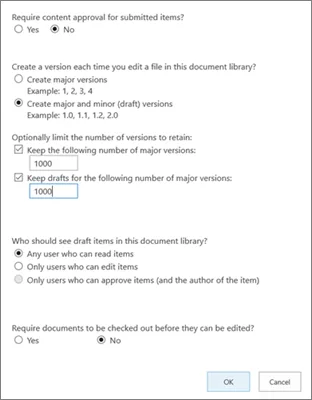
For document library versioning, the following configurations are available:
-
Require approval for submitted files.
-
Create a version each time a file is modified, saving only major versions or both major and minor versions.
-
Limit the number of versions to store in the history.
-
Delete versions based on age. Note that setting this limit will cause older versions beyond the set age to be deleted without being moved to the Recycle Bin. Therefore, they cannot be recovered once the limit is exceeded.
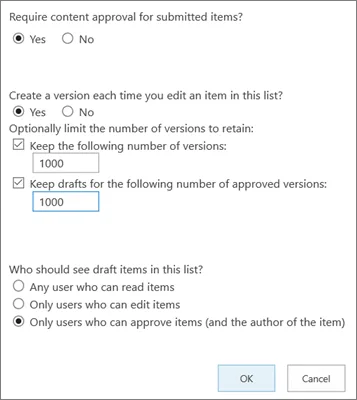
For theversioning of a list, the following options are available (some are common with those available for a library):
-
Require approval for submitted items.
-
Create a version each time an item is modified, using only major versions (secondary changes versions are excluded).
-
Limit the number of versions to store in history.
-
Specify the users who can view draft items.
How SharePoint versioning works when approval request is enabled
When approval request is enabled within a SharePoint list or library, files awaiting approval are marked as drafts. Once approval is confirmed, the status changes to “Approved” and the file becomes visible to all users with access to the list or library where it is located.
If the approval is rejected, the status remains “Pending” and the file remains accessible to users with permission to view drafts.
That said, here’s how SharePoint versioning works for files that require approval:
-
A major version must be published before the file can be approved. Minor versions are considered drafts, visible only to the author and those with permission to approve content in a specific list or library.
-
For users with read permission but not draft visibility, only the latest approved version or the major version of the file is accessible.
-
If both major and minor versions are tracked in a document library and no one has published a major version, the file will only be visible to users with permission to view drafts.
How to disable version history in SharePoint
Users with permission to manage a list or document library in SharePoint have the ability to disable the built-in versioning system (though this is not recommended).
The process of disabling version history is not simple, both in the case of a list, where the “No versioning” option has been removed, and in the case of a document library, where version control is enabled by default.
It is therefore necessary to request technical support to disable versioning using PowerShell or the newly introduced SharePoint CSOM (Client-side Object Model).
Important note: If versioning is disabled in SharePoint for a list or library with version history, the versions saved up to that point are not deleted.
However, important content management features, such as co-authoring, are disabled.
SharePoint Version History storage space: What to do to never exceed the storage quota in SharePoint?
Limiting the number of versions is a best practice that is frequently recommended. Setting a limit on the number of versions to store allows you to:
-
save storage space in SharePoint;
-
keep lists and libraries that are used daily to manage projects, procedures, communications, and other key resources for the SharePoint site and business activities in order.
A second best practice involves cleaning archives, which should be done periodically to maintain the benefits mentioned above. However, for many companies, cleaning SharePoint lists and document libraries represents a task that is difficult to manage, as it requires significant time investment (especially if all file versions must be saved for legal reasons).
In this case, the recommendation is to move the files with their versions to an external backup archive or consult an expert team to learn how to make the most of the available space in SharePoint and the integrated Microsoft 365 environment.
With a few days of consulting, we can train users on how to keep archives in the company cloud clean, focusing on managing them rather than their location (so it is not just a simple migration from one archive to another).
This way, it becomes possible to:
-
Improve storage management in Microsoft 365 independently.
-
Maintain collaboration features that would be lost with Microsoft 365 Archive.
In this way, our experts can help your company manage archives in Microsoft 365, without depending on the IT department and without losing collaboration features that would be lost by purchasing new storage space.
The process is simple.
We begin with a quick scan of all archives in Microsoft Teams, SharePoint, and OneDrive, analyzing the file versions present.
We calculate the memory occupied by each file version to report to the company how much space could be freed by deleting content, based on its usefulness.
To precisely identify the least useful versions, we can implement custom analysis rules focusing on specific SharePoint sites, files with versions older than a specific date, or files of certain types.
Other benefits of our consulting service include the following:
-
Implementation of a scheduled verification flow, to establish how often to analyze archives in Microsoft 365 and ensure constant monitoring of the available quota.
-
Insights for memory management and advice on how to properly archive files in the cloud.
It should also be noted that our experts provide support for storage management in OneDrive as well. Users will learn how to manage OneDrive archives both personally and for business. Independently, so they do not depend on the IT department.
To learn more, we recommend reading our article on why you should rely on intranet.ai to improve your Microsoft 365 digital workplace.
In the table below, we provide more detailed information on the benefits of the consulting service offered by our experts to optimize storage space management in SharePoint and Microsoft 365.
The benefits of intranet.ai consulting service
Consulting benefits Description
Storage space management across the entire Microsoft 365 environment We teach companies how to never exceed the available storage limits in their Microsoft 365 plan, through the proper management of archives in SharePoint and OneDrive.
OneDrive archive management We also provide support for OneDrive, allowing users to manage personal and business archives without relying on the IT department.
Maintaining collaboration features Users can reduce the space occupied by files in SharePoint and OneDrive, without having to archive content and interrupt real-time collaboration with colleagues.
Cloud archive analysis in Microsoft 365 We handle a quick scan of the archives in Teams, SharePoint, and OneDrive, analyzing the file versions present to indicate the space that could be freed by deleting less useful content.
Creating custom analysis rules We implement solutions with criteria to precisely identify and delete the least useful versions for users’ tasks, keeping archives clean.
Verification flow scheduling We implement scheduled verification flows to determine how often to analyze archives in Microsoft 365, ensuring constant monitoring of available space.
Memory management insights We provide insights and advice on how to properly archive files in the cloud, helping users manage storage space independently.
Need a hand managing your SharePoint sites?
We’ve got more than 100 on deck to support your company in:
-
Distributing the right permissions to users
-
Ensuring the security of shared information
-
Improving document and resource management
-
Developing custom web parts and branded graphics
Contact us