SharePoint Intranet Tips for Beginners and Experts
A modern intranet is the nervous system that governs the digital workplace because it plays the important role of connecting people, applications, and content within a dynamic architecture that can evolve along with the organization.
In this article, we have gathered the practical tips from the experts on the intranet.ai team to help both beginners and experienced users correctly plan and manage their SharePoint intranet. We will also explore technical guidance and valuable insights related to corporate culture to keep the intranet ecosystem active and engage all colleagues in the process.
What you will find in this article
-
SharePoint Intranet Tips: how to go beyond a simple site and build a digital ecosystem
-
Intranet Adoption Tips: how to turn the intranet into a useful daily tool
-
Social Intranet Tips: how to grow your intranet through employee engagement
SharePoint Intranet Tips: how to go beyond a simple site and build a digital ecosystem
If we reduce SharePoint Online to a platform that only hosts sites, expectations and goals are distorted right from the start. The goal is not the creation of a company website itself, but the development of a complete and integrated digital environment that connects people, content, work tools, and processes in one space.
Therefore, the question should not be “How do we build an attractive site?” but rather “How is the information lifecycle structured in our organization?”
From this perspective, SharePoint becomes the backbone of work and productivity in the company, far beyond being a simple showcase.
Before being a collection of pages, a modern intranet based on SharePoint is a mosaic of sites with distinct roles, granular permissions, diverse audiences, and targeted content.
Within it, each department has its own space, every project can rely on a team site, and all communication is guided by personalized filters and localization features.
The result is a nested ecosystem.
That is, there is no single home page for everyone, but rather a constellation of entry points tailored to the informational and operational needs of each department, team, and even individual user.
The intranet should be designed as modular, not monolithic. Modules can communicate with each other, monoliths cannot.
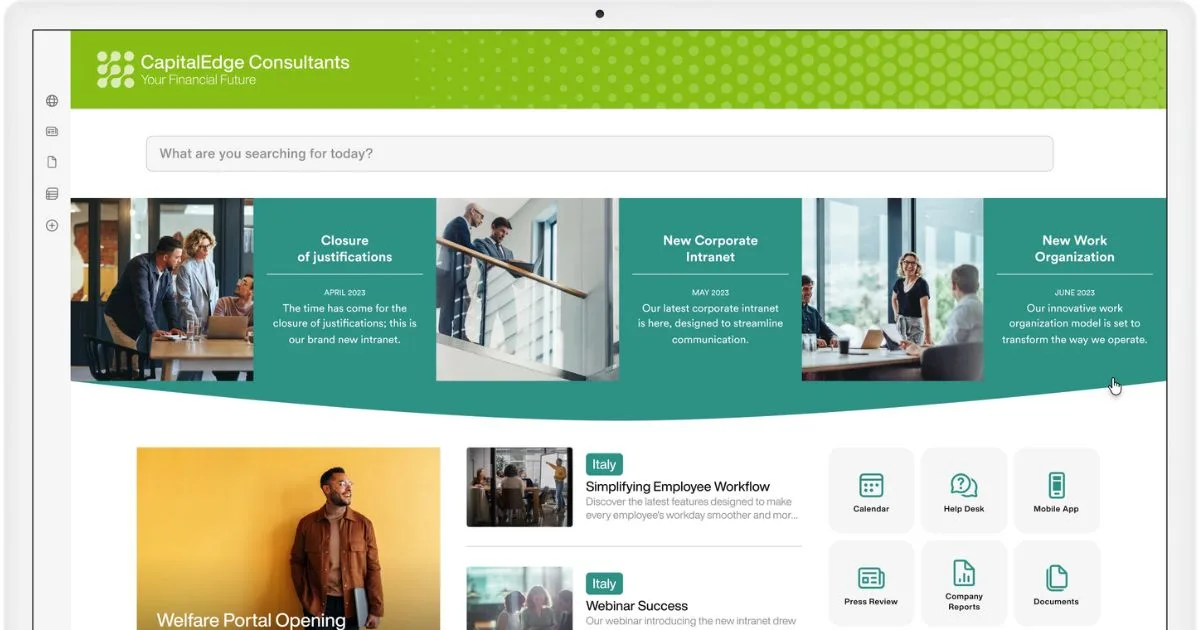
One of the most important suggestions for a SharePoint intranet is that navigation must follow the structure, never the other way around. Simply linking pages together ends up creating labyrinthine networks that are often inaccessible for users.
The correct method for implementation therefore begins with the mapping of informational needs, which can be identified through questions such as:
-
Who needs to consult HR policies and in what situations?
-
Where do salespeople find presentations for clients?
-
How do users access signed documents during approval workflows?
Only after outlining these flows does it make sense to discuss hubs, landings, links, or navigation paths. Operational clarity comes before visual appearance.
SharePoint provides different types of sites, each designed for specific contexts. The real skill lies in adopting them consistently and connecting them with a clear and functional logic tailored to your organization.
When to use a SharePoint site: purpose and features
SharePoint site type Site purpose Site features
Communication site Top-down communication and engagement
-
Corporate news
-
Internal campaigns
-
Broad audience
-
Editorial approach
Team site Collaboration
-
Shared files
-
Task management
-
Integration with Planner, Lists, and Teams
-
Selected audience
Hub site Logical connector of subsites Unifies navigation, permissions, and branding of related sites (for example, Marketing or international offices).
Many projects go off track by putting everything into a communication site full of subpages, ending up with a jungle.
Classic hierarchical intranets (home at the top, multiple levels of subsections) are less effective today. SharePoint supports a flat structure, focused on cross-cutting paths through:
-
Custom search filters that quickly find relevant files by category or source
-
Robust metadata that tag content and group it in dynamic views
-
Interconnected web parts that display on one page resources physically stored elsewhere
This way, a user can open the same policy from a search, a link in Teams, a notification in Outlook, or a card in Viva Connections. The result is that the intranet becomes the single, centralized system for managing information, content, and communications.
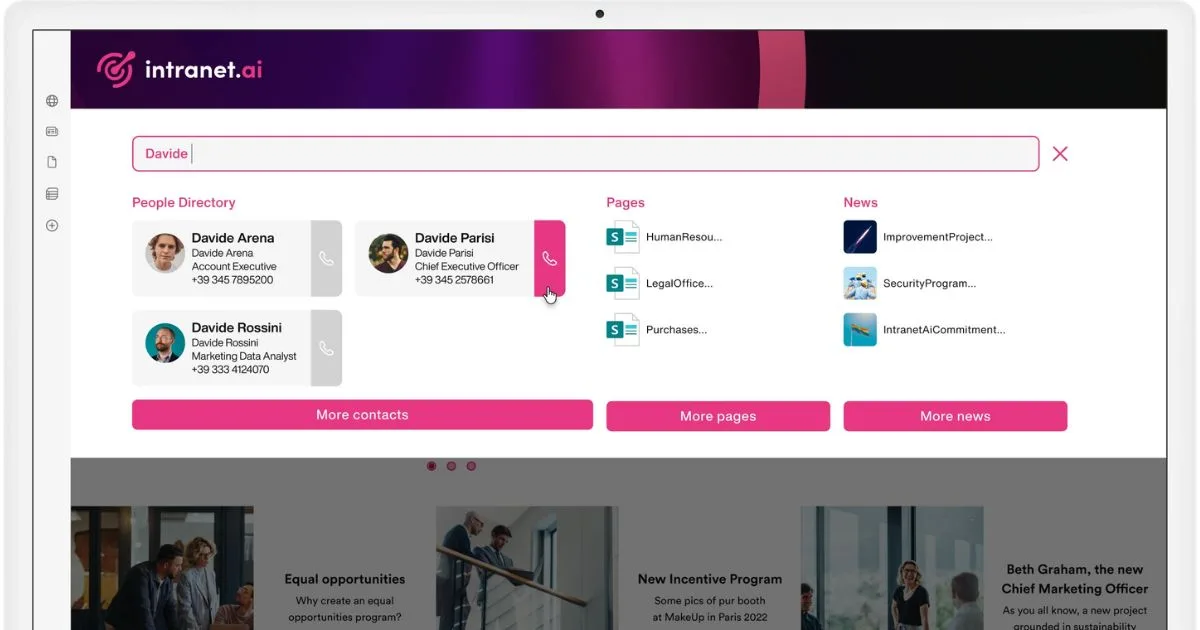
Another common issue is inconsistent design.
Clashing colors, misaligned headings, redundant logos. How can a user recognize the brand and navigate the portal? The solution is to define a clear guide that establishes:
-
a color palette aligned with the brand
-
standard use of fonts, icons, and spacing
-
page templates for news, documents, projects, and info sheets
At the same time, each team should be able to configure lists, pages, and workflows tailored to their needs, combining visual consistency with functional autonomy.
One key recommendation?
Design the intranet as an ecosystem that evolves.
In SharePoint, every decision should anticipate a possible future change. What’s needed is a strategic mindset, not just an operational one, to build a digital space that can adapt over time to the needs of the company and its people.
And here’s the mistake to avoid.
Treating the intranet as a one-time project, because the work does not end after launch.
As mentioned, the SharePoint Online intranet has the potential to be the operational hub of the entire digital workplace, offering the customization and scalability required to evolve with diverse needs over time.
However, this is only possible when constant attention is given to its features, architecture, and the content made available to users.
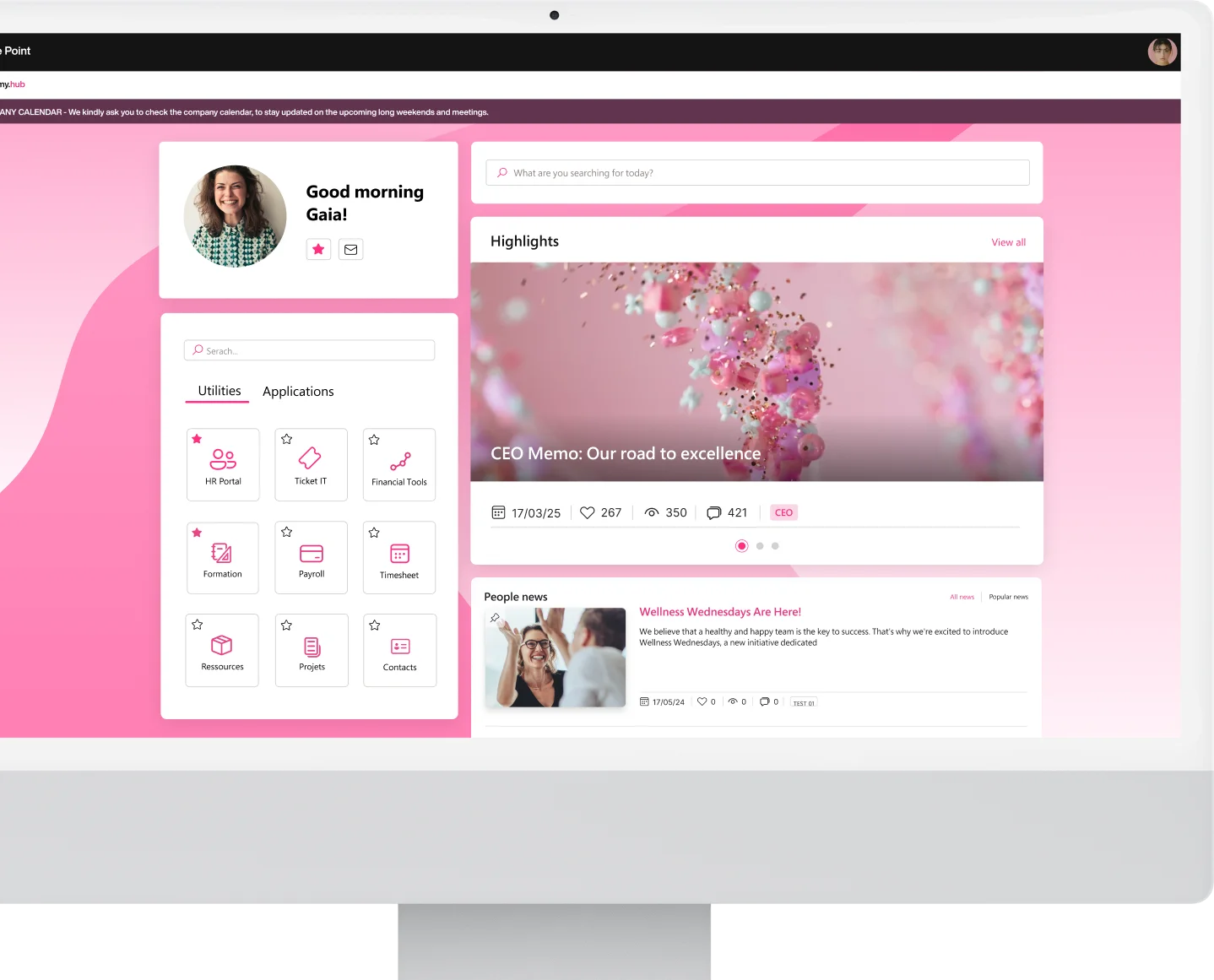
See intranet.ai in action
A ready-to-use intranet on SharePoint Online, live in days. Book a free demo with our team.
Book a demoIntranet Adoption Tips: how to turn the intranet into a useful daily tool
Anyone who has used a poorly maintained intranet knows what it’s like to get lost in redundant pages, broken links, duplicated content, and tangled navigation paths. SharePoint Online, if not properly designed, can quickly become a maze where even the simplest document takes ten clicks and a bit of luck to find.
But the issue is not the platform itself.
The issue is the lack of clear criteria for managing information.
To avoid turning the intranet into pure chaos, you need precise structural decisions. SharePoint provides the tools to implement them, but you must know how and when to use them.
One of the most important and most misunderstood tips for beginners on SharePoint is this: you don’t need to oversimplify, you need to anticipate. If users know what to expect when they open a page or select a document, interaction will be smooth even in a content-rich intranet.
Let’s not get it wrong: the goal is not to reduce features but to organize them so they are clear at first glance. This is where the information structure comes in.
For every area, page, or content, you should answer three questions:
-
Who is it for? (Who)
-
What is the main action the user needs to perform? (What)
-
In what context is it useful? (Where)
Once the answers are clear, you’re ready to organize navigation in a logical and continuous flow. Otherwise, even the most beautiful home page becomes a dead end.
Another common issue in SharePoint intranets is overlapping menu items, useless breadcrumbs, and layered structures that confuse rather than guide. In this case, the solution is not how many items go into the navigation bar, but which path makes sense for the user in a given context.
This is why it’s essential to work on three levels.
How to manage intranet navigation to avoid chaos
Navigation level in SharePoint Level functions
Global navigation Includes navigation items that are always available and represent cross-functional areas of the intranet (About Us, News, Resources, People).
Local navigation Navigation specific to each site or team, with contextual menus designed for a specific audience (for example, technical documentation in the IT site).
Contextual links Internal page links that anticipate the next need and help users move within the platform without always going back.
A common mistake is building the information architecture as a rigid, vertical hierarchy, like a folder tree. Fortunately, SharePoint allows for a more fluid, horizontal navigation based on tags, filters, and hub pages.
Usability doesn’t improve by adding more pages, but by reducing the need to open them all. This means grouping content based on function. Instead of having ten pages for ten forms, you can have a single page with filters and dynamic views that show only what’s needed.
In this regard, SharePoint makes it possible to:
-
show different content to the same person depending on the context (for example, using conditional web parts or audience targeting)
-
centralize documents and then display them in multiple places without duplication (thanks to document library web parts or filtered lists)
-
reduce the number of clicks with quick menus, links, and clearly visible shortcuts
There’s one simple rule: the more steps it takes to find information, the less useful the intranet is.
This brings us to metadata.
In SharePoint, every file can be enriched with tags (manual or automatic) that describe its nature: content type, department, confidentiality level, language, due date, author.
These metadata are not just an add-on. They are the key to enabling smart filters, building thematic views, powering advanced search, and making each list a living system.
As a practical example, an HR page could include a web part that shows only valid policies for a specific person, filtering documents with three conditions: “Type = Policy”, “Language = Italian”, “Status = Published”.
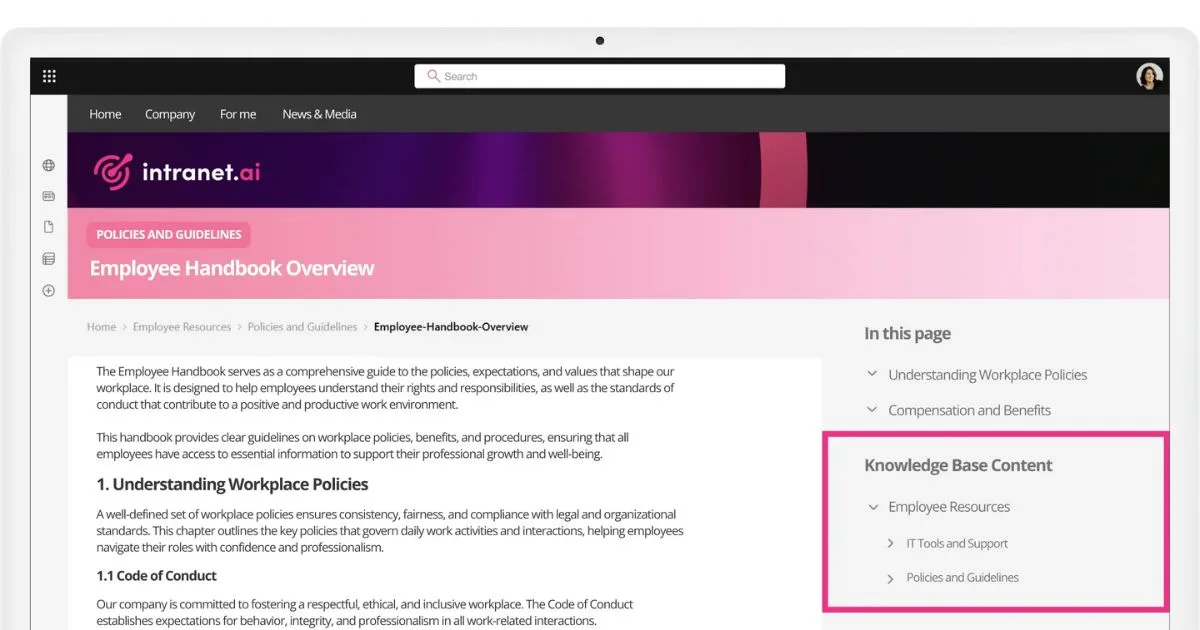
One of the most overlooked tips when creating an internal portal concerns search.
In fact, it’s too often assumed that users never search. In reality, many have simply given up trying. The reason is simple: they search for a term like “contract” and get 400 PDFs, displayed with no logic or order.
The good news is that SharePoint Online has a solid search engine that can be enhanced with:
-
Custom verticals, to limit search to a thematic collection (only legal documents, only media files)
-
Dynamic filters, to narrow results based on specific properties (author, date, department, etc.)
-
Search schema management, to map relevant fields in the content and highlight them in the results
The goal is to make search the starting point, keeping in mind that a user who immediately finds what they need is more likely to return to the portal, which is essential to avoid wasting the investment made to build it.
Speaking of users, there’s a widespread myth: that using the intranet well requires constant training. This is partly true, but if you get to the point of explaining how to find a file on a page, then the page itself is the problem.
Usability is not taught, it is built. And it is measured by the level of user autonomy.
This is why the best intranets (including our solution) do not rely on long user manuals, but invest in clear labeling, consistent layouts, and standardized page templates.
In practice, it is training already applied.
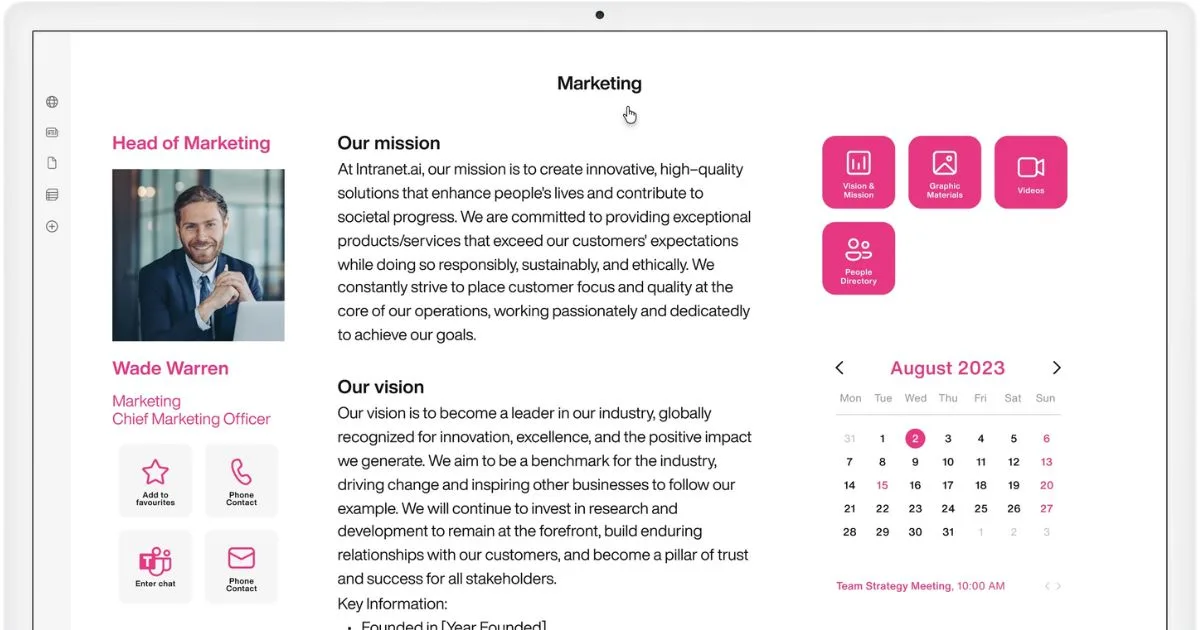
Let’s now outline the strategies that will help any user, whether beginner or experienced, to use and adopt the SharePoint intranet.
SharePoint Intranet Tips: some advice from our experts
SharePoint intranet tips Description Benefits
Use hub sites Subsites are linked to a central hub to maintain a consistent structure.
-
Consistent navigation
-
Clear hierarchy
Activate the Term Store Create a centralized metadata vocabulary to tag content consistently.
-
More accurate search
-
Content governance
Create custom views in libraries Define useful filters and sorting for user groups. More efficient access to resources, communications, and documents.
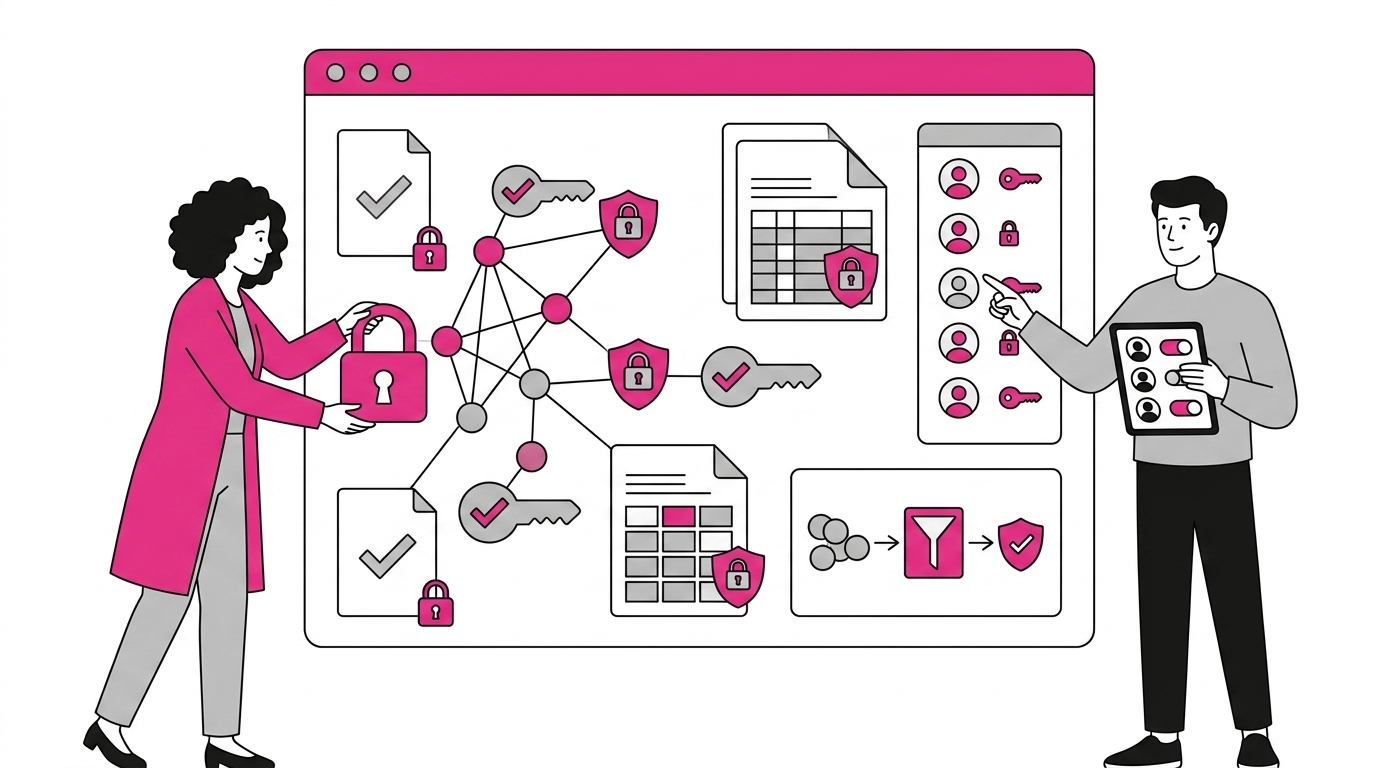
Apply granular permissions Set permissions at folder, file, or list level only when truly needed. Better control over information security without increasing complexity.
Optimize search with verticals and refiners Add contextual filters by content type, author, or date.
-
More relevant results
-
Less user confusion
Enable content expiration policies Configure reminders or automatic removal of outdated files.
-
Continuous intranet cleanup
-
More reliable content
Create templates for recurring pages Use preconfigured layouts for departments, campaigns, FAQs.
-
Consistent design
-
Less effort for content owners
Integrate Power Automate for recurring flows Automate requests, approvals, notifications, and processes such as onboarding.
-
Lower workload
-
Greater speed and efficiency
Customize the intranet home page with audience targeting Show different content based on user role or location.
-
More relevant user experience
-
Increased intranet usefulness
Create custom Search Verticals with PnP PowerShell Use PnP scripts to build advanced search filters that return only certain content (e.g., recent PDF policies) and display them in SharePoint Online UI. Tailored search experiences, highly valuable for specialized departments.
Link content from different sites using Microsoft Graph connectors Configure Graph connectors to index external data sources and access them from SharePoint. Single access point for all company information, even across systems.
Apply dynamic audience targeting with Microsoft Entra ID Groups Use Entra ID dynamic groups to target content based on real, automatically updated criteria. Centralized and automated control over content visibility, with no manual updates.
Create a fully custom SharePoint page with integrated Adaptive Cards Integrate modern SharePoint pages with Adaptive Cards (via SPFx or JSON web parts) to build dashboards with feedback, alerts, or personal tasks. Highly interactive and personalized intranet experiences within the Microsoft ecosystem.
Implement the Site Collection App Catalog for local SPFx solutions Use a local (not global) App Catalog to distribute SPFx components only within a specific site or hub. Enables testing, fast rollout, and error containment in complex environments with multiple site collections.
A well-designed intranet is useless if no one uses it.
Many companies invest heavily in modern portals based on SharePoint Online, with all the right features in place. Yet, after a few months, they face a harsh truth: pages are not updated, content loses relevance, and collaboration shifts back to internal chats.
This is not a technology issue, it’s an adoption issue.
If no one takes care of the adoption lifecycle after go-live, the launch becomes an isolated peak, not the beginning of the return on investment.
The most common mistake is treating the intranet as an IT project or internal communication initiative, when it’s actually a living space that must grow with the company.
Adoption is not automatic, even with a user-friendly platform. People won’t use the intranet just because it’s well built. They’ll use it if it feels useful, current, and relevant to their work.
You need to activate multiple drivers: motivation, accessibility, perceived usefulness, and engagement.
One of the most powerful levers is explicit support from management.
When leaders publish updates, respond to questions, and share documents in the intranet, they are saying: “This is our company’s digital version.” If they keep sending emails or sharing files in Teams, they’re saying the opposite.
A concrete example?
If the HR director publishes new vacation policies only on the intranet and mentions them at a townhall, colleagues are more likely to open the HR page than email asking, “What’s the updated procedure?”
Adoption is not imposed, it spreads.
And the most effective way to spread it is by building a network of champions, people in the organization who know the platform well and believe in its value.
They don’t all need to be SharePoint experts. In fact, the best champions are often hybrid roles: team leads, department assistants, local coordinators. People who show, day by day, how to use the intranet to work better.
This network should be trained, supported, and recognized. It needs an engagement plan that includes monthly feedback meetings, ongoing training, early access to updates, internal visibility, and usage incentives.
In many organizations, champions also become local content owners.
They manage updates for their department pages and help colleagues use web parts. This way, adoption becomes distributed and doesn’t fall entirely on the central team.
Constant content updates are another pillar.
The editorial plan must not be left to chance. It needs a clear structure that defines:
-
Who publishes what
-
How often
-
In which sections
-
With what tone and format
-
With which impact indicators (visits, feedback, reading time)
It should be a shared but not centralized plan. Otherwise, it risks becoming a one-way portal that loses relevance over time.
A good example? Define 3 or 4 categories of strategic content (such as business news, HR updates, local initiatives, team achievements) and assign each one to a team with clear responsibilities.
There’s no need to publish daily, but consistency and relevance are a must.
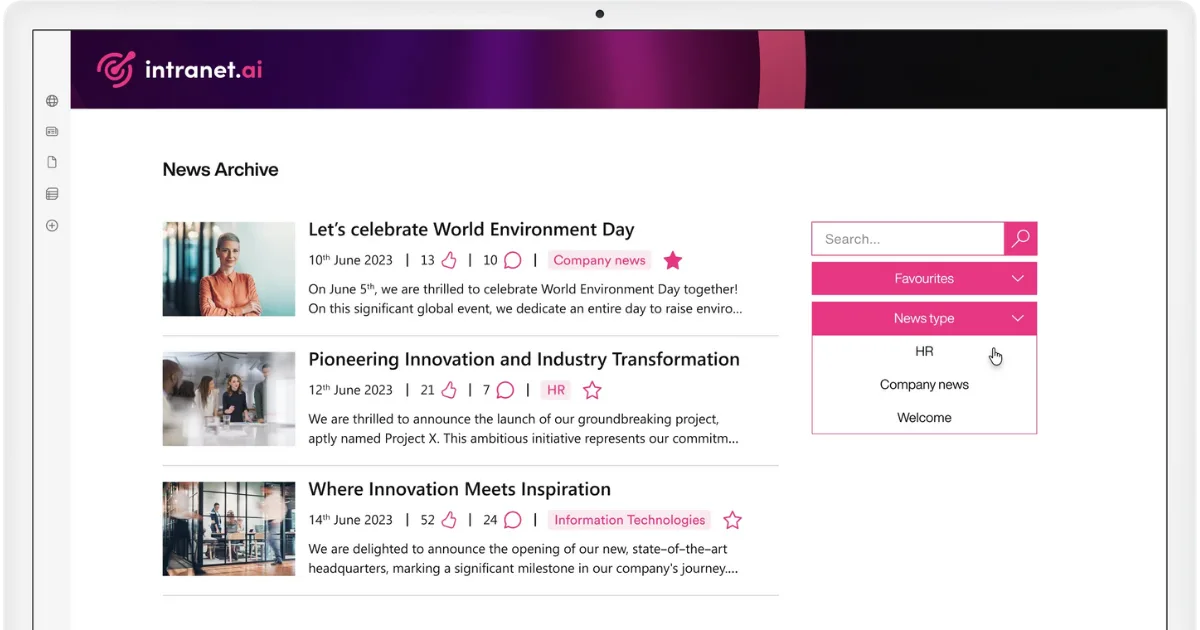
Turning to internal communication, a good editorial plan should include:
-
Feature highlights, with screenshots and mini-tutorials
-
Success stories showing how the intranet has solved common problems
-
Targeted calls to action (“Explore the new sales dashboard”, “Comment on our quarterly plan”)
-
Engagement content, such as quizzes, surveys, or editorial columns
-
Usage statistics to show how the intranet is used by colleagues
Using platforms like SharePoint is not something you learn through hours of classroom training. The best approach is microlearning, integrated into the daily work routine.
Some good practices include:
-
Adding tooltips to pages (with SharePoint or tools like WalkMe)
-
Creating short videos on common actions (“How to create a post” or “How to bookmark a page”)
-
Using your champion network for peer-to-peer training
And finally, don’t give up too soon.
After a few months, if the intranet isn’t yet popular, people often think the project has failed. But new habits take time to build, especially if the previous work environment was very different.
To avoid disillusionment or discouragement, it helps to track the right metrics, such as recurring visits, content engagement, time spent on pages, and qualitative feedback from teams. Above all, small continuous improvements are key.
One key recommendation to keep in mind?
Intranet adoption must be nurtured daily. You need to engage employees with relevant content, an active internal user network, and visible support from leadership. Only then can the digital space become a true part of everyday work.
And here’s the mistake to avoid.
Always talking about SharePoint. Effective communication starts with users’ needs. So don’t say, “Check out the new web part”, but rather, “Now you can find all the policies with one click.”
Social Intranet Tips: how to grow your intranet through employee engagement
An intranet limited to collecting files and memos is little more than a digital archive. It can be useful, but it hardly inspires or generates engagement. People relate to stories, questions, and the chance to interact with others.
That’s why, globally, there is increasing talk of the social intranet.
This concept frames the intranet as an environment that combines the solidity of SharePoint with the energy of tools focused on engagement, primarily Viva Engage.
The basic idea is simple: content informs, conversations engage.
A well-written policy remains essential to perform your tasks, but it is the discussion that forms around it (a colleague’s clarification, a suggestion, an example of real application) that turns plain information into shared knowledge.
In a socially driven intranet, publishing is not the final act, but the starting point of a dialogue that strengthens the company community.
SharePoint allows users to leave comments and likes on pages; however, these features alone are not enough to create truly active participation. Integration with Viva Engage changes the game by introducing a real community logic, with public or private groups, topic tags, mentions, quick polls, storylines, and content similar to the most popular social networks.
Integrated into Microsoft 365 and inheriting identity, permissions, and notifications from Entra ID, it becomes the natural home for conversations that fall outside the operational channels of Teams.
The main difference from Microsoft Teams is the scope. Teams fosters micro-level dialogue within a project, while Viva Engage supports macro-level dialogue that connects departments, locations, and roles.
The result is twofold: it reduces hierarchical barriers (a branch technician can ask questions directly to the CFO) and sparks latent connections (a product manager in Milan discovers a solution already tested by a colleague in Singapore).
This value emerges when Viva Engage is embedded in the most visited SharePoint pages.
An HR procedure can include, in the sidebar, a preview of the “People & Culture” community, where questions and answers about leave are shared. A division homepage can instead display the latest threads from the “Ongoing Projects” group, preventing initiatives from remaining confined to those directly involved. The conversation is no longer hidden behind a click but appears right where it is needed.
It is important, however, to avoid channel duplication. There is no need to create a Viva Engage group for every project team already active in Microsoft Teams, nor to replicate in Outlook the announcements posted in Viva Engage communities.
Each tool has its role:
-
Teams for synchronous collaboration
-
Outlook for formal communication
-
Viva Engage for debate and collective idea sharing
Clear governance, perhaps outlined in a community policy, can prevent confusion and help users understand which app to use in each situation.
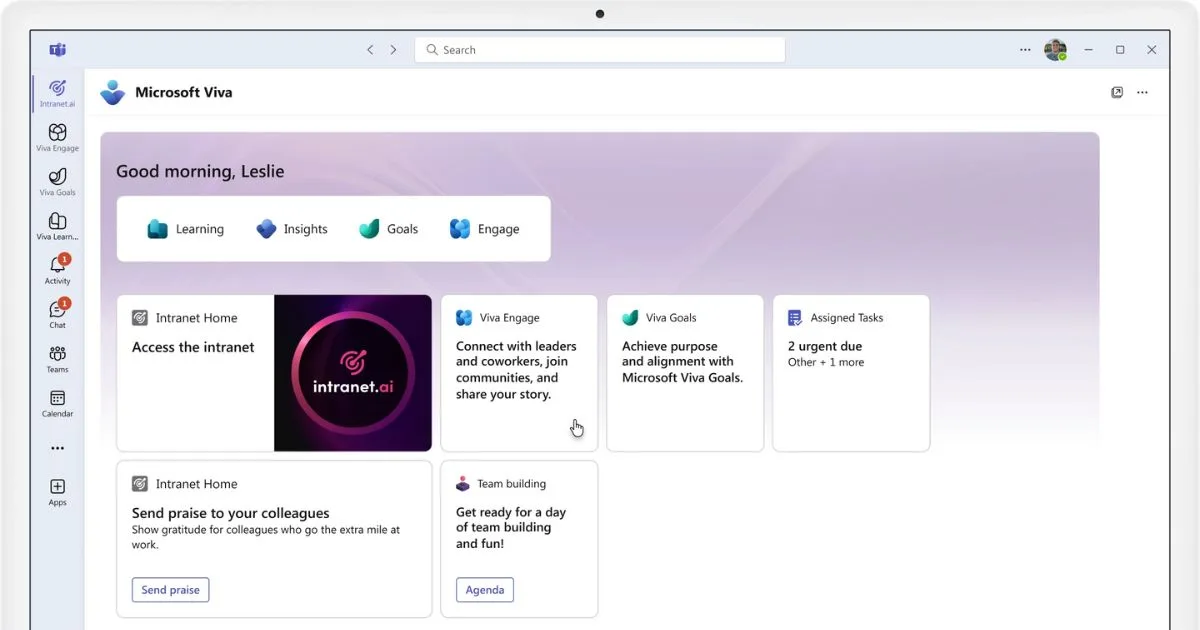
In manufacturing, retail, or logistics companies, more than half of the workforce does not access a PC on a daily basis. For these colleagues, the intranet must be mobile first, and the SharePoint and Viva Engage apps provide a native experience to send notifications, upload images, and quickly ask or answer questions.
To be effective, it is necessary to design lightweight layouts, avoid twenty-megabyte PDFs, and prioritize micro-content bites such as cards, video clips, mini-guides, and infographics that can be viewed while waiting in the cafeteria or traveling for work.
Let’s take the example of “safety week”.
Each morning, the HSE team shares a short smartphone video, uploads it to Viva Engage, embeds it on the SharePoint intranet homepage, and invites operators to comment with their field “safety tips”.
Dozens of suggestions are collected. The best ones are upvoted with likes, shared by managers, and turned into official procedures. This completes the Content - Conversation - Improvement cycle without meetings or email exchanges.
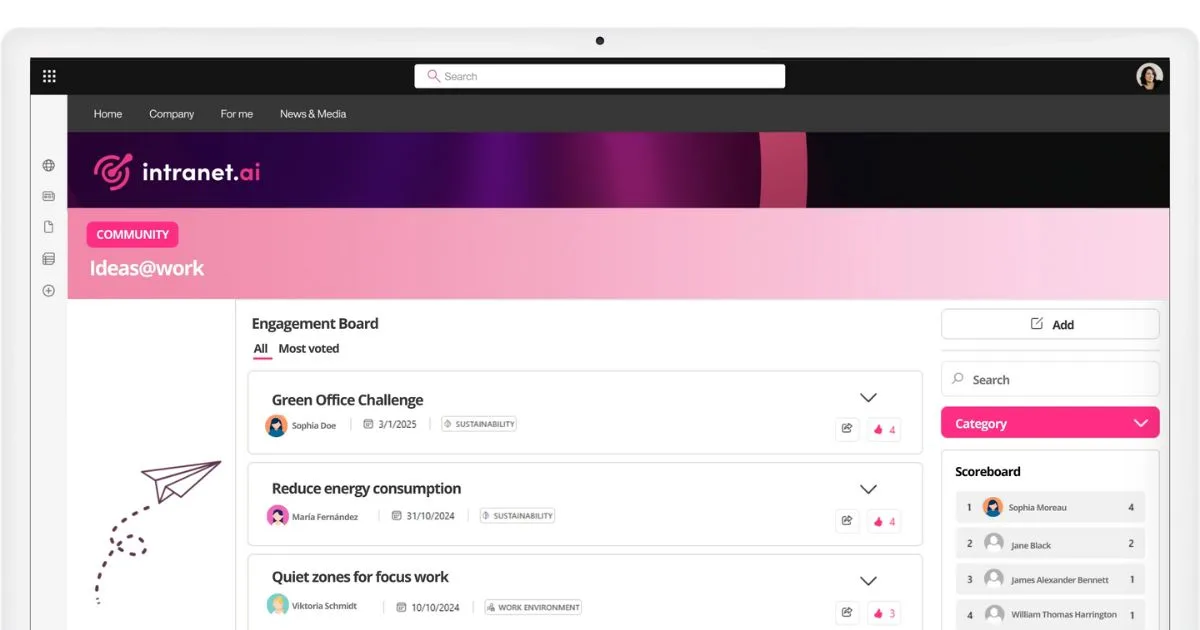
A social intranet works when it shifts from occasional surveys to continuous listening. This means embedding Microsoft Forms micro-surveys directly into Engage posts (“Do you understand the new policy? Yes / No / Partially”), making results immediately visible in a live chart, and encouraging leaders to respond in the comments within 24 hours.
Even the simple “average response time” indicator tells the story of the community’s health. If a question goes unanswered for days, moderators and champions need to step in to keep the discussion alive.
No platform, no matter how advanced, can foster engagement if the company does not support a culture that aligns with it.
In some organizations, it is the CEO who personally takes part in a monthly “Ask Me Anything” session, and managers publicly thank those who share useful ideas.
That said, recognition should not become intrusive gamification.
Small public gestures are enough, such as a mention in the internal newsletter, a “Problem Solver of the Month” badge, or an invitation to share one’s story at the quarterly town hall. These help every employee feel heard.
This is truly important, because when someone feels valued, they contribute more energy to the company’s growth.
In addition to the tips we’ve seen so far, the following table offers more suggestions for building and successfully adopting a social intranet.
Social Intranet Tips: some advice from our experts
Tips for a social intranet Description
Embed Viva Engage threads in the SharePoint intranet Use the “Conversations” web part to display topic-related discussions in intranet pages (HR FAQs, policy updates, etc.), encouraging direct interaction without forcing users to switch apps.
Use consistent topics for navigation and search Create and maintain a shared taxonomy of topic tags in Viva Engage to categorize conversations and make it easier to find relevant threads directly from the intranet.
Launch internal social campaigns visible on the intranet homepage Create a “community hub” in Viva Engage and link the latest posts using a dynamic web part on the intranet homepage to give visibility to cross-functional initiatives.
Connect engagement badges and leaderboards using Power Automate and Lists Use Power Automate to log likes, comments, and posts in a SharePoint list with gamification scores, then display it using a leaderboard web part.
Add push notifications for followed threads using Power Automate and Teams Set up a flow to notify users via Teams (or Outlook) when they are mentioned or when a thread they follow gets new comments.
Create quick polls on Viva Engage and publish the results on the intranet Create quick polls in Viva Engage and show real-time results using Power BI embedded in a dedicated SharePoint page.
When the intranet goes live, its management begins.
A good intranet is a platform that evolves with the organization, grows at its pace, and stays useful thanks to the constant care of its managers and content creators.
It relies on governance that goes beyond solving tickets, fixing links, or adjusting permissions. Its aim is to nurture the vitality of the new ecosystem, ensuring that content, processes, and tools stay aligned with business goals and user needs.
Governance and maintenance therefore include complementary activities such as:
-
updating or removing outdated information to avoid misleading searches;
-
reviewing permissions regularly so everyone sees only what they need;
-
observing user behavior with tools like SharePoint Insights, Viva Analytics, or Intranet Analytics to understand which content performs well and which does not;
-
redesigning user flows when too many clicks or intermediate pages slow things down;
-
etc.
These are actions that require method and consistency to protect the platform from decline.
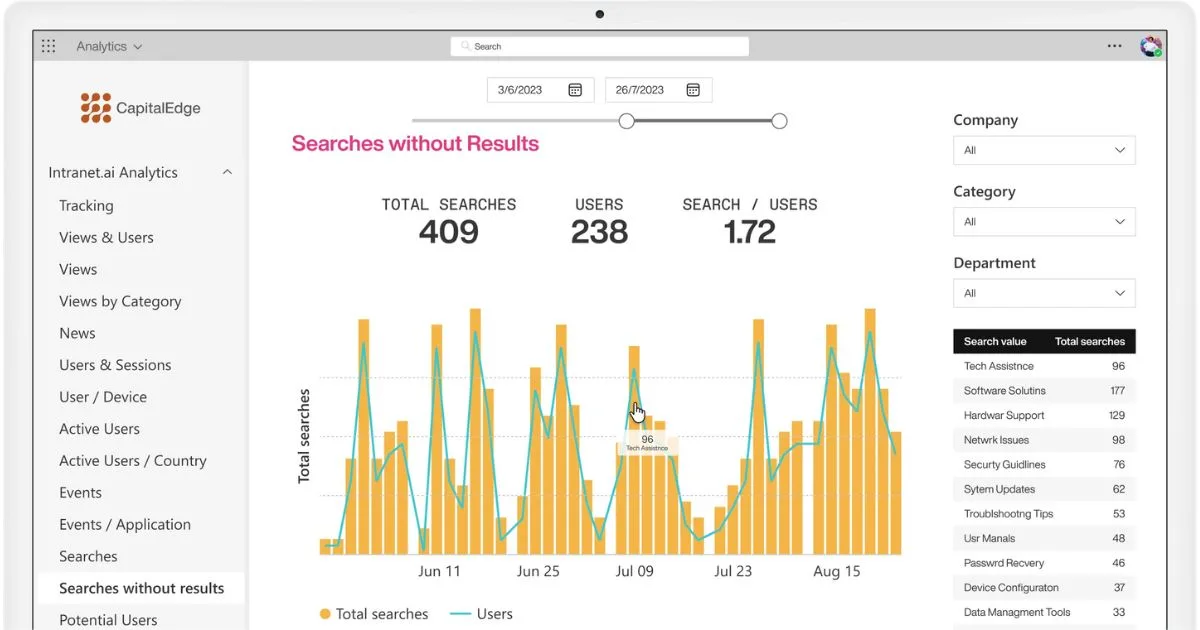
To evolve also means toeliminate.
Chaotic sections, redundant information, unused sites, and unnecessarily branched structures must give way to clear and focused content.
In this regard, a biannual audit based on usage statistics and interviews with key users helps identify areas to archive or restructure. The goal is to build a lightweight intranet that is easier to update, faster to browse, and more appreciated by users.
As we conclude this brief but hopefully insightful overview on how to build an effective SharePoint intranet, we want to highlight the importance of skills.
Only with the right skills is it possible to achieve a modern, useful, and accessible intranet.
If these skills are not available internally, our final recommendation is to seek support from experienced consultants such as those in the intranet.ai team.
Backed by decades of experience in digital transformation through Microsoft technology, our team can support any organization through the full lifecycle of its intranet and integrated digital workplace: from need mapping to governance, from adoption to workflow automation.
In short, we don’t just make your SharePoint intranet work better.
We use the SharePoint intranet to help your company work better.