SharePoint Online is a key tool for centrally and scalably managing collaboration, information sharing, and the creation of portals such as an extranet or a corporate intranet.
However, its effectiveness largely depends on the underlying structure; namely, the architecture that drives its functionality. The architecture of your SharePoint environment must indeed be able to adapt to the needs of your organization, helping reduce management costs and improving content accessibility for all members.
In this article, we will explore the key elements that make up SharePoint’s architecture, along with the steps and best practices for designing a scalable, secure, and user-friendly digital workspace.
What you will find in this article
Why is it so important?
SharePoint Online is a platform that allows you to manage content, create collaborative spaces, and optimize business processes. It is used by organizations of all sizes and sectors to build portals dedicated to internal communication (corporate intranet), external communication (extranet), and document management.
Everything starts with architecture, the structure that allows you to define:
-
How and where content is organized: Sites, documents, and data must be logically structured and easily accessible.
-
System scalability: Poorly designed architecture can limit the ability to adapt to business growth.
-
Security and compliance: A robust structure is needed to protect sensitive information and meet legal requirements.
-
User experience: Clear navigation and an intuitive structure encourage platform adoption and enhance productivity.
In this article, we will explore each of these key aspects to understand how to design a structure (SharePoint information architecture) that is easy to manage, navigate, and use in everyday work.
See intranet.ai in action
A ready-to-use intranet on SharePoint Online, live in days. Book a free demo with our team.
Book a demoSharePoint Information Architecture: getting started
To understand what SharePoint architecture is, it’s useful to first highlight the differences between the classic architecture (used in earlier versions of Microsoft’s solution) and the modern one (the current approach).
The classic version is based on a hierarchical structure.
In this configuration, sites are organized in a chain of main sites and subsites. Navigation, permissions, and design are inherited along the hierarchy. Moreover, making changes is difficult without breaking links or compromising the structure. For example, moving a subsite from one section to another can cause broken links and, as a result, navigation issues.
So, what changes with the arrival of modern architecture?
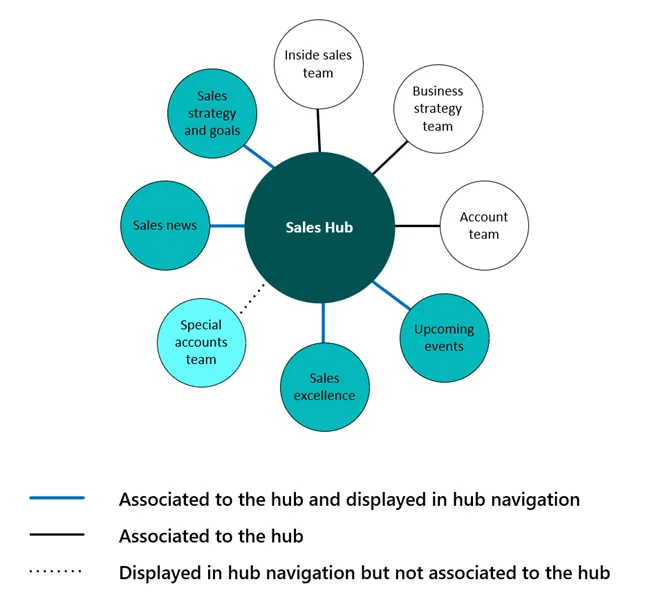
Well, SharePoint adopts a “flat” structure, favoring the creation of independent sites connected through so-called “hub sites,” thus eliminating the traditional use of subsites.
Creating independent sites is useful for setting up a space dedicated to a specific topic, project, or department, making it easier to share relevant information with users without compromising navigation.
On the contrary, navigation is actually enhanced thanks to the use of hub sites and explicit links between sites, pages, and resources.
Moreover, the modern version introduces the ability to archive or delete sites without significant impact on the overall architecture.
The principle behind the flat structure is simple: create autonomous units that can be easily managed and reorganized.
This provides greater flexibility (sites are self-contained entities that can be moved or modified without causing structural issues), simplifies maintenance (each site is separate, reducing management complexity), and improves navigation (through customizable links that simplify content access).
To clarify, in a large company with offices across multiple countries, a “flat” approach allows for the creation of dedicated sites for each region, with hubs that centralize content intended for the entire company. This lets branches maintain managerial autonomy while staying connected to the rest of the organization.
What are the elements of a modern SharePoint architecture?
Designing a modern SharePoint architecture requires a deep understanding of its key components and how they contribute to creating a scalable and functional environment.
The essential elements include sites, pages, navigation, libraries, and lists.
Let’s take a closer look below.
Team sites and communication sites
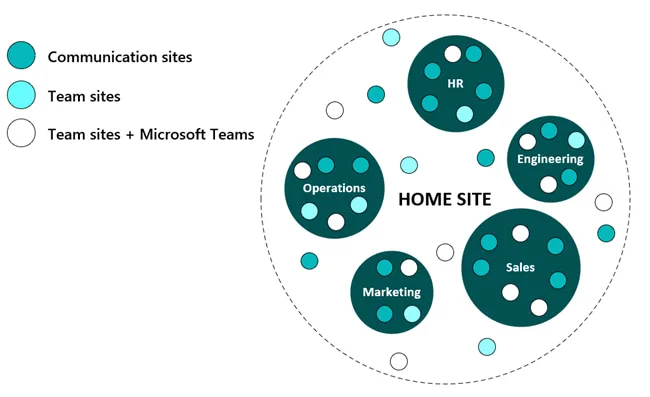
There are two main types of sites in SharePoint:
-
Team sites: designed for internal collaboration within a group or department, they allow file sharing, task planning, and centralized project management. A marketing team might use a Team Site to share promotional materials, track campaign progress through Planner, and collaborate on related documents in real time.
-
Communication sites: intended for broadcasting information within the organization (news, announcements, guidelines). In this case, a communication site might be used by the HR department to publish updates on employee benefits or new internal policies.
Pages and web parts
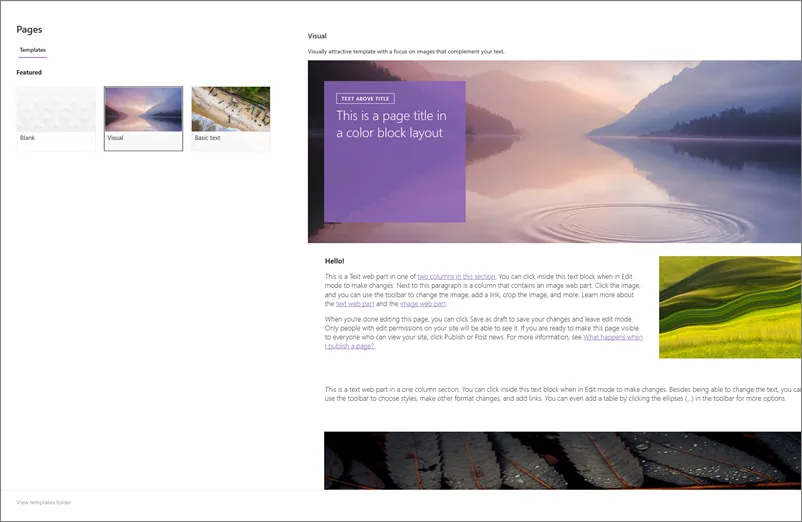
SharePoint pages are the space where content and tools are integrated to deliver value to users. Each page can host various web parts, which are modular elements that display real-time content from sources such as apps, lists, libraries, social networks, and external sites.
A page in a team site might include the Planner web part, showing tasks assigned to team members. In a communication site, on the other hand, a page might use the News web part to highlight key updates and announcements, targeted or not to specific user groups.
In any case, the visual structure is the starting point for good page design within any site.
Key content should be placed at the top to immediately capture attention, followed by supporting information or additional links. For example, a page dedicated to a sales campaign could open with performance data (Chart web part), followed by downloadable files such as presentations and sales reports.
Global, hub, and local navigation
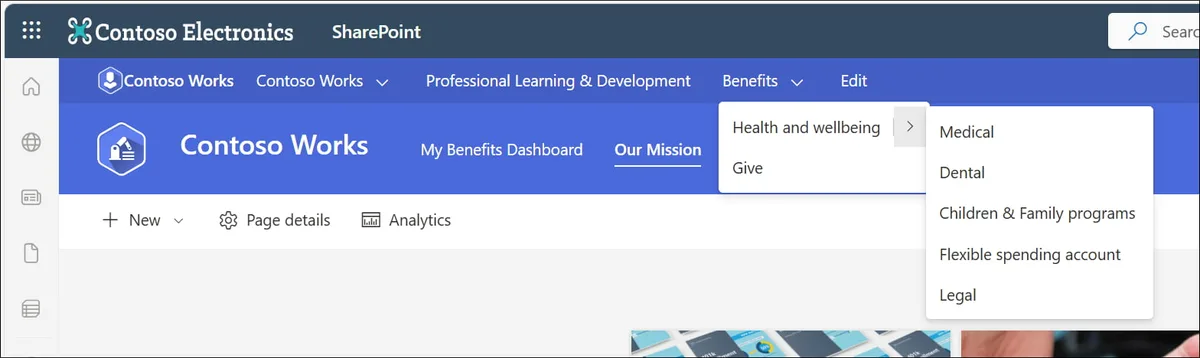
Navigation is the common thread that connects sites, pages, and content. In SharePoint, it is structured on three levels:
-
Global navigation: the highest level, connecting the main company sites - such as the intranet - to repositories with shared resources. Thanks to a well-structured global navigation, a user can access sections like “Company Policies”, “About Us”, or “News” directly from the intranet navigation bar, without having to search through the individual sites that make up the company’s SharePoint environment.
-
Hub navigation: organized around a specific theme or project, it connects related sites. For example, a hub created for the IT department might include links to sites dedicated to managing support requests.
-
Local navigation: specific to a single site, it helps users explore its contents. For instance, a team site might include a local menu with links to areas like “Shared Documents”, “Team Activities”, and “Useful Resources”.
Libraries and lists
Libraries and lists are the spaces where content is stored and managed.
Libraries host files such as documents, images, and videos.
A library might contain company contracts, organized with metadata to make searching and filtering easier. Instead of using nested folders, tags like “Year” or “Department” can be applied to make content immediately findable through search.
Lists, on the other hand, are useful for structuring information in tabular format, such as customer databases or task lists.
One example is a list that collects approval requests for a project, with columns indicating status (“Approved”, “Pending”, “Rejected”), priority, and the person responsible.
A design guide
Now that we have introduced the concept of architecture and seen which elements compose it in SharePoint Online, let’s explore the key considerations when designing the structure through which information will be exchanged and managed in corporate sites.
Understanding your organization’s needs
The first step in designing a modern SharePoint architecture is understanding the organization’s needs. Every company has unique processes, workflows, and requirements that must be translated into a functional structure within its SharePoint environment.
Take the example of a manufacturing company, which might need an order management system, or a consulting firm that requires a repository for storing legal documents, client reports, and training materials.
To design a structure that effectively supports communication, collaboration, and information flows in such diverse contexts, it’s necessary to analyze existing processes and identify pain points.
If teams struggle to find the documents they need, or if approval processes take too long, the architecture should address these issues through content organization and appropriate automation of repetitive tasks.
Defining roles
Another priority is defining the roles involved in managing the company sites. In SharePoint, typical roles include:
-
Owner: responsible for the overall coordination of the platform;
-
Department Managers: represent specific areas of the organization;
-
IT Team: handles the navigation structure, homepage setup, and any hub sites;
-
Hub Managers: oversee specific hubs and their content;
-
Site Managers: oversee individual sites and manage their elements;
-
Content Creators: keep the site content up to date;
-
End Users: use the platform solely to access the resources they need to do their jobs.
Assigning clear roles is crucial to ensure that information is managed in the most secure, organized, and efficient way possible. For instance, the intranet owner might supervise the entire project and oversee future changes, while site administrators could handle daily content management responsibilities.

Engaging stakeholders
The next step involves engaging stakeholders, which should take place from the very beginning of the planning phase. Each stakeholder group should have a voice in defining the architecture, so that the company’s SharePoint environment can also meet their specific needs.
Creating a scalable site
Although SharePoint favors a flat structure, content organization is far from chaotic. As we have seen, sites can be connected through hubs to create a logical and scalable hierarchy. These hubs allow related sites to be linked into a centralized network while maintaining great flexibility in information management.
For example, a company might create one hub for each geographic region where it operates, and associate the individual office sites with their respective hub. Each user would have quick access to information relevant to their work, while still receiving important global updates for the entire organization.
This approach allows each office to manage its own content independently, while the hub connects all sites with global resources (policies, shared tools, etc.). Furthermore, if the company opens a new office, it only needs to create a new site and link it to the hub, without reorganizing the entire structure.
However, when managing hubs, it is important to ensure that all associated sites are relevant to the hub’s theme and remain consistent in terms of design and navigation. For this reason, we recommend conducting regular audits to ensure links are up to date, especially when sites are added or removed.
Focusing on design
To ensure information is accessible, a mobile-first approach should be adopted when designing the SharePoint architecture. This means ensuring every element is optimized for small screens, without sacrificing the functionality available to users.

What is the purpose of modularity?
To ensure gradual and smooth growth of your SharePoint-based digital workplace, attention must be paid to modularity. This means that every element of the platform should be designed as an independent unit, yet tightly interconnected with the rest of the system.
Instead of creating one library that gathers all documents, you can create thematic libraries (Marketing, Sales, Human Resources) with consistent filters and metadata. This allows you to add new libraries or categories without having to reorganize the existing structure.
Naming conventions also play an important role: it’s best to adopt standardized naming practices. For example, if you have several sites, each dedicated to a department, using consistent naming such as “HR_Policy” or “IT_Support” helps users navigate more easily and simplifies content retrieval.
Planning storage spaces is equally important.
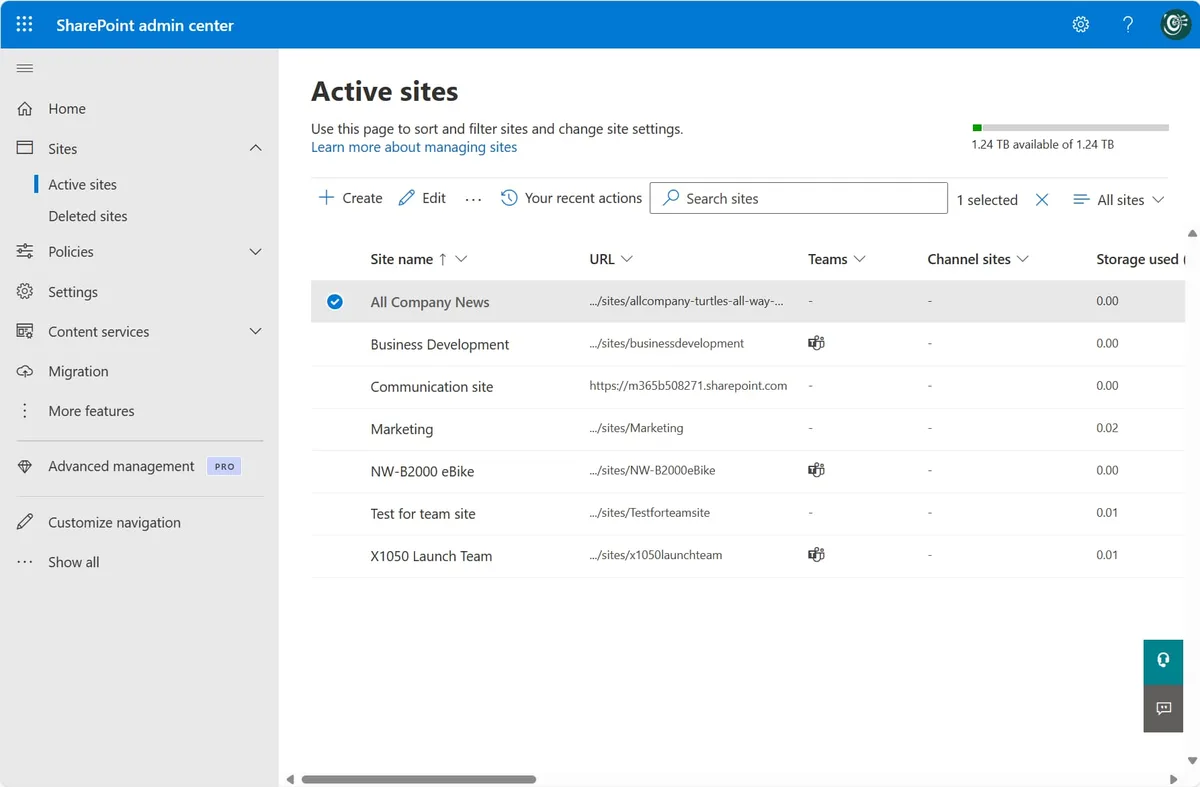
To make the most of the available quota in your license, we recommend using the monitoring tools available in the SharePoint admin center.
Tools for scalability
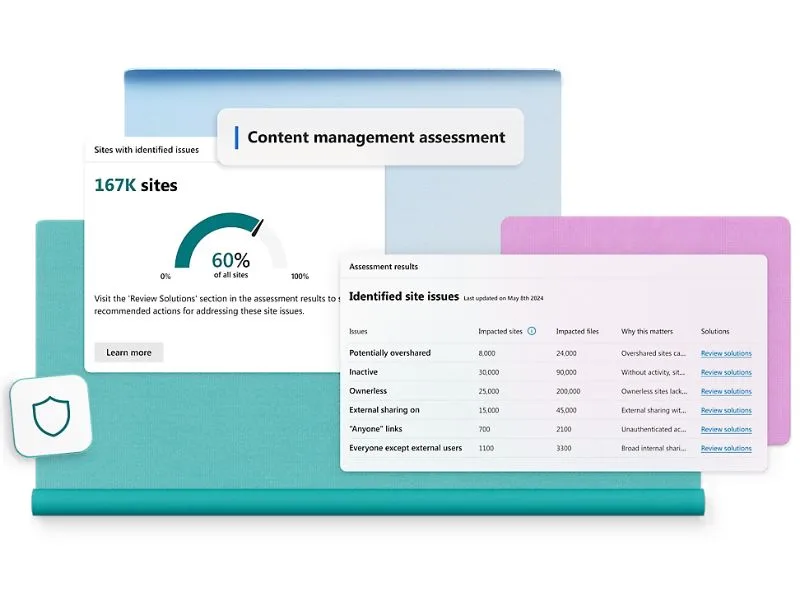
SharePoint offers built-in tools to analyze how corporate sites are used and to assess the efficiency of the implemented architecture. One example is the site analytics, which provide detailed insights on traffic, most viewed documents, and user behavior.
This information is especially useful for identifying low-engagement sites, giving the organization data to evaluate whether to reorganize content or focus on improving navigation.
Another valuable tool is the Storage Metrics report, which helps identify overloaded libraries or duplicate files.
If a library starts consuming a significant amount of space, you can apply storage policies or directly intervene in SharePoint archives to remove unnecessary files.
In other words, it’s similar to when your smartphone storage reaches its limit: to avoid performance slowdowns, it’s better to delete large files or move content you don’t want to lose - but still need to relocate - to another device.
Lastly, it’s very important to regularly review the overall structure. Planning an annual audit might be helpful to assess whether the hubs and associated sites still reflect the company’s operational structure.
How can you optimize navigation?
Optimizing the navigation experience means ensuring users can quickly find what they need, reducing time wasted on searches and improving overall interaction with the platform.
The result? Greater user satisfaction and an increase in the adoption rate of portals such as the corporate intranet.
Let’s look at the key elements to focus on to achieve effective navigation.
Menus and Quick Links
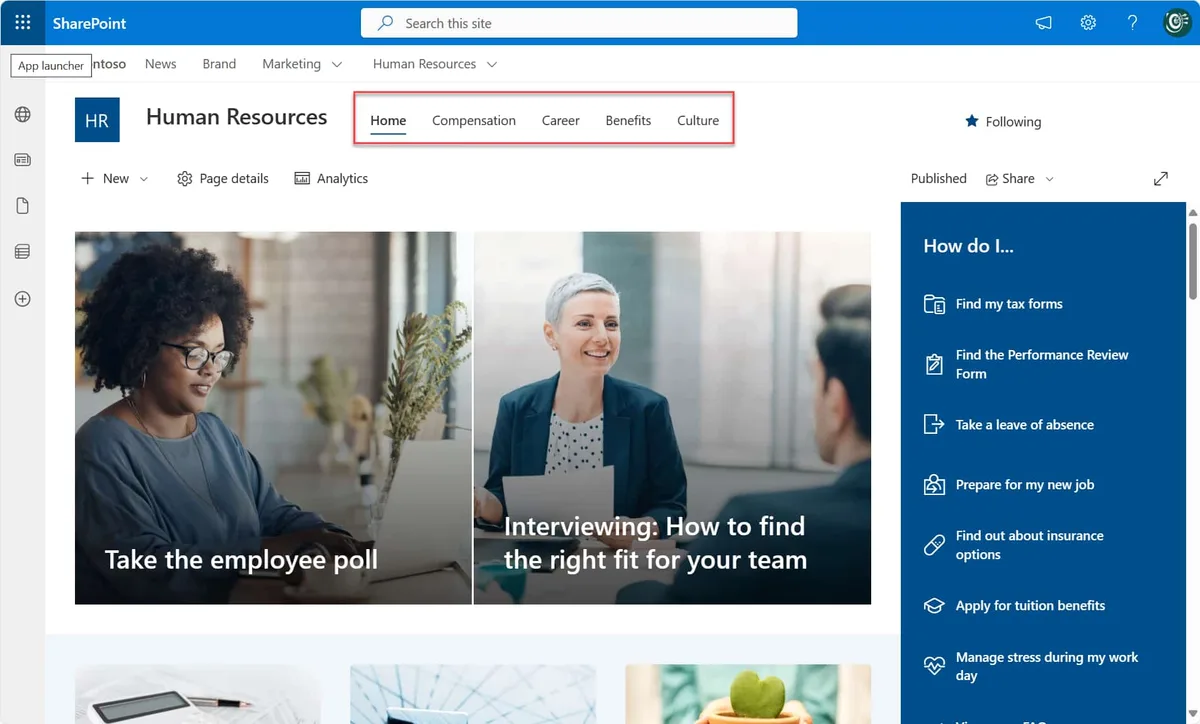
Choosing the right type of menu is crucial for organizing information and navigation paths within a site. Among the options available in SharePoint are mega menus, which are particularly helpful for guiding users through content-rich sites such as the intranet.
Other types include dropdown menus and footer menus, which also support users in finding information and discovering the content made available by the organization. Therefore, regardless of the type selected, the menu structure should always be designed with user experience in mind.
Some companies may prefer navigation organized by department, others by geographic location, and still others by the most common user activities, such as requesting leave, consulting specific documents, or accessing certain applications.
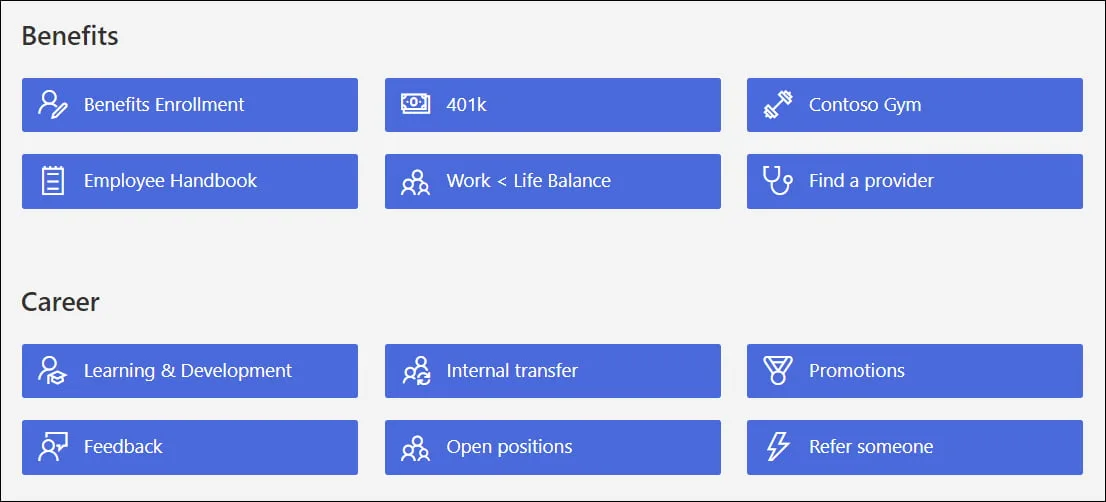
Explicit and inline links (Quick Links) are additional elements that enrich site navigation, making it more targeted. On a project-dedicated page, for example, an inline link labeled “View final report” could be inserted to direct users to the relevant document stored in SharePoint or in an integrated platform.
Personalized navigation paths
By customizing navigation, you can tailor content to the needs of different users. For example, a member of the Marketing team might see quick links to promotional materials and ongoing campaigns on a SharePoint site’s homepage, while a user from the Legal team would have direct access to documents such as contracts and regulatory references.
This is made possible by the audience targeting feature, which displays specific content based on the role or preferences of individual users with access to company sites. This feature is essential for us, as it helps lighten the load of internal communication through the automatic sorting of content, news, alerts, and updates.
Additionally, for companies with offices in different countries, it’s possible to offer multilingual content. How? By creating localized experiences that allow users to view navigation, titles, and content in the preferred language set in their browser.
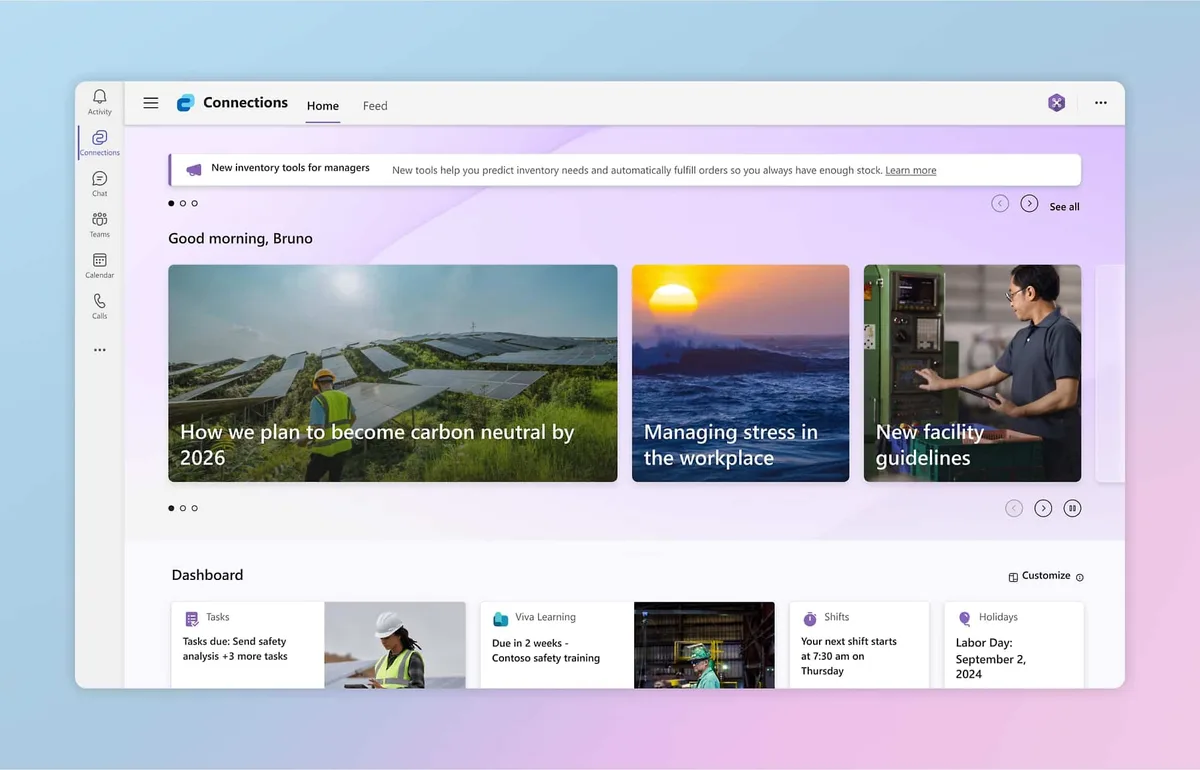
For companies using Microsoft Teams as a collaboration hub, it may also be useful to create a navigation path by leveraging the integration between Teams and a SharePoint site, made possible through Viva Connections.
Viva Connections provides quick access to corporate resources from a site such as the intranet, directly within Microsoft Teams, while also personalizing content based on users’ needs and interests.
Metadata and taxonomy
Metadata are structural pieces of information used to describe and organize content in SharePoint.
They’re not just a technical detail; they’re the key to simplifying user searches.
When organizing a site’s content, metadata turn a static system into a dynamic structure integrated with SharePoint’s search capabilities. For example, a contract stored in a library can be enriched with metadata such as “Client”, “Status”, and “Draft Date”. Each of these values makes the document easier to retrieve based on the user’s search criteria.
To better understand the importance of metadata, imagine working in an environment where they are absent: users would be forced to browse through lists, libraries, and folders, checking content one by one.
Why are metadata better than folders?
A rational architecture should aim for simplification. That’s why metadata provide better organization than traditional folders, which can lead to several issues in content management.
Suppose there is one folder per client: if a document needs to be filed under multiple categories (“Client X”, “Project Y”), it would need to be duplicated; thereby increasing the risk of errors.
Metadata solve this issue because, instead of physically moving documents, you can add relevant tags within the library where the content is stored (our “Client X” and “Project Y”).
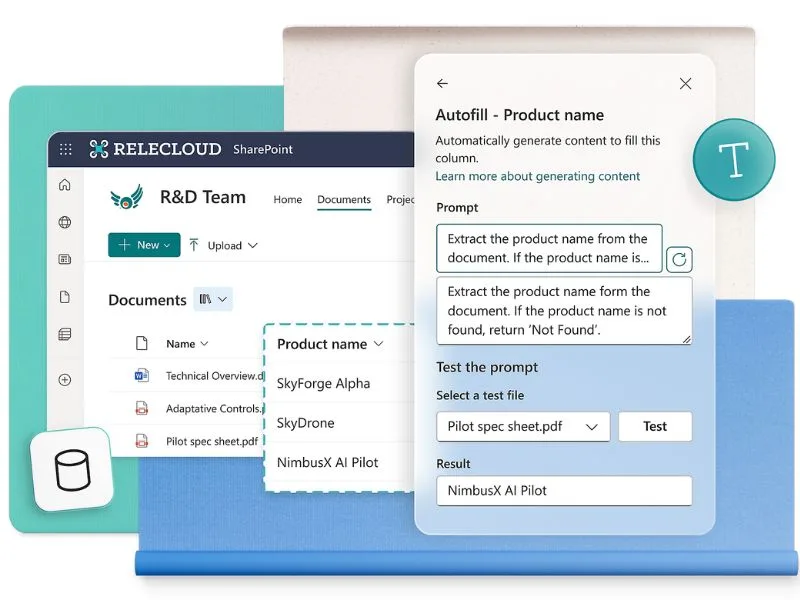
To further optimize content management, SharePoint integrates with Microsoft Syntex, an AI-based solution designed to automate document classification.
Syntex features - now part of SharePoint Premium- allow you to analyze uploaded content, automatically identify the relevant metadata for archiving (and therefore for search), and apply these values based on preconfigured templates defined by the organization according to its needs.
Why should metadata be integrated with search?
As mentioned earlier, metadata not only organize content but also enhance search functionality. In SharePoint, a well-configured search system uses metadata to deliver more relevant results. A user searching for “Annual Report 2023” will instantly find documents tagged with “Year: 2023” and “Type: Report”.
Additionally, you can create custom views that automatically display the most useful documents for users. For example, a project manager could set up a view for the team that only shows files related to active, high-priority projects.
Best practices for security
For any company, it’s essential that the platform powering its digital workplace simplifies information management without ever compromising security.
Another important step in planning SharePoint architecture is ensuring that the right information is accessible only to the right people with the appropriate permissions. Here’s how.
Assign and review user permissions
SharePoint allows you to configure granular permissions for each site, library, or document, offering greater control over access. As a result, the company can ensure that sensitive information is never shared accidentally.
But how do you set permissions?
Administrators can use Microsoft 365 security groups to assign specific roles to users who access the digital workplace.
However, it’s important to avoid a common mistake: applying overly complex permissions, which can make maintenance difficult.
A good practice is to inherit permissions at the site level, and then only modify access for specific sections where necessary. For example, in a project library, editing permissions could be granted only to project managers, while the rest of the team would have read-only access.
Implement data protection barriers
Information barriers are used to prevent unauthorized communication between groups or divisions within the same organization. These barriers are especially important in sectors like finance and healthcare, where data sharing is subject to strict controls.
Essentially, information barriers prevent specific user groups from viewing documents belonging to another business team.
SharePoint therefore offers built-in tools to ensure data is managed in compliance with regulations. Among these, we highlight:
-
Compliance labels: Microsoft Purview Compliance Labels allow you to apply retention rules to documents—such as automatic deletion after a set period. These labels can be applied not only to documents in SharePoint but also across other Microsoft 365 environments.
-
Audit trail: Audit logs, available through the Microsoft 365 Security & Compliance Center, record every access and change made to a file, offering a complete traceability system for carrying out checks at any time.
-
Data Loss Prevention: SharePoint detects sensitive content (such as credit card numbers) and prevents it from being shared externally, either by alerting users or by automatically blocking access or the sending of documents containing such information.
Need a hand managing your SharePoint sites?
We’ve got more than 100 on deck to support your company in:
-
Distributing the right permissions to users
-
Ensuring the security of shared information
-
Improving document and resource management
-
Developing custom web parts and branded graphics
Contact us