Page Alert
Page Alert for SharePoint: What are the benefits?
Share important alerts without disrupting the experience on your intranet.
Our component hosts temporary communications, highlighting them on SharePoint intranet pages and tracking views by colleagues.
Page Alert for SharePoint: What are the benefits?
The most relevant communications are often time-sensitive: a technical notice, the announcement of an upcoming event, or the sharing of urgent updates. Share these messages with non-intrusive pop-ups that grab attention without disrupting intranet navigation.
Temporary communications

Track views

Manage publishing
- Title
- Body text
- Quick links
- Multimedia content
- Set a start and end date for the campaign;
- Keep the campaign active until manually disabled.

Simple configuration

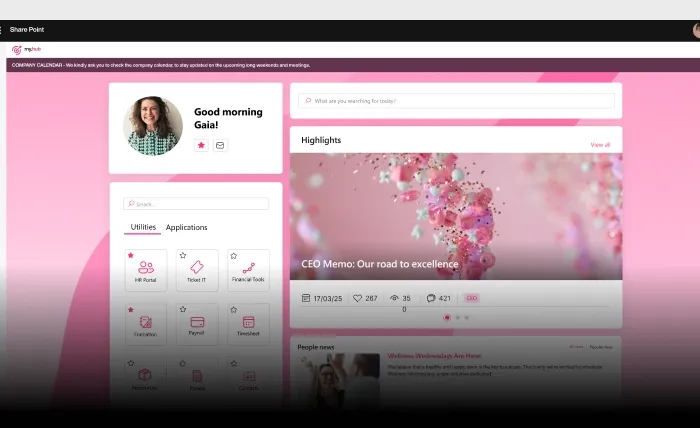
A banner pinned across every intranet page
The alert is shown as a banner that stays pinned on every page of the SharePoint intranet, following users as they navigate. This keeps a time-sensitive notice visible until it expires, so service communications and urgent updates reach people no matter where they land. Administrators can customize the banner's appearance with a hexadecimal color code, and each alert carries an expiration date after which the banner is automatically removed from the intranet.
Targeting and Teams notifications
Alerts can be sent to all employees or limited to specific audiences using Azure AD security groups, so each message reaches only the people it concerns. Beyond the on-page banner, the component integrates with Microsoft Teams push notifications to extend the message's reach: a notification can be triggered on a chosen date, or disabled entirely. On multilingual intranets, language tags let you publish the matching version of each alert to the right users.
Documentation
Explore the technical guide for this feature on our documentation site.
Frequently asked questions
How do administrators create and schedule an alert?
An administrator fills in a title and a message that supports formatting such as bold, italics, hyperlinks and bullet points. The alert goes live only when the "to publish" option is enabled; otherwise it stays a draft. You can set an optional publish date to schedule when the banner appears, and an expiration date that automatically removes it from the intranet.
Can I target an alert to specific people?
Yes. Using the destination groups field you can restrict an alert to one or more Azure AD security groups, so only those users see it. Leaving the field blank sends the alert to everyone across the SharePoint intranet.
Does the alert also notify users in Microsoft Teams?
Yes. The component integrates with Microsoft Teams push notifications. A Teams notification is sent based on a chosen notification date, which defaults to the publish date if not set. You can prevent the Teams alert at any time by enabling the option to disable the notification.
How many alerts can be active at once?
You can publish only one alert at a time. Publishing a new corporate message replaces the previous one, ensuring the banner always shows the single most relevant communication rather than competing notices.
Related features
The complete SharePoint intranet integrated with Microsoft 365, starting from 3,950 €/year.
- 80+ apps for communication, training, and knowledge sharing
- Compatible with Microsoft 365 and Microsoft Viva
- Operational within 24 hours from purchase, with 5 days of consulting