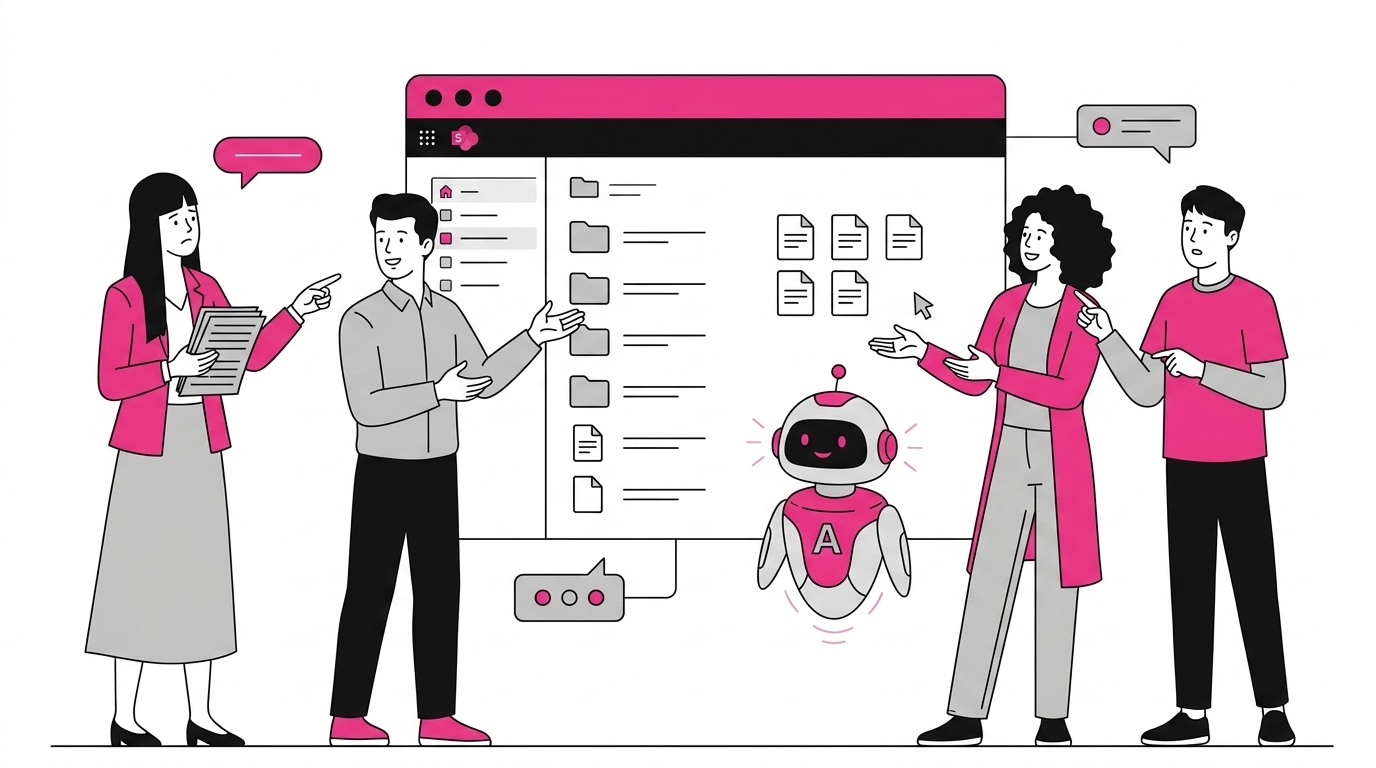
Agents in SharePoint are one of the clearest examples of how Microsoft is bringing generative AI directly into the everyday digital workplace, rather than keeping it in a separate chat window.
In short, an agent in SharePoint is a Copilot-powered assistant scoped to a specific piece of content, a site, a document library, or a hand-picked set of files. Instead of searching through folders, people ask a question in natural language and get an answer grounded in that content, complete with citations back to the original documents.
Microsoft now adds a default Site Agent to every SharePoint site, and anyone with Edit permissions can create custom agents tailored to a team, a project, or a knowledge base. In this article we will look at what these agents are, how the default one works, how to build your own, the most useful intranet scenarios, and the governance considerations you should plan for before rolling them out.
What you will find in this article
- What are agents in SharePoint?
- The default Site Agent on every site
- How to create a custom agent in SharePoint
- Real use cases for an intranet
- Limitations and governance considerations
- Agents and a managed intranet built on SharePoint
What are agents in SharePoint?
An agent in SharePoint is an AI assistant, powered by Microsoft Copilot, that is grounded in a specific scope of SharePoint content. That scope can be an entire site, a single document library, or a curated selection of files and folders. People interact with it in plain language, and it answers using only the content it has been pointed at, citing the source documents so answers can be verified.
The key idea is scoping. A general Copilot draws on everything you can access across Microsoft 365. A SharePoint agent is deliberately narrower: it focuses on the documents that matter for a given team or topic. That focus tends to make answers more relevant and easier to trust, because the agent is reasoning over a defined, curated set of files rather than the whole tenant.
Agents in SharePoint build on the same foundations as the rest of SharePoint Online. They use the content you already store in sites and libraries, they respect the permissions you already have in place, and they fit naturally into the wider AI Intranet experience Microsoft is building across Microsoft 365.
There are two ways agents appear in SharePoint. The first is the default Site Agent that Microsoft provisions automatically. The second is custom agents that users create and configure for a particular purpose. Let us look at each.
See intranet.ai in action
A ready-to-use intranet on SharePoint Online, live in days. Book a free demo with our team.
Book a demoThe default Site Agent on every site
Microsoft adds a default Site Agent to every SharePoint site automatically, so people can start asking questions about a site’s content without any setup. The Site Agent is scoped to that site. It can help users find documents, summarize pages, and answer questions about what lives on the site, all in natural language and with links back to the source.
Because it is provisioned out of the box, the Site Agent lowers the barrier to getting value from AI on your intranet. There is no flow to build and no configuration screen to learn first. A site member can open the agent, type a question like “where is the latest travel policy?”, and get a grounded answer pointing at the right file.
That said, the exact experience depends on your environment. Availability, the way the agent surfaces in the interface, and what it can do are influenced by your tenant configuration and Copilot licensing. Microsoft also gives administrators controls to manage these capabilities at the tenant and site level, so the default behavior you see may differ from another organization’s.
The Site Agent is a sensible starting point. It is the lowest-effort way to put an AI assistant in front of employees on a site they already use. When you need something more specialized, that is where custom agents come in.
How to create a custom agent in SharePoint
If you have Edit permissions on a SharePoint site, you can create a custom agent using the “Create an agent” command available in the site and document library interface. SharePoint then generates an agent that you can scope to the whole site, a specific library, or a chosen set of files and folders. When you save it, the agent is stored in the site as its own item that can be shared with people who have access to that content.
Creating an agent typically follows a few simple steps:
- Choose the scope. Point the agent at a site, a library, or a selection of files and folders that contain the knowledge you want it to use.
- Give it an identity. Add a clear name and description so people understand what the agent is for, such as “HR Policy Assistant” or “Onboarding Helper”.
- Add instructions and starter prompts. Guide the agent’s tone and behavior, and offer example questions so users know what they can ask.
- Save and share. The agent becomes available to the people who already have permission to the underlying content.
A useful detail is that custom agents are saved as files within the site, which makes them portable. You can keep an agent alongside the library it serves, copy it where it is useful, and manage it like other site content. For deeper or more complex needs, advanced makers can extend agents further using Microsoft Copilot Studio, though the in-product creation experience is designed so non-technical site owners can build something useful in minutes.
Once an agent exists, it becomes a natural complement to features such as advanced search, giving people both a way to browse and a way to simply ask.
Real use cases for an intranet
On a real intranet, scoped agents shine when they sit on top of well-organized content. The most valuable scenarios are usually the ones where employees ask the same questions repeatedly and the answers live in documents that are easy to define and keep current. Here are the patterns we see most often.
HR and policy assistant. Point an agent at the HR library so employees can ask about leave, expenses, benefits, or the latest policy version and get an answer with a citation, instead of emailing the HR team or hunting through folders.
Onboarding companion. Scope an agent to onboarding materials for a department. New hires can ask “what tools do I need for week one?” or “who approves my equipment request?” and get grounded, consistent guidance.
Project knowledge base. Give a project team an agent over their site so members can quickly recall decisions, find the latest specification, or summarize a long status document without opening every file.
IT and helpdesk self-service. An agent over an IT knowledge library can answer routine “how do I” questions, deflecting tickets and pointing users to the right procedure. This complements the kind of knowledge management practices that keep an intranet useful over time.
The common thread is curation. An agent is only as good as the content beneath it. When the source library is current, well-labeled, and properly permissioned, a scoped agent turns it into something employees can simply talk to.
Limitations and governance considerations
Agents in SharePoint are powerful, but they are not a substitute for sound information governance. The most important point is that agents respect existing permissions: an agent only returns content the person asking already has access to. This is reassuring, yet it also means an agent will surface poorly secured or over-shared content faster than manual browsing ever would, so cleaning up permissions is a prerequisite, not an afterthought.
A few practical considerations are worth planning for:
- Content quality drives answer quality. Outdated, duplicated, or unlabeled documents lead to confusing answers. Treat agents as a reason to tidy and curate your most-used libraries.
- Who can create agents. Because Edit permission is the gate for creating custom agents, decide which roles should have it, and use admin controls to manage agent creation across the tenant.
- Licensing and cost. Access to agents has been offered both through a Microsoft 365 Copilot license and through pay-as-you-go consumption billed via Azure. Terms change, so confirm the current model and budget for usage before a wide rollout.
- Scope discipline. Many narrow, well-named agents tend to outperform one giant catch-all agent, because a tight scope produces more focused answers.
Treating agents as part of a broader governance plan, rather than a quick toggle, is what separates a helpful rollout from a noisy one. Microsoft’s own admin documentation is the right reference for the controls available in your tenant.
Agents and a managed intranet built on SharePoint
Agents work best when the SharePoint foundation underneath them is already well structured, governed, and easy to navigate. That is exactly the gap a managed intranet aims to fill. A platform like intranet.ai, built natively on SharePoint and Microsoft 365, focuses on organizing content, permissions, and navigation so that AI features have clean, curated material to draw on.
In practice, the better your information architecture, the more reliable any agent becomes. Curated hubs, consistent metadata, a clear people directory, and a coherent search experience all give agents a stronger base to reason over. The AI does not replace good structure; it amplifies it. A messy intranet produces messy answers, while a tidy one lets agents deliver the quick, grounded responses employees expect.
So the relationship is complementary. Microsoft’s agents bring conversational access to content, and a well-managed SharePoint intranet brings the curation, governance, and design that make those conversations trustworthy. Investing in the foundation is what turns agents from a novelty into a daily-use part of the digital workplace.
Frequently asked questions
What are agents in SharePoint?
Agents in SharePoint are AI assistants powered by Microsoft Copilot that are scoped to specific SharePoint content, such as a site, a document library, or a set of selected files and folders. They let people ask questions in natural language and get answers grounded in that content, with citations back to the source documents. Microsoft provides a default Site Agent on every SharePoint site, and users with Edit permissions can also create custom agents.
What is the default Site Agent in SharePoint?
The Site Agent is an out-of-the-box agent that Microsoft adds automatically to every SharePoint site. It is scoped to the content of that site and can answer questions, summarize documents, and help people find information without any setup. Site members can open it directly from the site, while the experience and availability can depend on your tenant configuration and Copilot licensing.
How do I create a custom agent in SharePoint?
If you have Edit permissions on a SharePoint site, you can use the Create an agent command to build a custom agent scoped to that site, a library, or selected files and folders. SharePoint generates an agent file that you can configure with a name, description, sources, and starter prompts. Once saved, the agent lives in the site and can be shared with the people who have access to its content.
Do I need a Microsoft 365 Copilot license to use SharePoint agents?
Licensing for SharePoint agents has evolved over time and depends on your tenant setup. Microsoft has offered ways to use agents both with a Microsoft 365 Copilot license and through pay-as-you-go metered consumption billed via Azure. Because the exact terms change, check current Microsoft licensing documentation and your admin settings before rolling agents out broadly across your organization.
Can SharePoint agents see content a user is not allowed to access?
No. SharePoint agents respect existing SharePoint and Microsoft 365 permissions. An agent only returns information from content that the person asking the question already has permission to view. This means good information governance, accurate permissions, and tidy site structures are essential, because an agent can surface poorly secured content faster than manual browsing would.
What are the main limitations of SharePoint agents?
SharePoint agents are scoped to the content you point them at, so answer quality depends on how well that content is structured, current, and labeled. They are not a full replacement for a governed intranet search or a curated knowledge base. Other considerations include licensing and consumption costs, admin controls for who can create agents, and the need to keep source documents accurate so answers stay trustworthy.